

When leave is approved in Leave Dates, create a Google Calendar event and alert the manager in Slack
When a leave request is approved in Leave Dates, this workflow adds the time off to a Google Calendar and posts a message in a Slack channel, so the manager and team can see who is away and when.
 Leave Dates
 Google Calendar
 Slack
Slack3 steps Setup ~5 min Used on 2.6k sites Free to import
What this workflow does
Approved time off often stays inside the HR tool, so teammates find out someone is away only when they try to reach them. Putting it on a shared calendar and in Slack gives everyone the dates in places they already look. This workflow does both when leave is approved.
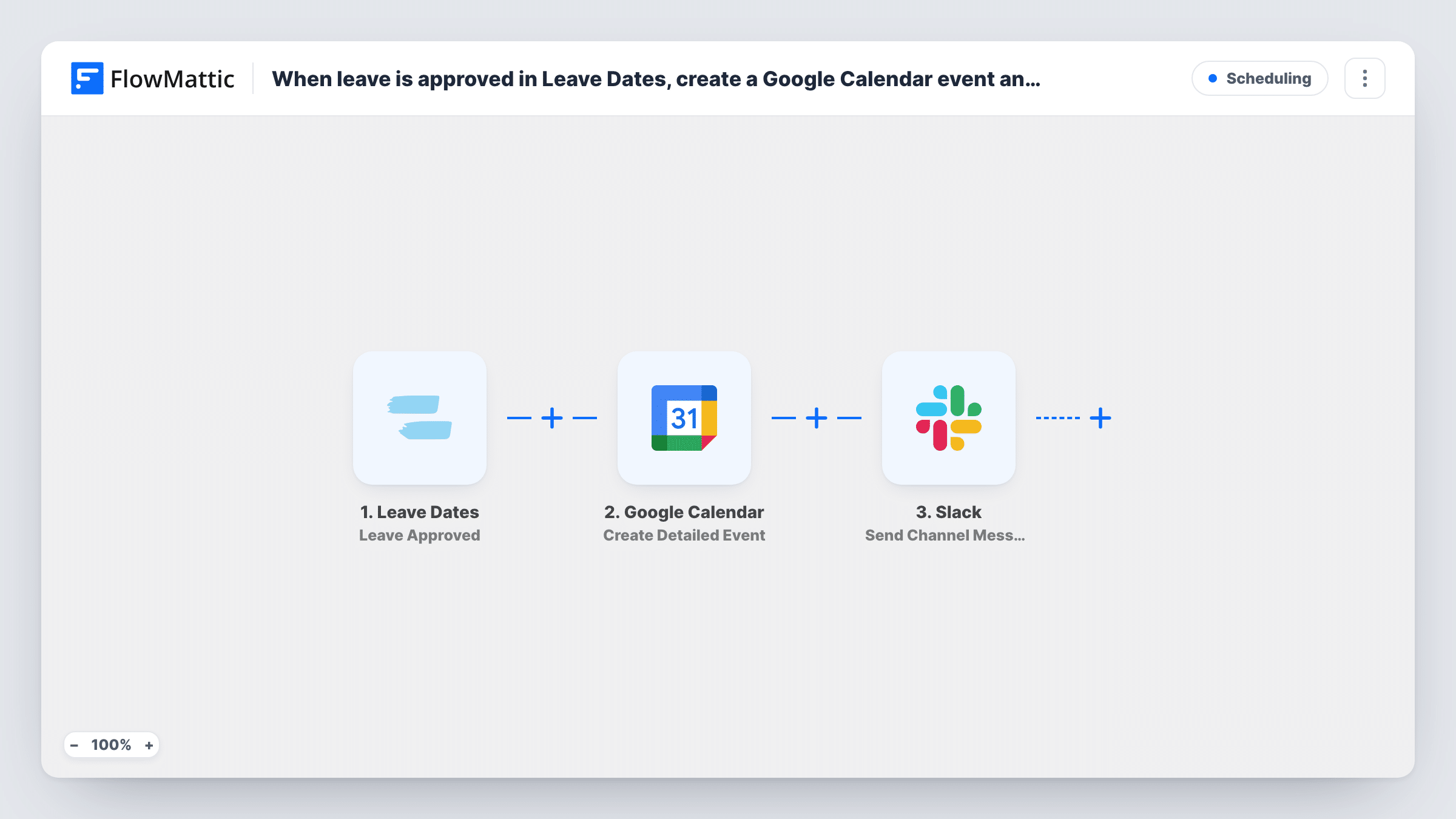
The Leave Dates trigger, Leave Approved, fires when a leave request is approved. Requests that are pending or rejected don't start it. The Google Calendar step, Create Detailed Event, adds an event to the calendar you choose, using the employee's name and the leave dates you map.
The Slack step, Send Channel Message, then posts to the channel you pick, such as one the manager watches. For one person rather than a channel, use Slack's Send Direct Message action instead. If leave is later cancelled, the calendar event and message stay as they are, because no step removes them.
Shared team-absence calendar
Every approved holiday appears on one Google Calendar the whole team subscribes to, so people plan meetings around who is away.
Manager channel for a support team
The support lead sees a Slack post for each approved leave and can rearrange the rota before the dates arrive.
Small agency without an HR team
The founder approves leave in Leave Dates, and both the calendar and Slack update without anyone copying the dates across.
How this workflow runs
What happens at each step once the workflow is on, and what you need before you import it.
 Leave Dates Leave Approved
Starts each time a manager approves a leave request in Leave Dates. The employee's details and the leave dates are passed on to the calendar and Slack steps.
- Google Calendar Create Detailed Event
Creates an event in the Google Calendar you choose from the Leave Dates values you map. Check a test approval to confirm whole-day and multi-day leave shows the right dates.
- Slack Send Channel Message
Posts a message in the Slack channel you pick, with the employee name and dates mapped in. Connect your Slack workspace on import and write the text your manager should see.
What you need
- FlowMatticCore
- Leave Dates AccountAccount
- Google Calendar AccountAccount
- Slack AccountAccount
After importing, map your own data. To keep the template universal, not every step is pre-filled. Open each step in the builder and connect your accounts and fields (channels, lists, sheets, recipients) before you switch the workflow on.
Make it yours
Changes worth making after you import it.
- Send the alert with Slack's Send Direct Message action instead of a channel post if only the manager should hear about each approval.
- Build a second workflow on Leave Dates' Leave Canceled trigger that posts to the same Slack channel, so the team also hears when time off is called off.
- Put the leave type, such as holiday or sick leave, in the event title if your Leave Dates data includes it, so the calendar shows why each person is away.
Questions about this workflow
Does a cancelled Leave Dates request remove the calendar event?
No. This workflow only acts on approvals. Remove the event by hand, or add a separate workflow on Leave Dates' Leave Canceled trigger.
Can the Slack alert go privately to the employee's manager?
The template posts in a channel. Swap in Send Direct Message to reach one person, or Send Private Channel Message for a private channel.
Which Google Calendar gets the leave events?
The calendar you select in the Create Detailed Event step. Pick a shared team calendar if everyone should see approved leave.
Does multi-day leave show as one calendar event?
Yes. Each approval runs Create Detailed Event once, using the start and end dates you map from Leave Dates. Approve a multi-day test request and check that the event spans every day off.
More Scheduling workflows
Other ready-to-import templates from the same category.





Import this workflow into your WordPress site
Download the JSON, import it from the Workflows screen and connect your accounts. Every run stays on your server, with no per-task fees.
30-day money-back guarantee Unlimited workflows and runs Self-hosted