

When new booking is received in Probooking, get WordPress user by email and update data for the user ID in custom table
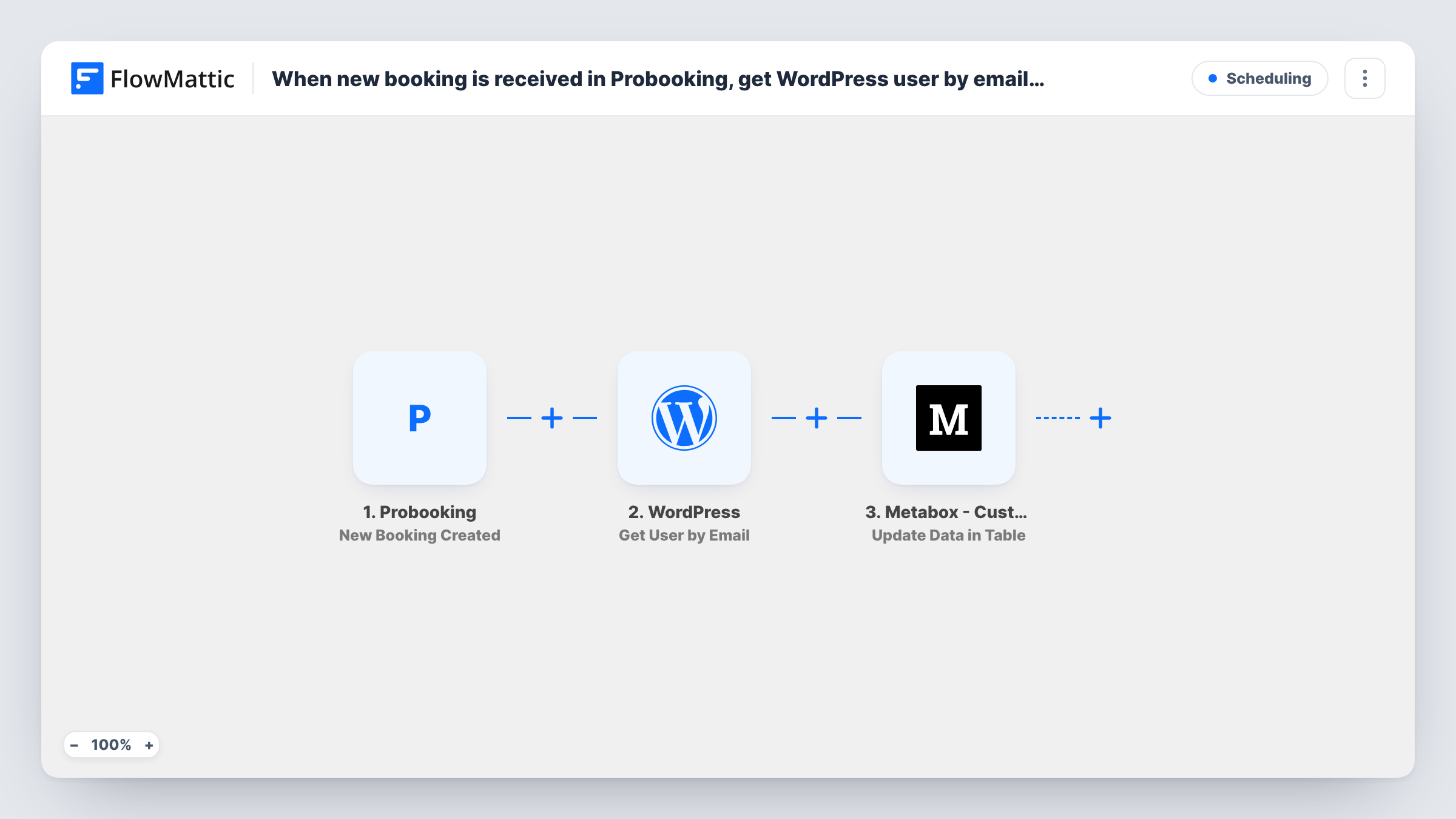
When a new booking arrives in Probooking, this workflow finds the WordPress user with the customer’s email and writes booking details to that user’s data in a Meta Box custom table.
 Probooking
 WordPress
 Metabox - Custom Table
3 steps Setup ~5 min Used on 796 sites Free to import
What this workflow does
If your site keeps extra member data in a Meta Box custom table, bookings made in Probooking don't reach it on their own. You end up copying the latest appointment date or service onto each member's record by hand. This workflow links a booking to the right WordPress user and updates their custom table data.
The Probooking trigger fires when a new booking is created. FlowMattic takes the customer's email from the booking and passes it to WordPress Get User by Email, which returns that user's profile, including the user ID. The last step, Metabox - Custom Table Update Data in Table, updates the data for that object, the user, with the booking values you map.
The flow depends on the booking email matching a WordPress account. If no user has that address, the lookup returns nothing, and the update step still runs without a user ID, so Task History will show an error or an empty result there. Test with a booking made under a known member's email first.
Membership sites that sell sessions
Members book coaching calls through Probooking. Their custom table row keeps the latest booking date, so your member dashboard can show it.
Clinics with patient profiles
Patients have WordPress accounts with extra fields in a custom table. Each new appointment updates the profile with the date and service booked.
Training providers tracking attendance
Learners book practical sessions in Probooking. The custom table holds their next session, which staff read from the WordPress side.
How this workflow runs
What happens at each step once the workflow is on, and what you need before you import it.
 Probooking New Booking Created
Fires when a new booking is created in Probooking. The booking details, including the customer's email where Probooking sends it, are passed to the next steps.
- WordPress Get User by Email
Looks up the WordPress user whose email matches the booking. Map the booking email here. The step returns that user's profile, and the user ID it holds is what the next step needs.
- Metabox - Custom Table Update Data in Table
Updates the data stored for the user in your Meta Box custom table. Map the user ID from the lookup as the object, then map the booking values to the table's columns.
What you need
- FlowMatticCore
- Probooking AccountAccount
- Metabox - Custom Table AccountAccount
After importing, map your own data. To keep the template universal, not every step is pre-filled. Open each step in the builder and connect your accounts and fields (channels, lists, sheets, recipients) before you switch the workflow on.
Make it yours
Changes worth making after you import it.
- Add a Filter after Get User by Email that continues only when the user ID is not empty, so bookings from people without an account stop before the update.
- Metabox - Custom Table also has a Row Exists action. Put it before the update if some users may not have a row yet, and check its result with a Filter.
- Book a test appointment with an email that belongs to a real user, then read Task History to confirm the right row changed.
Questions about this workflow
What if the Probooking customer has no WordPress account?
Get User by Email finds nothing, and the custom table update has no user ID to work with. You can read what each step returned for that booking in Task History. Add a Filter on the user ID if you want those runs to stop cleanly.
Does this create a row in the Meta Box custom table for new users?
This template uses Update Data in Table, which changes data for an existing object. If a user has no row, add the Row Exists check, or use Add Data to Table for those users.
Do rescheduled or cancelled Probooking bookings update the table?
No. The trigger is New Booking Created only. Probooking also has Booking Rescheduled and Booking Cancelled triggers in FlowMattic for separate workflows.
Do I need Meta Box installed for this Probooking workflow?
Yes. The custom table step works with Meta Box's custom table feature on the same WordPress site as FlowMattic, and the table must already exist.
More Scheduling workflows
Other ready-to-import templates from the same category.






Import this workflow into your WordPress site
Download the JSON, import it from the Workflows screen and connect your accounts. Every run stays on your server, with no per-task fees.
30-day money-back guarantee Unlimited workflows and runs Self-hosted