

Send a Slack alert to the team for each new Exly booking received
Each time a new booking is received in Exly, this workflow posts a message to your team’s Slack channel, so everyone sees who booked and can get ready without opening Exly.
 Exly
 Slack
2 steps Setup ~5 min Used on 2.2k sites Free to import
What this workflow does
Creators and coaches who sell sessions, courses or workshops on Exly often have a small team behind them: an assistant who sends prep material, a co-host, someone who handles support. They all need to know when a booking comes in. This workflow gives each new Exly booking its own Slack post.
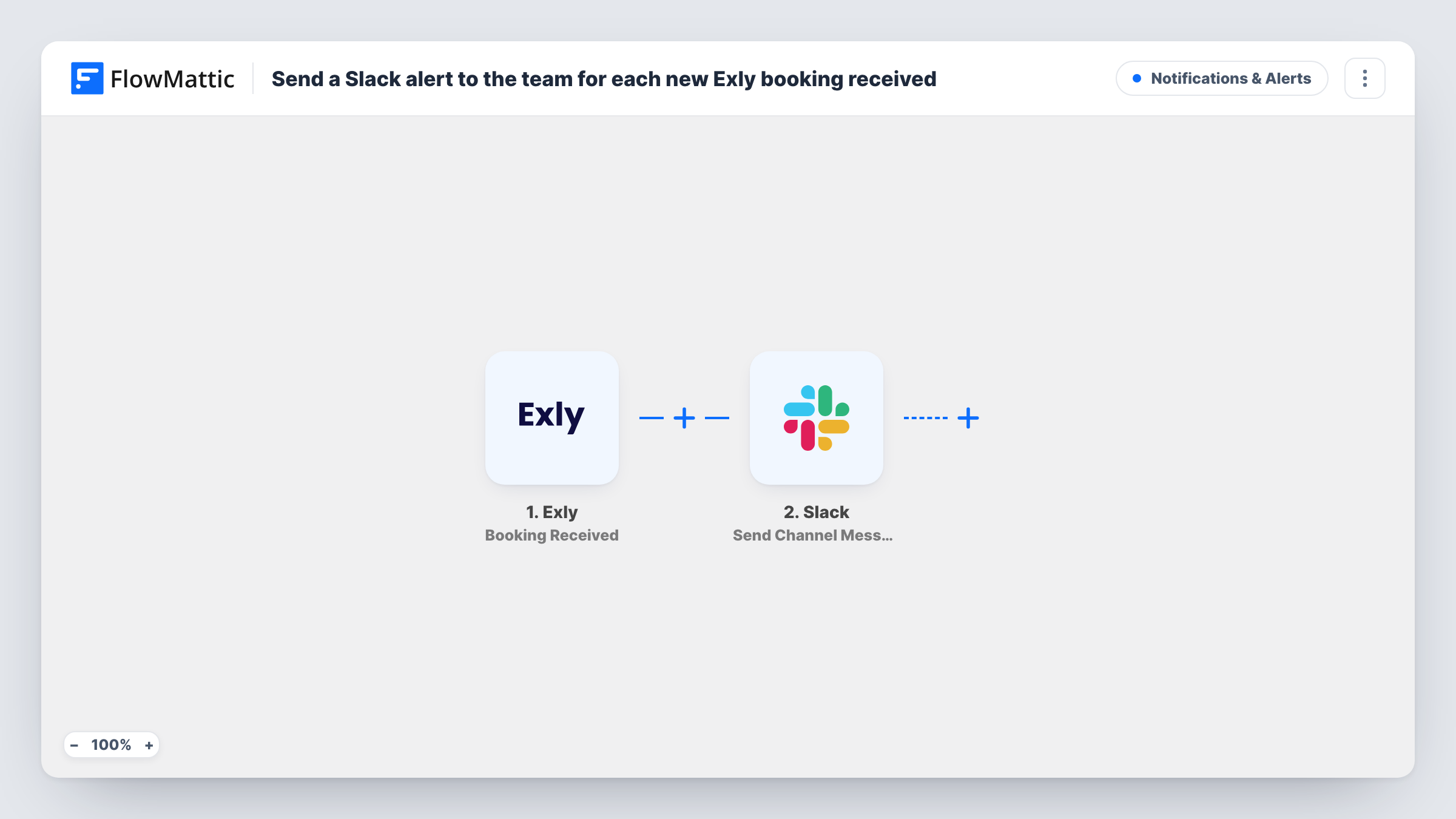
A run starts through the Booking Received trigger in Exly each time someone books one of your offerings. The booking details become values you can map. The Slack step uses Send Channel Message to post in the #channel you choose, with a message you write from those details.
Every booking sends one message, and nothing in Exly changes. If you sell several offerings and only some need a team heads-up, a Filter after the trigger can narrow it down. Task History lists each run with the Exly data and Slack's reply.
Fitness coach with an assistant
Each new class booking posts to #bookings, and the assistant sends the joining details and checks the session isn't overbooked.
Workshop host with a co-presenter
Both hosts see each workshop registration in Slack, so they know how many people to expect.
Consultant tracking one-to-one calls
New consultation bookings show up in a #consults channel, giving the consultant one place to see the week filling up.
How this workflow runs
What happens at each step once the workflow is on, and what you need before you import it.
 Exly Booking Received
Fires when a new booking is received in Exly. Connect your Exly account; the booking's details are then available for the Slack message.
- Slack Send Channel Message
Posts the booking alert to the Slack #channel of your choice. Connect Slack, choose the channel and write the message from the Exly booking values.
What you need
- FlowMatticCore
- Exly AccountAccount
- Slack AccountAccount
After importing, map your own data. To keep the template universal, not every step is pre-filled. Open each step in the builder and connect your accounts and fields (channels, lists, sheets, recipients) before you switch the workflow on.
Make it yours
Changes worth making after you import it.
- Only some offerings need a team alert? Add a Filter after the trigger on a value that names the offering, if a test booking shows one.
- For a private Slack channel, swap in the Send Private Channel Message action, since Send Channel Message is for regular channels.
- Add a Google Sheets Add New Row step after Slack to keep a running list of Exly bookings you can total each month.
Questions about this workflow
Does every Exly booking post to Slack?
Yes. There is no Filter in the template, so each booking Exly reports starts one run and one Slack message.
What Exly booking details can the Slack message include?
Whatever Exly sends with the booking event. Make a test booking after import and check the captured values in FlowMattic before writing the message.
Will older Exly bookings be posted?
No. Only bookings received after the workflow is turned on start a run.
More Notifications & Alerts workflows
Other ready-to-import templates from the same category.



Import this workflow into your WordPress site
Download the JSON, import it from the Workflows screen and connect your accounts. Every run stays on your server, with no per-task fees.
30-day money-back guarantee Unlimited workflows and runs Self-hosted