

Send a Slack alert to the team when a new Gumroad sale comes in
Each new Gumroad sale triggers a message in the Slack channel you choose, so your team sees what sold and to whom without refreshing the Gumroad dashboard.
 Gumroad
 Slack
2 steps Setup ~5 min Used on 1.1k sites Free to import
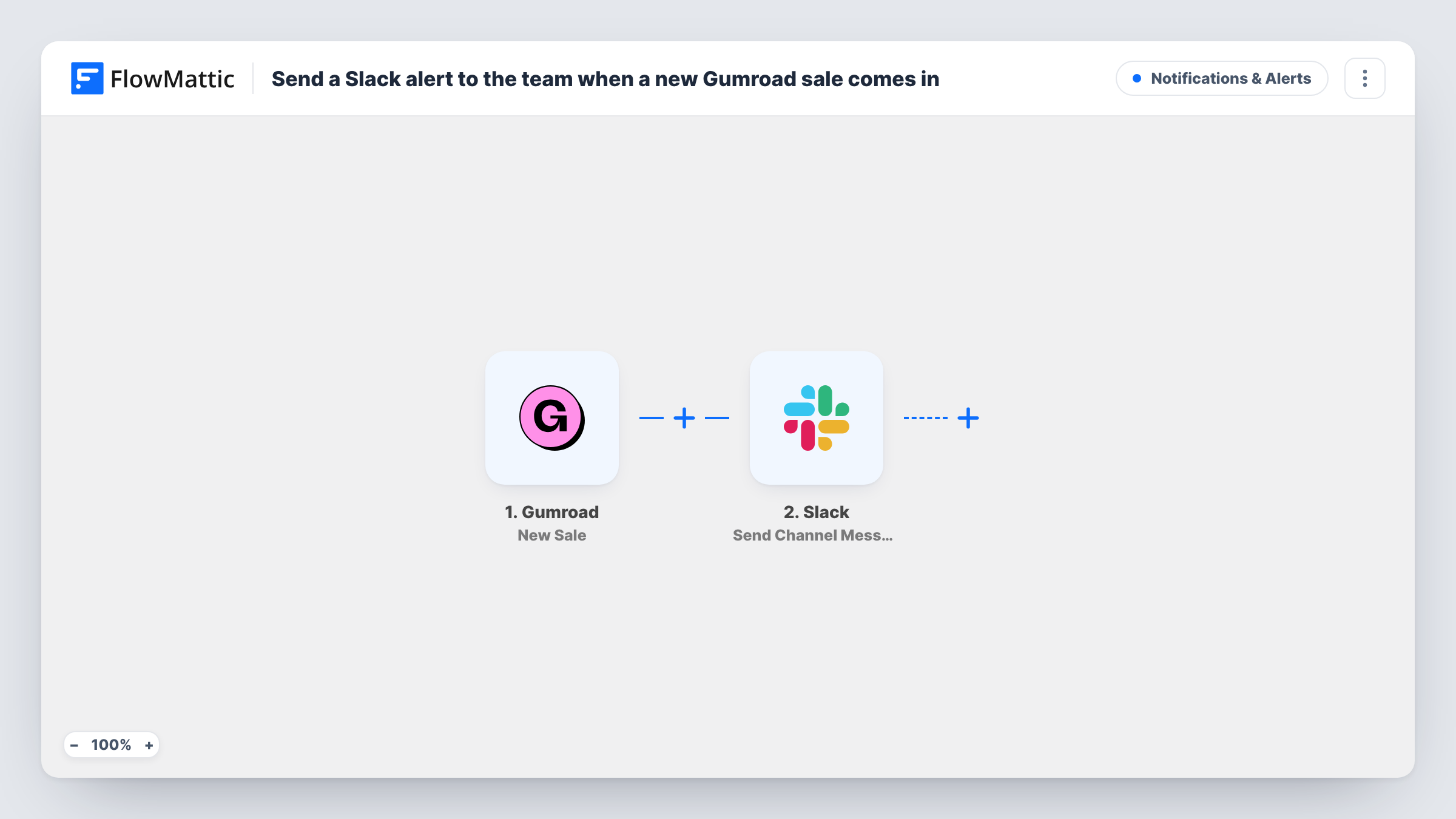
What this workflow does
When you sell on Gumroad as a team, people keep opening the dashboard to see whether anything sold. A message in Slack puts each sale where everyone already talks. This workflow posts one for every new sale.
Each New Sale event from Gumroad starts a run. FlowMattic receives the sale data from Gumroad and passes it to Slack. The Send Channel Message action posts the text you write in the channel you pick, and you can place Gumroad values in that text, such as the product name and price.
Every sale produces a message, so a busy launch can make the channel noisy. A dedicated sales channel helps, or a Filter that limits which sales are announced. Task History holds each run if a message seems to be missing.
Launch day for a digital product
The whole team watches a Slack sales channel fill up as Gumroad orders come in during a launch.
Spotting first sales of a new listing
When you add a product on Gumroad, the Slack message tells you as soon as anyone buys it.
Creator collectives sharing a storefront
Several creators sell through one Gumroad account. Each Slack post names the product, so everyone sees which of their items sold.
How this workflow runs
What happens at each step once the workflow is on, and what you need before you import it.
 Gumroad New Sale
Runs every time a sale happens in your Gumroad account. The details of that sale are available to insert into the Slack message.
- Slack Send Channel Message
Posts a message in the Slack channel you select. Write the text and insert Gumroad sale values, then connect your Slack workspace.
What you need
- FlowMatticCore
- Gumroad AccountAccount
- Slack AccountAccount
After importing, map your own data. To keep the template universal, not every step is pre-filled. Open each step in the builder and connect your accounts and fields (channels, lists, sheets, recipients) before you switch the workflow on.
Make it yours
Changes worth making after you import it.
- Add a Filter after the trigger if only certain Gumroad products, or sales above a set price, should be announced in Slack.
- Create a dedicated Slack channel for sales so the alerts don't bury other conversations.
- Add a Google Sheets step after the Slack message to keep a record of each sale as well as the alert.
Questions about this workflow
Which Gumroad details can appear in the Slack message?
Whatever Gumroad includes in the sale data. Once the first sale is captured, those values show up for insertion in the Slack message field.
Can the Gumroad alert go to more than one Slack channel?
Yes. Add a second Send Channel Message step and point it at another channel.
Are earlier Gumroad sales posted in Slack when I turn this on?
No. Only sales made after the workflow is switched on create Slack messages.
More Notifications & Alerts workflows
Other ready-to-import templates from the same category.




Import this workflow into your WordPress site
Download the JSON, import it from the Workflows screen and connect your accounts. Every run stays on your server, with no per-task fees.
30-day money-back guarantee Unlimited workflows and runs Self-hosted