

Send a Slack alert when a Benchmark Email subscriber unsubscribes
When an email address unsubscribes in Benchmark Email, this workflow posts a message to the Slack channel you choose, so your team hears about opt-outs as they happen.
 Benchmark Email
 Slack
2 steps Setup ~5 min Used on 2.8k sites Free to import
What this workflow does
Unsubscribes tell you something about your campaigns, but they are easy to miss when they only show up in a Benchmark Email report. If your team talks in Slack, a short message there puts each opt-out in front of the people who plan your emails.
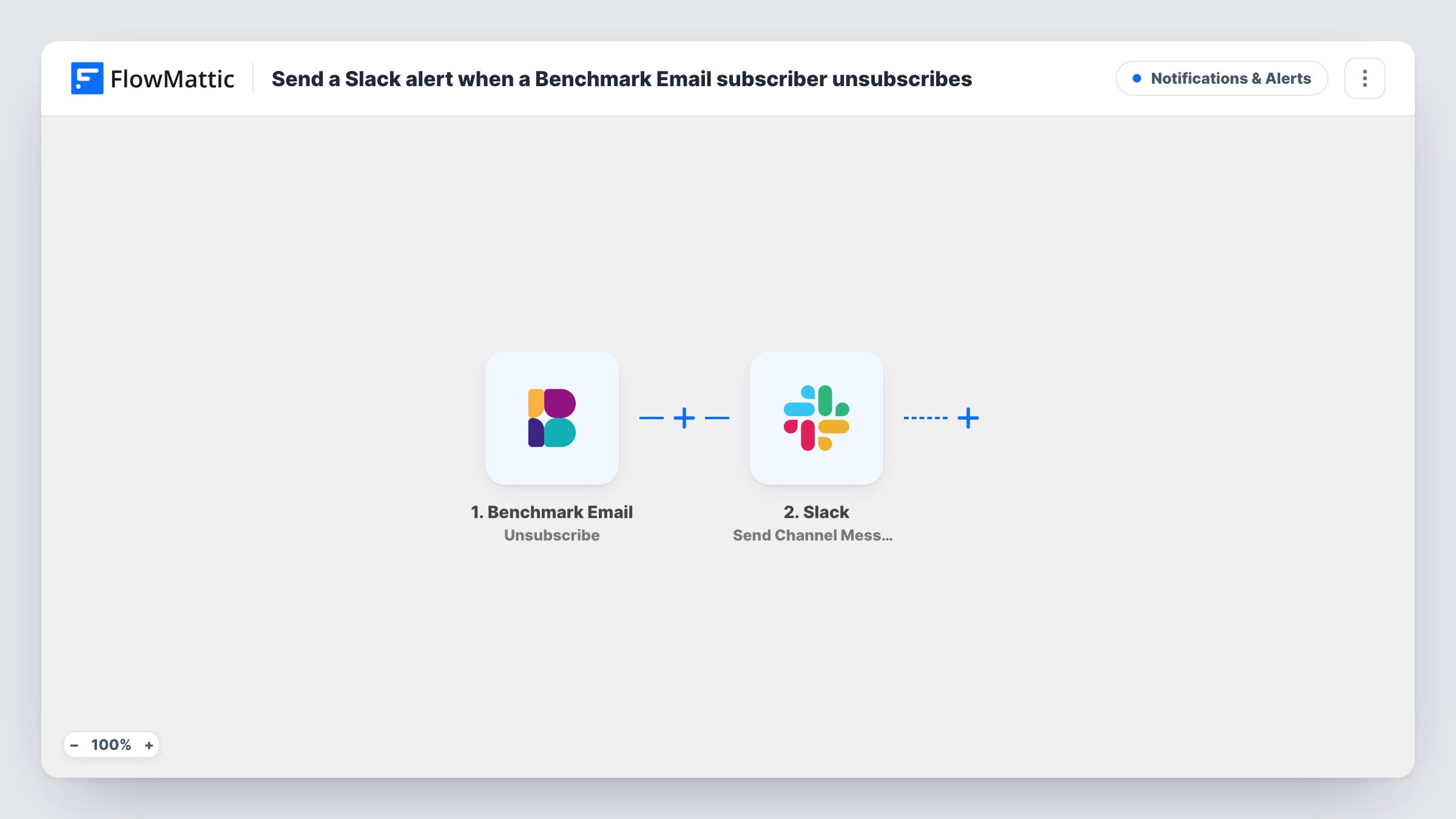
The Benchmark Email trigger fires when an email address unsubscribes. FlowMattic receives the details Benchmark sends about that unsubscribe and passes them to Slack. The Send Channel Message action then posts to the channel you pick, using whatever text and mapped values you write into the message.
Every unsubscribe Benchmark reports produces one post, as nothing in the flow filters them. The workflow doesn't change the subscriber in Benchmark. It only tells your team about the opt-out.
Watching churn after a campaign goes out
You send a big promotion from Benchmark Email. The marketing channel in Slack shows each unsubscribe as it comes in, so you can see the reaction during the day.
Account managers watching key clients
When a contact at a client company leaves your list, the account manager sees the Slack post and can check in with them before the relationship goes quiet.
A shared record of opt-outs
A dedicated Slack channel builds up a running history of who unsubscribed and when, which anyone on the team can scroll back through.
How this workflow runs
What happens at each step once the workflow is on, and what you need before you import it.
 Benchmark Email Unsubscribe
Fires when an email address unsubscribes in your Benchmark Email account. The details Benchmark sends about it are available to map into the Slack message.
- Slack Send Channel Message
Sends a post about the opt-out into a Slack channel of your choice. Write the text and add the subscriber's email or other values from the trigger, then connect your Slack workspace.
What you need
- FlowMatticCore
- Benchmark Email AccountAccount
- Slack AccountAccount
After importing, map your own data. To keep the template universal, not every step is pre-filled. Open each step in the builder and connect your accounts and fields (channels, lists, sheets, recipients) before you switch the workflow on.
Make it yours
Changes worth making after you import it.
- Unsubscribe a test address of your own in Benchmark after import. The run captures real data, so you can see which values Benchmark sends before you build the Slack message.
- For a private Slack channel, use the Send Private Channel Message action instead. For a note to one person, swap in Send Direct Message.
- Add a Google Sheets Add New Row step after Slack if you also want each opt-out logged in a spreadsheet you can count and sort.
Questions about this workflow
Does this workflow unsubscribe anyone in Benchmark Email?
No. Benchmark handles the unsubscribe itself. The workflow reacts after it happens and only posts a Slack message about it.
Will the Slack post show the subscriber's email address?
Only if you map it into the message and Benchmark includes it in the unsubscribe data. Run a test to see the values it sends.
Can I get alerts for other Benchmark Email events too?
Benchmark Email also has Subscriber Added, Existing Email Changed, Email Cleaned and Profile Changed triggers in FlowMattic. Each one needs its own workflow.
Can the Benchmark unsubscribe alert go to a private Slack channel?
The imported step posts to regular channels. For a private one, swap the step for Slack's Send Private Channel Message action and select that channel in its settings.
More Notifications & Alerts workflows
Other ready-to-import templates from the same category.




Import this workflow into your WordPress site
Download the JSON, import it from the Workflows screen and connect your accounts. Every run stays on your server, with no per-task fees.
30-day money-back guarantee Unlimited workflows and runs Self-hosted