

Send a Slack alert when a new BrowserStack build is created
When BrowserStack creates a new build, this workflow posts a message in the Slack channel you pick, so your QA and development team know a test run has started.
 BrowserStack
 Slack
2 steps Setup ~5 min Used on 2.1k sites Free to import
What this workflow does
Test builds start from CI pipelines, scheduled jobs and developers' machines, and not everyone sees them begin. When a build starts unnoticed, people wait on results that are already running, or kick off a duplicate. A Slack message for each build gives the team one place to see test activity.
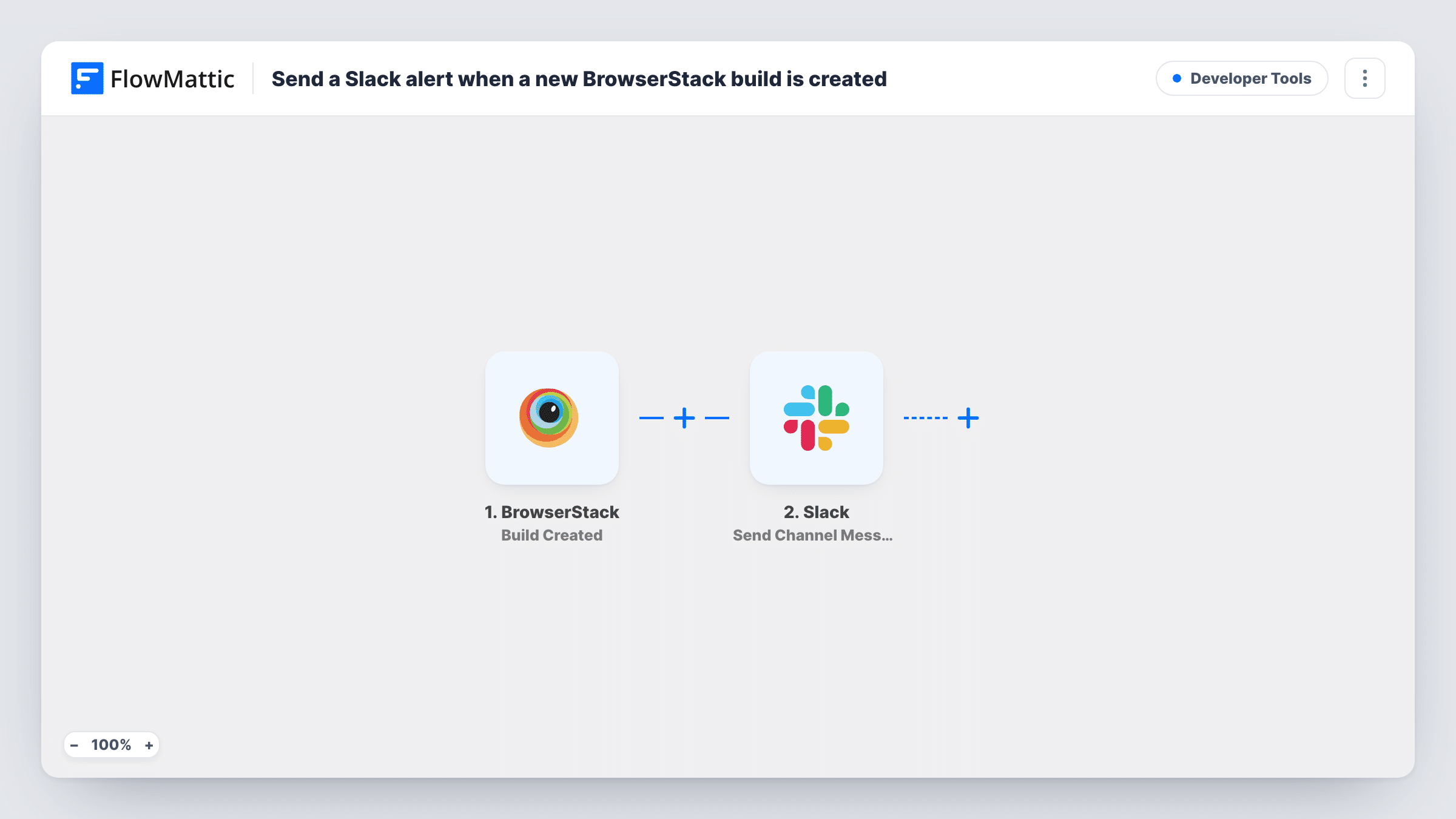
The BrowserStack trigger, Build Created, fires when a build has been created in your account. The build data in that event is available to map. FlowMattic then posts a message to a channel in Slack with the Send Channel Message action, using text you write with build details inserted.
This flow announces the start of a build only. It doesn't wait for results or report pass and fail. Every new build posts one message, so a busy pipeline can make the channel noisy. A dedicated channel, or a Filter on a value such as the project name, keeps it manageable.
QA channel for a release week
During release testing, the QA channel shows each new BrowserStack build as it starts, so testers know when to look at the dashboard.
Spotting builds started by mistake
A lead developer watches the channel and notices builds started from the wrong branch, before they use up testing time.
Agency testing for several clients
Builds for each client project are announced in Slack, and the account team can tell clients when testing on their site has begun.
How this workflow runs
What happens at each step once the workflow is on, and what you need before you import it.
 BrowserStack Build Created
Fires when a new build is created in your BrowserStack account. The build's details from the event can be inserted into the Slack message.
- Slack Send Channel Message
Posts your build announcement to the Slack channel you pick. Write the text, add build details from the BrowserStack event, and connect your Slack workspace on import.
What you need
- FlowMatticCore
- BrowserStack AccountAccount
- Slack AccountAccount
After importing, map your own data. To keep the template universal, not every step is pre-filled. Open each step in the builder and connect your accounts and fields (channels, lists, sheets, recipients) before you switch the workflow on.
Make it yours
Changes worth making after you import it.
- Start a short test build after import so FlowMattic captures a real Build Created event, then see which build values you can use in the message.
- Add a Filter after the trigger on the project or build name if only some builds should be announced.
- For results as well as starts, build a second workflow on BrowserStack's Build Finished trigger and post its message to the same channel.
Questions about this workflow
Does the Slack message show BrowserStack test results?
No. Build Created fires when the build starts, before results exist. The message can only include details known at that point.
Will every BrowserStack build post to Slack?
Yes, as imported. Each Build Created event produces one message, whatever started the build.
Can the BrowserStack alert go to a private Slack channel?
Send Channel Message is meant for regular channels. Slack's Send Private Channel Message action is the one to switch to if the alerts belong in a private channel.
Does this need changes to my CI pipeline?
No. The trigger reacts to builds created in BrowserStack, however they were started. Connect your BrowserStack account in the trigger on import.
More Developer Tools workflows
Other ready-to-import templates from the same category.





Import this workflow into your WordPress site
Download the JSON, import it from the Workflows screen and connect your accounts. Every run stays on your server, with no per-task fees.
30-day money-back guarantee Unlimited workflows and runs Self-hosted