

Send a Slack alert when a new OfficeRnD booking is created
Each new booking added in OfficeRnD posts an alert to a Slack channel, so front desk and community staff see meeting room and desk bookings without watching the OfficeRnD calendar.
 OfficeRnD
 Slack
2 steps Setup ~5 min Used on 2.8k sites Free to import
What this workflow does
In a coworking space or flexible office, a new booking often means work for someone: a room to set up, a guest to expect, a screen to test. Staff who live in Slack don't always notice when a booking lands in OfficeRnD. This workflow posts each new booking to a Slack channel your team already reads.
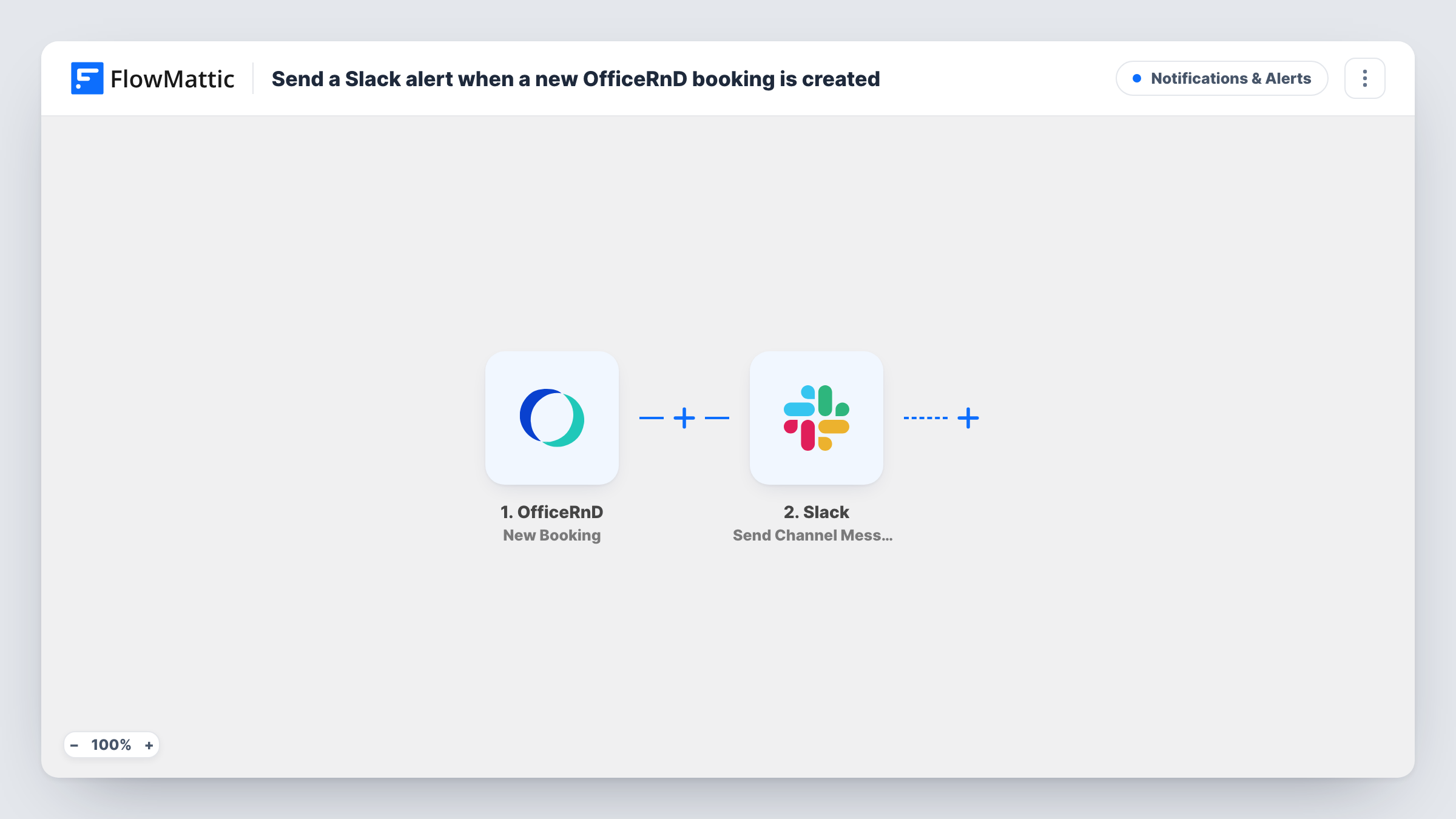
The OfficeRnD trigger fires when a new booking is added. The booking values in that event, such as the resource and time, become data you can map. The Slack step then runs Send Channel Message, posting the text you write to the channel you choose.
Every new booking produces one message, whichever room or desk it is for. Changes to an existing booking are not part of this trigger, which reacts to bookings being added. Check with a test booking which values OfficeRnD sends before you write the message, and use Task History to see each run.
Front desk room prep
The front desk team watches a #bookings channel and sets up the meeting room, water and screen once the alert shows who booked it and when.
Community manager awareness
A community manager sees in Slack which members book rooms, which helps when greeting people and planning events in the space.
Multi-location office team
Staff across several sites read one Slack channel, and the location in each message tells them which building the new OfficeRnD booking is for.
How this workflow runs
What happens at each step once the workflow is on, and what you need before you import it.
 OfficeRnD New Booking
Fires when a new booking is added in OfficeRnD. The booking's values are passed to the Slack step; book a test slot to see which ones arrive.
- Slack Send Channel Message
Posts a message to the Slack channel you pick with the booking details you map, such as the room, start time and member. You link your Slack workspace when you import the template.
What you need
- FlowMatticCore
- OfficeRnD AccountAccount
- Slack AccountAccount
After importing, map your own data. To keep the template universal, not every step is pre-filled. Open each step in the builder and connect your accounts and fields (channels, lists, sheets, recipients) before you switch the workflow on.
Make it yours
Changes worth making after you import it.
- Add a Filter after the OfficeRnD trigger on the resource or location value so only bookings for one site or one room type reach this channel.
- For a private Slack channel, switch the step to Slack's Send Private Channel Message action. To alert one staff member, use Send Direct Message instead.
- Put the booking start time and room name at the start of the Slack text so they show in the notification preview.
Questions about this workflow
Does the Slack alert fire when an OfficeRnD booking is changed?
No. The New Booking trigger fires when a booking is added. Edits and cancellations to existing bookings don't start this workflow.
Can the OfficeRnD booking alert go to a private Slack channel?
Don't count on Send Channel Message for that. For a private channel, use Slack's Send Private Channel Message action in its place and test that the message arrives.
Will every OfficeRnD booking post a message?
Yes, as imported. There is no Filter, so each new booking adds one Slack message, whatever the room or desk.
More Notifications & Alerts workflows
Other ready-to-import templates from the same category.



Import this workflow into your WordPress site
Download the JSON, import it from the Workflows screen and connect your accounts. Every run stays on your server, with no per-task fees.
30-day money-back guarantee Unlimited workflows and runs Self-hosted