

When a task is created in Workast, send a notification to a Slack channel
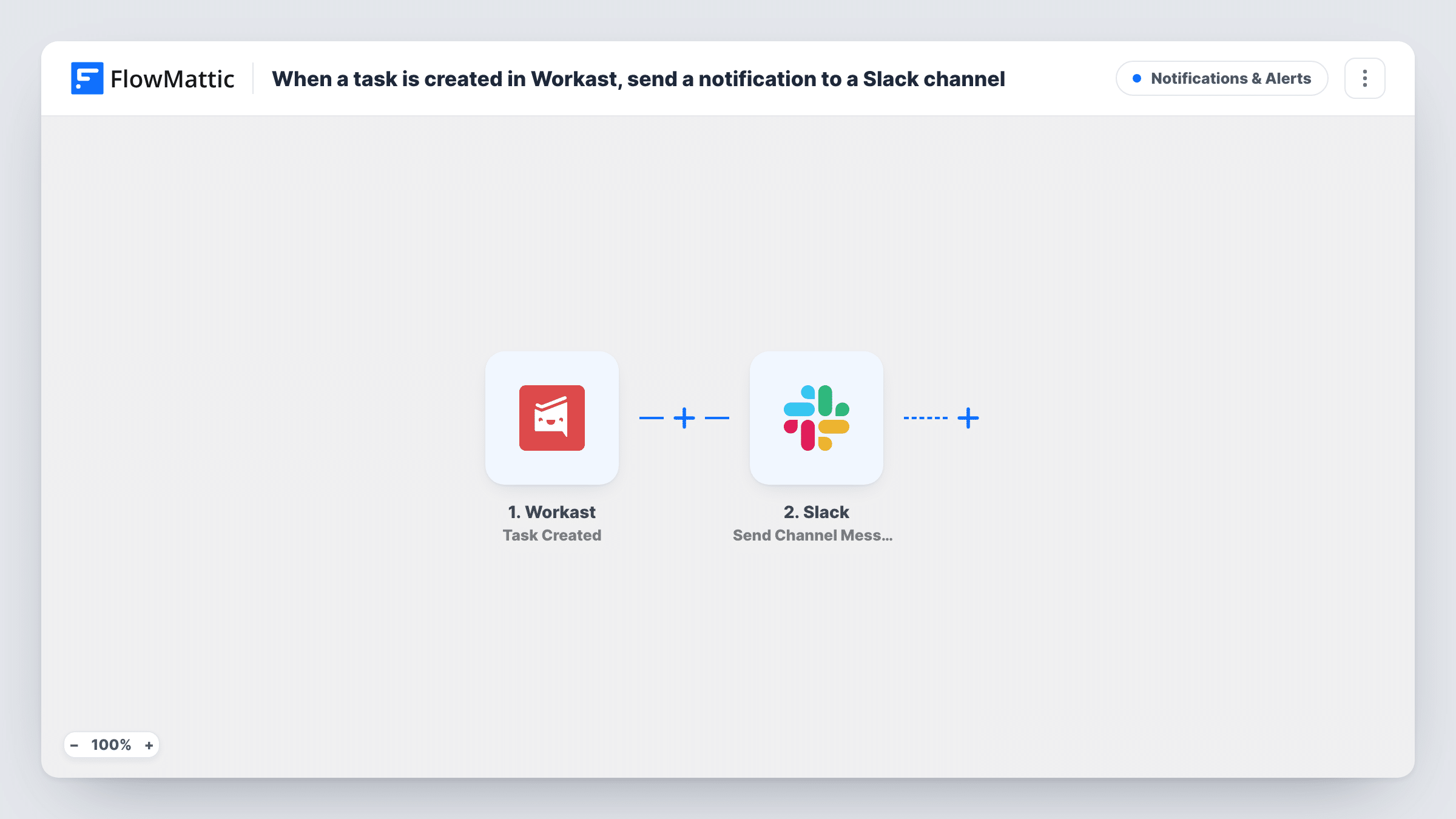
Every time a task is created in Workast, this workflow posts a notification to a Slack channel you choose, so the team sees new work in the channel where they already talk about it.
 Workast
 Slack
2 steps Setup ~5 min Used on 2.0k sites Free to import
What this workflow does
Tasks pile up quietly when nobody announces them. A teammate adds work in Workast, and the people who should pick it up don't notice until a deadline is close. This workflow sends a Slack channel message for every new Workast task.
The Workast trigger fires when a task is created and passes the task details to FlowMattic. The Slack step then puts a notification in the channel you pick. You decide the wording and map in the task details your team needs, using a test task to see what Workast sends.
Only new tasks start a run. Workast also has FlowMattic triggers for updated and completed tasks, which you can use in separate workflows. As imported, there is no Filter, so every created task posts one message. In a busy workspace that can be a lot, and the tips show how to narrow it.
Ops team intake channel
Requests logged as Workast tasks post to an ops channel, so whoever is free can claim the next one.
Agency client work
Account managers add client tasks in Workast. The production channel sees each new task and can ask questions before work starts.
Manager oversight across spaces
A team lead follows one Slack channel to see every task created in Workast instead of checking each space.
How this workflow runs
What happens at each step once the workflow is on, and what you need before you import it.
 Workast Task Created
Runs each time someone adds a new task in Workast. The new task's details become available to map into the Slack notification.
- Slack Send Channel Message
Puts a notification about the new task in the Slack channel you pick. Write the text and map in the Workast task details from the trigger.
What you need
- FlowMatticCore
- Workast AccountAccount
- Slack AccountAccount
After importing, map your own data. To keep the template universal, not every step is pre-filled. Open each step in the builder and connect your accounts and fields (channels, lists, sheets, recipients) before you switch the workflow on.
Make it yours
Changes worth making after you import it.
- Add a Filter after the trigger on a task detail, such as its space or assignee if Workast returns it, so only the tasks one team cares about reach this channel.
- Build a second workflow on Workast's Task Completed trigger posting to the same channel, so the team sees work finish as well as start.
- Use Slack's Send Private Channel Message action instead if the task notices belong in a private channel.
Questions about this workflow
Does a Workast task edit post again in Slack?
No. The template uses Task Created only. Workast's Task Updated trigger fires on changes, and you'd use it in a separate workflow.
Can the Workast notification go to the task's assignee instead?
Use Slack's Send Direct Message action in place of the channel step. To reach each assignee, you'd need to map who that person is in Slack, so check what the Workast trigger returns first.
Which Workast task details appear in the Slack message?
Only those you map. Create a test task in Workast after import and look at the captured data, then build the message from it.
Are tasks created before import posted?
No. Only Workast tasks created after the workflow is switched on post to Slack.
More Notifications & Alerts workflows
Other ready-to-import templates from the same category.





Import this workflow into your WordPress site
Download the JSON, import it from the Workflows screen and connect your accounts. Every run stays on your server, with no per-task fees.
30-day money-back guarantee Unlimited workflows and runs Self-hosted