

Send a Slack alert when a new OptiMonk subscriber is captured
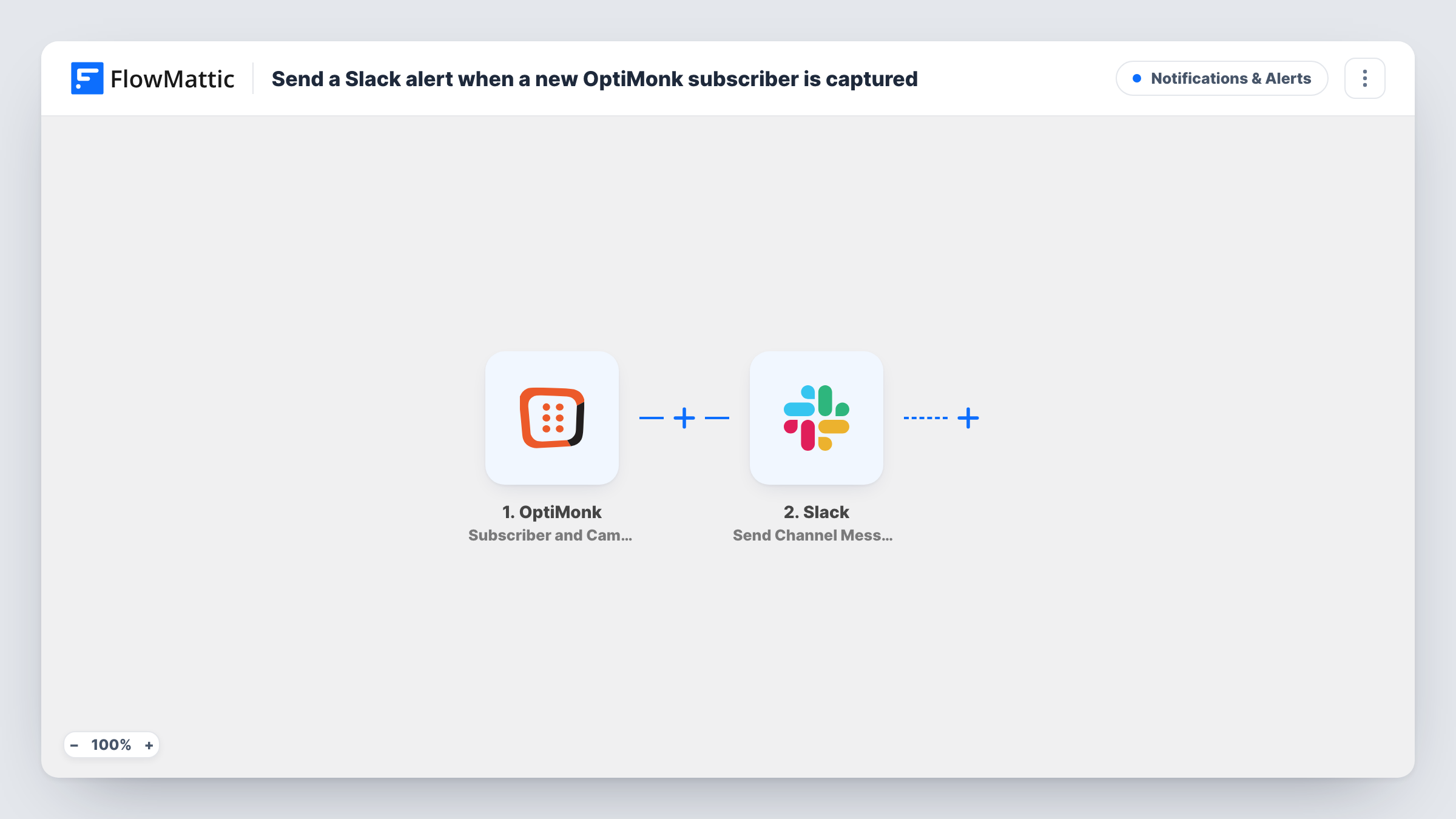
When OptiMonk sends FlowMattic new subscriber data from one of your popups or campaigns, a message goes to your Slack channel with the details you map, so marketing sees each new lead.
 OptiMonk
 Slack
2 steps Setup ~5 min Used on 1.9k sites Free to import
What this workflow does
OptiMonk popups and embedded campaigns collect emails and answers on your site, but the people who follow up on leads are usually in Slack, not in the OptiMonk dashboard. This workflow brings each new capture into a Slack channel so someone can act on it.
The OptiMonk trigger fires when new subscriber or campaign data is added, which is what OptiMonk sends when a visitor submits a campaign. FlowMattic receives that data and hands it to Slack, where the Send Channel Message step posts in the channel you choose. You write the message and map in values such as the email address and the campaign name.
Every submission OptiMonk sends produces one Slack post, across whichever campaigns send to this workflow. Task History shows each run, the data OptiMonk delivered and Slack's response.
Sales follow-up on demo requests
An OptiMonk popup offers a demo. Each submission shows up in the sales channel with the visitor's email, so a rep can claim it.
Watching a new campaign go live
When you launch a discount popup, the marketing channel sees the first signups come in and can confirm the campaign collects the right fields.
Quick look at lead quality
Map the answers to your popup's questions into the message, so the team can judge new leads in Slack before they open the CRM.
How this workflow runs
What happens at each step once the workflow is on, and what you need before you import it.
 OptiMonk Subscriber and Campaign Data
Fires when OptiMonk sends new subscriber or campaign data to FlowMattic. Submit one of your campaigns yourself after import so the fields are captured.
- Slack Send Channel Message
Publishes a Slack message to the channel you name. Map the subscriber's email, the campaign and any answers from OptiMonk into the text.
What you need
- FlowMatticCore
- OptiMonk AccountAccount
- Slack AccountAccount
After importing, map your own data. To keep the template universal, not every step is pre-filled. Open each step in the builder and connect your accounts and fields (channels, lists, sheets, recipients) before you switch the workflow on.
Make it yours
Changes worth making after you import it.
- Add a Filter on the campaign name if only one OptiMonk campaign should alert Slack, while the others keep running quietly.
- Add a Google Sheets step after Slack to keep a row per subscriber, so you have a list as well as the alert.
- To alert one person and not a channel, replace the step with Slack's Send Direct Message action.
Questions about this workflow
Which OptiMonk campaigns trigger the Slack message?
The ones you set up in OptiMonk to send their data to this workflow. Any campaign that sends a submission here produces a post.
Does this add the OptiMonk subscriber to an email list?
No. It only posts to Slack. Add an action for your email tool after the Slack step if you want subscribers added to a list as well.
Can I see the OptiMonk data before writing the Slack message?
Yes. Submit a test entry in your campaign after import, and the captured fields appear in FlowMattic for you to place in the message.
More Notifications & Alerts workflows
Other ready-to-import templates from the same category.





Import this workflow into your WordPress site
Download the JSON, import it from the Workflows screen and connect your accounts. Every run stays on your server, with no per-task fees.
30-day money-back guarantee Unlimited workflows and runs Self-hosted