

When a Descript audio file is mixed, log it in Airtable and alert the editor in Slack
When Descript finishes mixing an audio recording, this workflow adds a record to your Airtable production base and posts a Slack channel message so the editor knows the mix is ready.
 Descript
 Airtable
 Slack
3 steps Setup ~5 min Used on 2.2k sites Free to import
What this workflow does
In a podcast or video team, the mix is a hand-off point. The editor can't start until the audio is mixed, and someone has to note it in the production tracker. This workflow does both the moment Descript reports a finished mix.
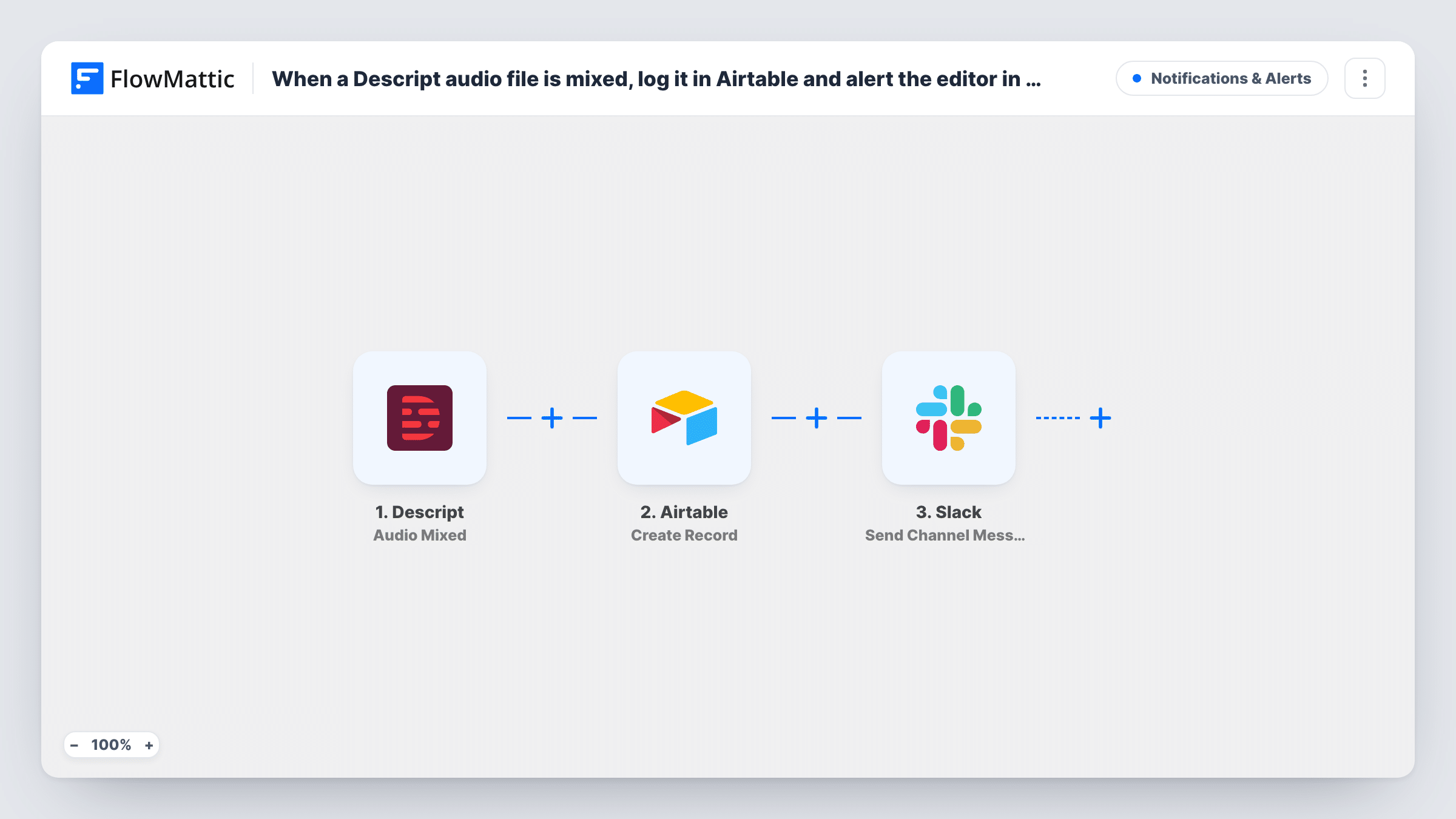
The Descript trigger fires when audio recordings have been mixed. FlowMattic receives the details Descript sends about that recording. The second step creates a new record in Airtable, in the base and table you pick, with the Descript details mapped to your columns. The third step posts a message to a Slack channel you choose, so the editor sees that a mixed file is waiting.
The steps run in order for every mixed recording, and each one adds a fresh Airtable record and a fresh Slack post. Nothing checks for an earlier record, so if Descript reports a second mix of the same recording, you get a second record. Task History shows what each run sent to Airtable and Slack.
Podcast episode tracker
Each mixed episode gets a row in the Airtable base your show uses for scheduling, and the editor reads the Slack post in the production channel to start the cut.
Client voiceover projects
An agency mixes client voiceovers in Descript. Airtable keeps a log per mix for billing, while the Slack channel tells the editor which job is ready.
Course audio for an online school
Lesson narration is mixed in Descript. The Airtable table becomes the list of lessons with finished audio, and the course editor picks them up from Slack.
How this workflow runs
What happens at each step once the workflow is on, and what you need before you import it.
 Descript Audio Mixed
Fires when Descript has mixed an audio recording. The details Descript sends about that recording become available to the Airtable and Slack steps.
- Airtable Create Record
Creates a new record in your Airtable table for the mixed recording. Connect your account, pick the base and table, and map the Descript details to the columns you track.
- Slack Send Channel Message
Posts a message to the Slack channel you pick, telling the editor a mix is ready. Map in the recording details, and the Airtable record data if you want the post to point to it.
What you need
- FlowMatticCore
- Descript AccountAccount
- Airtable AccountAccount
- Slack AccountAccount
After importing, map your own data. To keep the template universal, not every step is pre-filled. Open each step in the builder and connect your accounts and fields (channels, lists, sheets, recipients) before you switch the workflow on.
Make it yours
Changes worth making after you import it.
- To reach one editor instead of a channel, swap the Slack step for Slack's Send Direct Message action and pick that person.
- For a private Slack channel, use Slack's Send Private Channel Message action, since the template's channel action is set up for a regular #channel.
- Mix one test recording in Descript after import so FlowMattic captures the trigger data, then map it in the Airtable and Slack steps before you turn the workflow on.
Questions about this workflow
Does the Airtable record hold the Descript audio file?
It holds whatever Descript data you map into its columns. Run a test mix first and look at what the trigger returns before you decide which columns to fill.
Do I need Airtable columns set up before importing the Descript flow?
Yes. The Airtable step writes into an existing base and table, so create the columns you want to fill first, then map the Descript details to them.
What if a Descript recording is mixed twice?
The workflow doesn't look for an existing record. If Descript reports the new mix, it creates a second Airtable record and a second Slack post. Delete the extra record by hand if you only want one.
Can the Slack alert tag the editor by name?
You write the message text in the Slack step, so you can include a Slack mention for the editor. Test it once to check the mention formats the way you expect.
More Notifications & Alerts workflows
Other ready-to-import templates from the same category.






Import this workflow into your WordPress site
Download the JSON, import it from the Workflows screen and connect your accounts. Every run stays on your server, with no per-task fees.
30-day money-back guarantee Unlimited workflows and runs Self-hosted