

Send a Slack alert when a Rendi FFmpeg command finishes processing
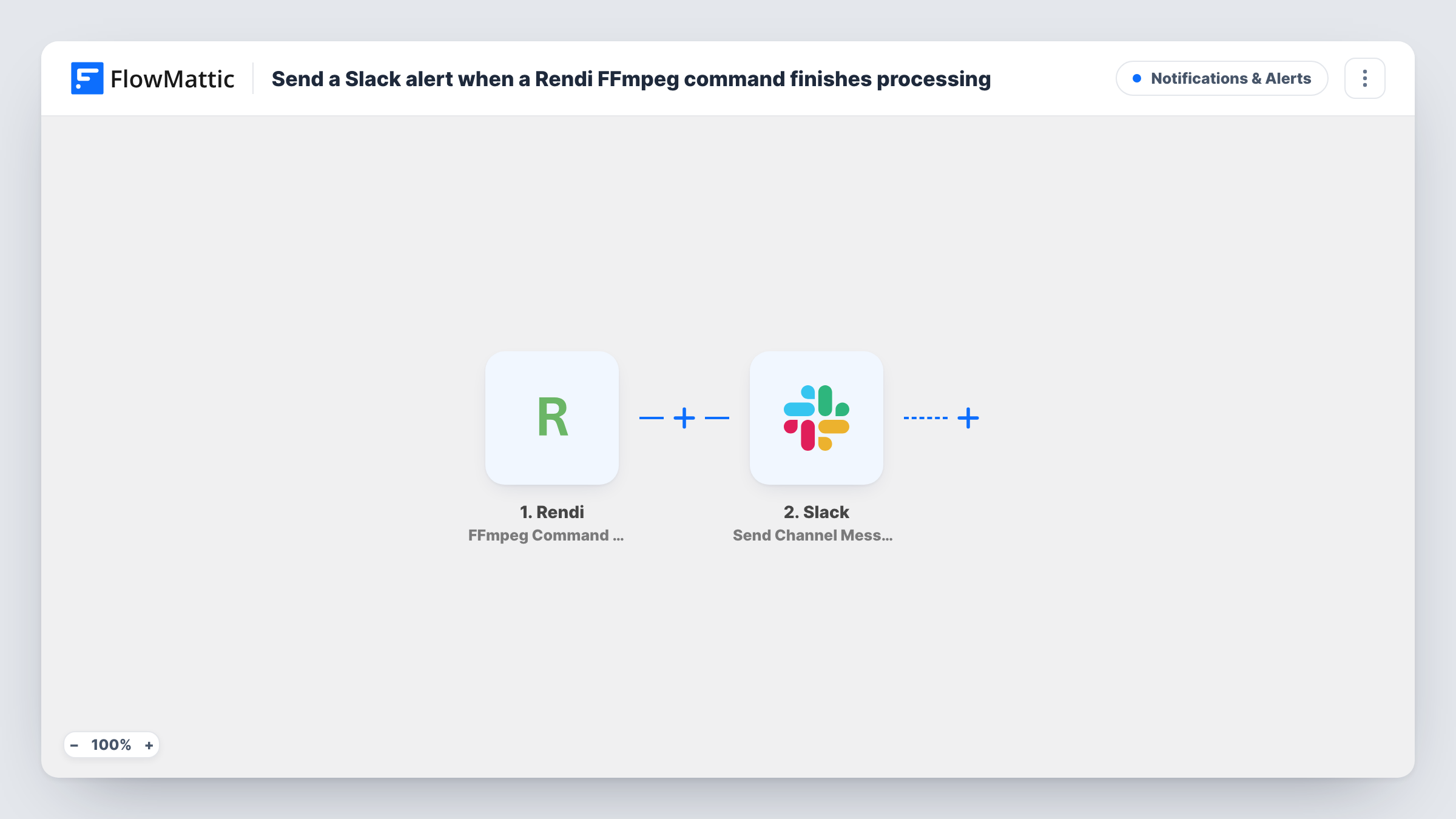
When an FFmpeg command finishes processing in Rendi, this workflow posts a Slack message in the channel you choose, with the command details you add, so your team knows the job is done.
 Rendi
 Slack
2 steps Setup ~5 min Used on 931 sites Free to import
What this workflow does
Media jobs take a while, and nobody wants to keep refreshing Rendi to see whether a conversion or render has finished. If your team already works in Slack, a message there when each job completes is the simplest signal. This workflow sends that message.
The Rendi trigger starts a run as soon as Rendi reports a finished FFmpeg job. FlowMattic receives the details for that command and makes them available to the Slack step. That step posts a message to the channel you choose, with the text you write and any command details you insert, such as an ID or an output link if Rendi includes one.
One completed command means one message, with no Filter in between. If you run many commands, consider a dedicated channel. Task History shows each run and the message that was sent.
Video editors waiting on renders
Editors get a Slack message when Rendi finishes a render, and can open the output link from the message, when Rendi sends one, instead of checking the queue.
Podcast audio processing
A podcast team that normalises episodes with FFmpeg in Rendi sees a channel message when each episode's processing completes.
Developer monitoring
Developers who send FFmpeg commands to Rendi from their own workflows watch a channel to confirm jobs are completing.
How this workflow runs
What happens at each step once the workflow is on, and what you need before you import it.
 Rendi FFmpeg Command Completed
Runs when Rendi reports that an FFmpeg command has completed. The command details from Rendi are passed on to the Slack message.
- Slack Send Channel Message
Sends a completion notice to the Slack channel you choose. Write the text and insert the Rendi command details, then connect your Slack workspace.
What you need
- FlowMatticCore
- Rendi AccountAccount
- Slack AccountAccount
After importing, map your own data. To keep the template universal, not every step is pre-filled. Open each step in the builder and connect your accounts and fields (channels, lists, sheets, recipients) before you switch the workflow on.
Make it yours
Changes worth making after you import it.
- If Rendi's completion data includes a status, add a Filter so only failed commands reach Slack, or a Router to send successes and failures to separate channels.
- Add a Google Sheets step after the Slack message to keep a log of every finished command alongside the alert.
- Run one FFmpeg command in Rendi after import, then check Task History to see which details the trigger provides before you write the message.
Questions about this workflow
Does every finished Rendi command send a Slack message?
Yes. Each completion the trigger receives posts one message. Add a Filter after the trigger if you only want some commands announced.
Can the Slack alert include the Rendi output file link?
Only if Rendi sends one with the completion event. Look at a test run in Task History; if the link is there, insert it into the message text.
Does this tell me when a Rendi command fails?
The trigger fires on completion. Check the details from a test run for a status you can show in the message or use in a Filter.
Which Slack channel receives the Rendi alerts?
Whichever channel you set in the Slack step once your workspace is connected. Every message from this workflow goes there unless you add a Router.
More Notifications & Alerts workflows
Other ready-to-import templates from the same category.




Import this workflow into your WordPress site
Download the JSON, import it from the Workflows screen and connect your accounts. Every run stays on your server, with no per-task fees.
30-day money-back guarantee Unlimited workflows and runs Self-hosted