

Send a Slack message when a Lokalise translation is updated
Whenever a translation is updated in Lokalise, this workflow posts a message to a Slack channel with the details you map, so reviewers and developers hear about translation changes without opening Lokalise.
 Lokalise
 Slack
2 steps Setup ~5 min Used on 3.5k sites Free to import
What this workflow does
Translation changes matter to people outside the localization team. Developers want to know when strings are ready to pull, and reviewers want to check new wording before release. This workflow tells them in Slack each time a translation changes in Lokalise.
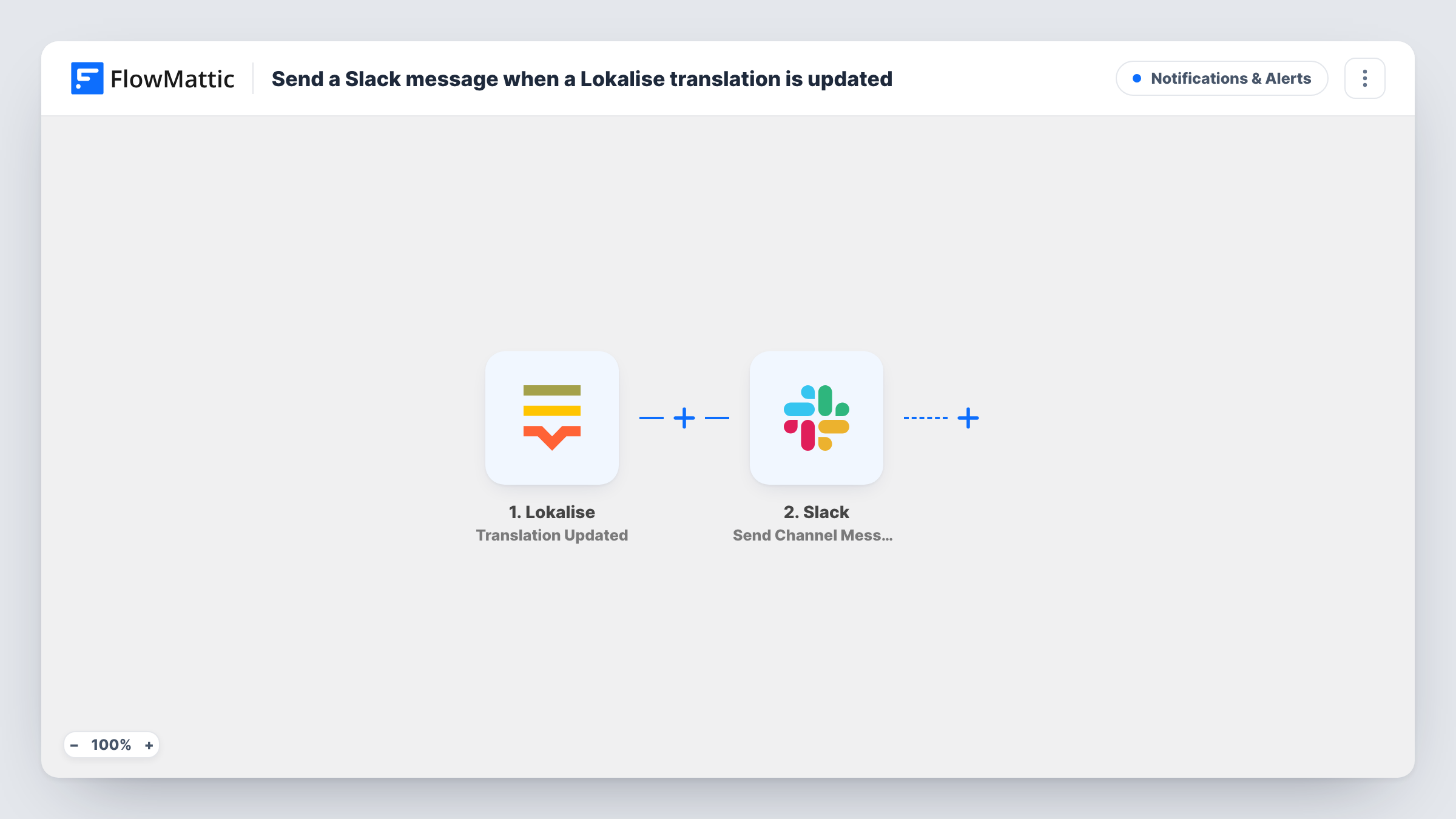
The Lokalise trigger fires when a translation is updated. FlowMattic passes the update data, such as the key and language involved, to Slack. Send Channel Message turns those values into a post for whichever channel you set.
Every update sends a message, so a translator working through a long list of keys produces a long run of Slack posts. On a busy project, route the messages to a dedicated channel, or add a Filter so only the languages or keys you care about are posted.
Developers waiting on strings
A mobile team pulls translations before each build. A Slack channel shows each update as it happens, so they know when the language they need has changed.
Reviewing a single market's copy
A marketing lead for the German market follows a channel that only receives German translation updates, set with a Filter on the language.
Freelance translator activity
An agency watches a channel where each Lokalise update from contract translators appears, so project managers see work landing day by day.
How this workflow runs
What happens at each step once the workflow is on, and what you need before you import it.
 Lokalise Translation Updated
Runs when a translation is updated in your Lokalise project. The update data, such as the key and language, is passed to the Slack step for mapping.
- Slack Send Channel Message
Shares each translation change in Slack through Send Channel Message. Build the text from the key name, language and new translation text, so readers see what changed.
What you need
- FlowMatticCore
- Lokalise AccountAccount
- Slack AccountAccount
After importing, map your own data. To keep the template universal, not every step is pre-filled. Open each step in the builder and connect your accounts and fields (channels, lists, sheets, recipients) before you switch the workflow on.
Make it yours
Changes worth making after you import it.
- Add a Filter after the trigger that continues only for one language, if the update data carries it, so a market's channel only sees its own translations.
- Update one translation in Lokalise after import so FlowMattic captures a real payload, then map the key and the new text into the Slack message.
- For a private Slack channel, replace the step with Slack's Send Private Channel Message action, since Send Channel Message isn't meant for private channels.
Questions about this workflow
Will every Lokalise translation update post to Slack?
Yes, as imported. There is no Filter, so each update the trigger receives sends a message. Add one if you only want some languages or keys.
Are new Lokalise keys or comments posted too?
No. This trigger is for translation updates only. Lokalise has other triggers in FlowMattic for different events, which you'd add in a separate workflow.
Can I send Lokalise updates to one person instead of a channel?
Yes. Swap the step for Slack's Send Direct Message action and pick the person, then map the same update data into the message.
More Notifications & Alerts workflows
Other ready-to-import templates from the same category.




Import this workflow into your WordPress site
Download the JSON, import it from the Workflows screen and connect your accounts. Every run stays on your server, with no per-task fees.
30-day money-back guarantee Unlimited workflows and runs Self-hosted