

Send a Slack notification for every new Builder.io form submission
Every time someone fills in a form on your Builder.io site, this workflow posts the answers to a Slack channel, so your team sees new enquiries in the place they already talk.
 Builder.io
 Slack
2 steps Setup ~5 min Used on 2.8k sites Free to import
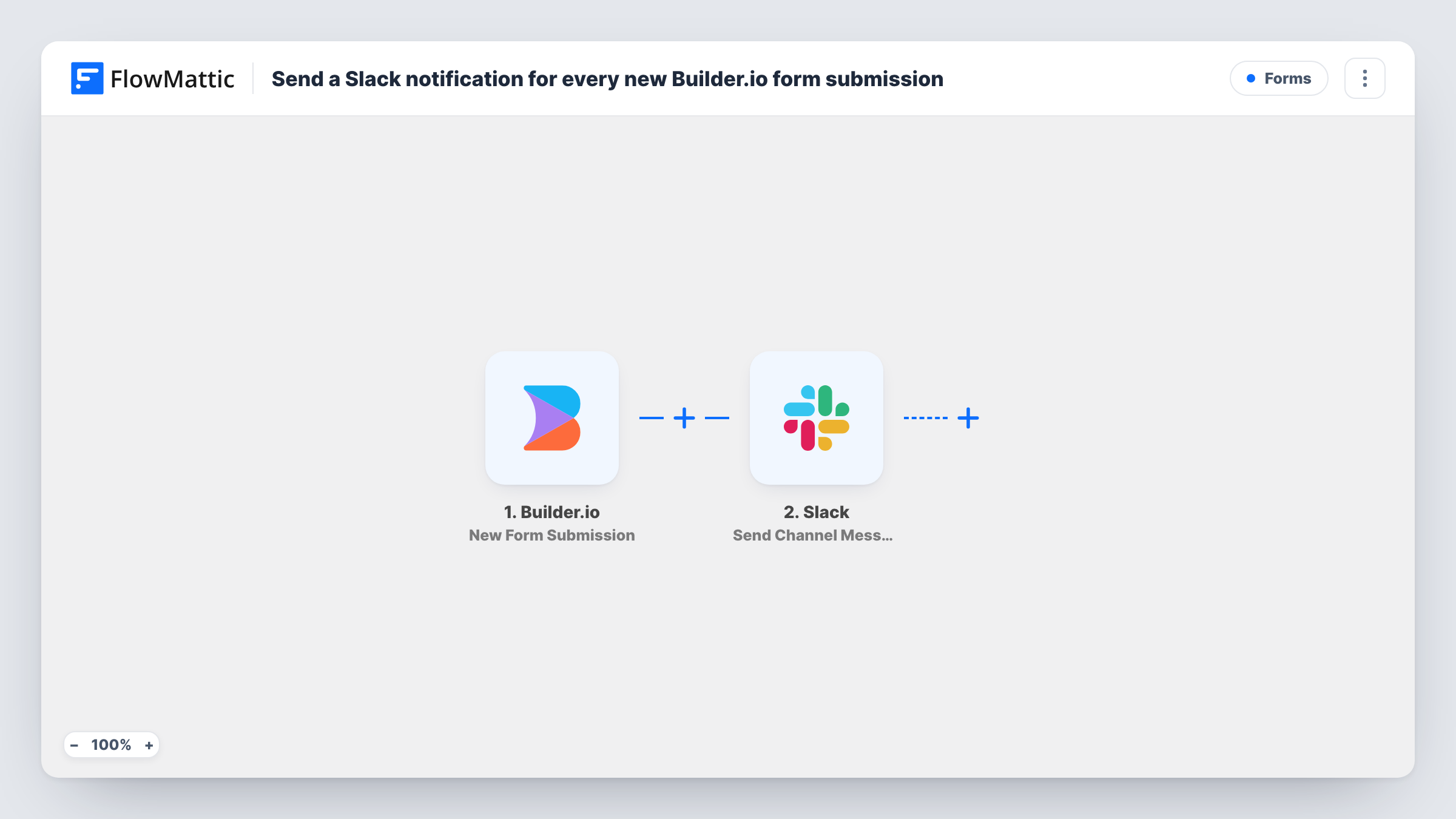
What this workflow does
Builder.io lets you design pages and forms without a developer, but the submissions still have to reach someone. If they sit in an inbox or an admin screen, a lead can wait hours before anyone reads it. Posting each submission to Slack puts it in front of the whole team at once.
The Builder.io trigger is New Form Submission. It fires when a new submission is made from the form. FlowMattic hands the submitted fields to Slack, and Send Channel Message posts them to the channel you pick. You decide how the message reads and which answers go in it.
Every submission produces one Slack post, with no filtering as imported. That suits a channel dedicated to form entries. If spam or test entries become noise, a Filter after the trigger can hold them back. Each run is listed in Task History with what Slack returned.
Demo requests on a SaaS landing page
A Builder.io landing page asks visitors to book a demo. Each request shows up in #sales with the company and email, so a rep can pick it up and reply.
Event page enquiries
An events team builds sign-up pages in Builder.io. Questions sent through the page form land in the events channel for whoever is on duty.
Feedback form on a product site
Customer feedback sent through a Builder.io form appears in a #feedback channel where product managers read and discuss it.
How this workflow runs
What happens at each step once the workflow is on, and what you need before you import it.
 Builder.io New Form Submission
Runs when a visitor submits a form on your Builder.io content. Each submitted answer is available to place in the Slack message.
- Slack Send Channel Message
Posts the submission to a Slack channel of your choice. Connect your Slack workspace, pick the channel and lay out the message with the Builder.io answers you want shown.
What you need
- FlowMatticCore
- Builder.io AccountAccount
- Slack AccountAccount
After importing, map your own data. To keep the template universal, not every step is pre-filled. Open each step in the builder and connect your accounts and fields (channels, lists, sheets, recipients) before you switch the workflow on.
Make it yours
Changes worth making after you import it.
- Start the Slack message with the submitter's name and email on one line, so people scanning the channel can tell entries apart at a glance.
- Add a Filter after the trigger to skip entries where the email field contains your own domain, which keeps your team's test submissions out of the channel.
- Add a second action after Slack, such as a Google Sheets row, if you also want a lasting list of Builder.io submissions you can search.
Questions about this workflow
Which Builder.io form answers can go into the Slack post?
Any field the submission carries. Send one test entry after import, then pick the captured fields when you write the message.
Does every Builder.io form on my site post to Slack?
That depends on how the trigger is set up after import. Check with a test entry from each form you care about, and add a Filter if you want only some forms posted.
Will older Builder.io submissions be sent to the Slack channel?
No. Only submissions made after you turn the workflow on are posted.
Can the Builder.io alert in Slack tag a teammate by name?
Yes. Type the mention into the message text in the Slack step so the person is notified with each new submission.
More Forms workflows
Other ready-to-import templates from the same category.









Import this workflow into your WordPress site
Download the JSON, import it from the Workflows screen and connect your accounts. Every run stays on your server, with no per-task fees.
30-day money-back guarantee Unlimited workflows and runs Self-hosted