

Send a Telegram message when Inoreader flags a new matching article
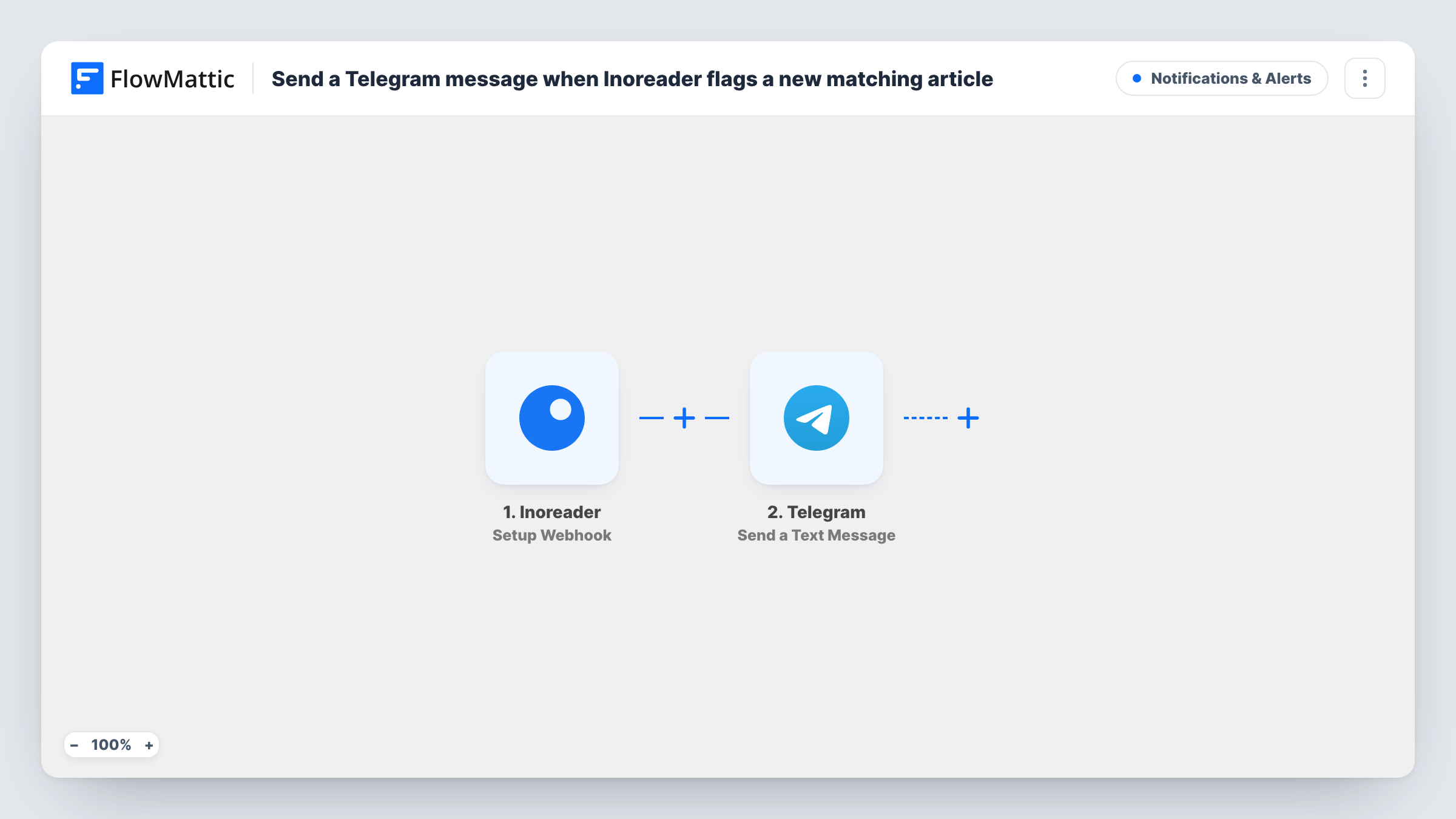
When Inoreader sends a matching article to this workflow’s webhook, FlowMattic posts a Telegram message with the details you map, such as the headline and link, to the chat you choose.
 Inoreader
 Telegram
2 steps Setup ~5 min Used on 1.0k sites Free to import
What this workflow does
Keyword alerts are only useful if you see them while the story is still fresh. Opening your reader every hour to check is not much of a system. This workflow turns each article Inoreader sends to it into a Telegram message, so the alert lands on your phone or in a team chat.
The Inoreader trigger works as a webhook. Inoreader sends each article's data to a URL that FlowMattic creates for this workflow. What counts as a matching article is decided in Inoreader, by the rule or setup you point at that URL, such as a rule that watches a search term or a feed folder. FlowMattic does no matching of its own.
Each request then goes to Telegram, where the Send a Text Message action posts your message through your connected bot. You write the text and drop in Inoreader values, such as the article title and its URL. One article in means one message out, and Task History shows the run for each.
Brand mention alerts for a marketing team
An Inoreader rule watches news feeds for your company or product name. Each match posts a message to the team's Telegram group so someone can read it and respond the same day.
Competitor news on your phone
Point a rule at your competitors' blogs and press pages. New posts that match arrive as Telegram messages you can open from anywhere.
Research topic tracking
A researcher follows journals and preprint feeds in Inoreader. Articles that match a set of keywords land in a private Telegram chat with the bot, ready to read later.
How this workflow runs
What happens at each step once the workflow is on, and what you need before you import it.
 Inoreader Setup Webhook
Receives article data at the webhook URL FlowMattic creates for this workflow. Set Inoreader to send matching articles to that URL, then send one test so FlowMattic captures fields such as the title and link.
- Telegram Send a Text Message
Posts a text message through your Telegram bot. Enter the chat ID the bot should post to, then build the message text from the Inoreader values you captured, such as the headline and article URL.
What you need
- FlowMatticCore
- Inoreader AccountAccount
- Telegram AccountAccount
After importing, map your own data. To keep the template universal, not every step is pre-filled. Open each step in the builder and connect your accounts and fields (channels, lists, sheets, recipients) before you switch the workflow on.
Make it yours
Changes worth making after you import it.
- Keep the Inoreader rule specific. Every article it sends becomes a separate Telegram message, so a broad keyword can flood the chat.
- Add the bot to the Telegram group or channel before you test, otherwise it has nowhere to post. For a private chat, start a conversation with the bot first.
- If your rule catches some articles you don't want, add a Filter after the trigger, for example to continue only when the title contains a word you care about.
Questions about this workflow
Who decides which Inoreader articles reach Telegram?
Inoreader does. The workflow sends a message for every request that reaches its webhook URL, so the rule or setup in Inoreader that calls the URL controls which articles arrive.
Can the Telegram message include the article link?
Yes, if Inoreader includes it in the data it sends. Run a test article and map the link value into the message text.
Will Telegram send the same Inoreader article twice?
Only if Inoreader posts it twice. The template has no memory of earlier articles, so each request it receives produces a new message.
Can the alerts go to a Telegram group instead of my own chat?
Yes. Add your bot to the group, use that group's chat ID in the Send a Text Message step, and every matching article posts there.
More Notifications & Alerts workflows
Other ready-to-import templates from the same category.




Import this workflow into your WordPress site
Download the JSON, import it from the Workflows screen and connect your accounts. Every run stays on your server, with no per-task fees.
30-day money-back guarantee Unlimited workflows and runs Self-hosted