

Send a Twilio SMS follow-up after a new Nimbata call comes in
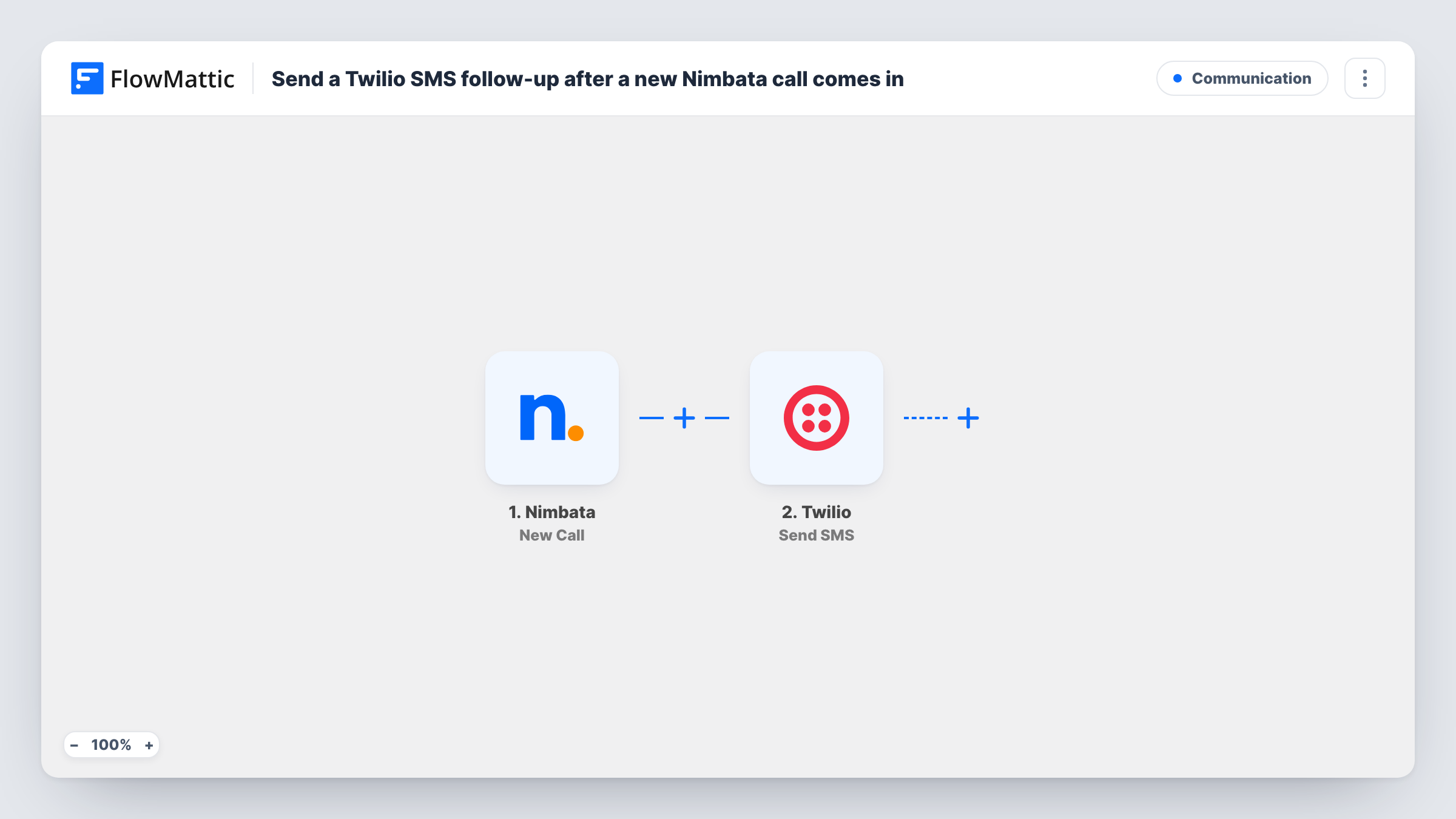
When an inbound call to one of your Nimbata tracking numbers is completed, this workflow texts the caller a follow-up SMS from your Twilio number, using the caller’s number from the call data.
 Nimbata
 Twilio
2 steps Setup ~5 min Used on 354 sites Free to import
What this workflow does
Someone who rings your business has shown real interest, and a short text afterwards keeps the conversation going: a thank-you, a booking link or the details you promised on the call. Sending each one by hand is easy to forget on a busy day. This template texts every caller once their call is over.
A run starts once an inbound call to a tracking number in Nimbata ends; the trigger is New Call, which waits for the call to be completed. The call data Nimbata sends, including the caller's number where present, becomes available to map. The Twilio step then uses Send SMS: map the caller's number as the recipient, choose your Twilio sender number and write the message text.
Every completed inbound call gets a text, since the template has no Filter. A customer who calls three times receives three messages, and calls from withheld numbers leave Twilio nothing to send to, which shows as an error in Task History. Make sure texting callers fits your local rules on marketing messages before you switch it on.
Booking link after an enquiry call
A dental practice tracking ad calls with Nimbata texts each caller a link to book online, so they have it in writing after hanging up.
Thank-you note for a home services quote
A roofing company sends callers a short SMS with the office hours and an email address for sending photos of the job.
Campaign-specific follow-up
A marketer running several tracked numbers texts callers a message that includes the campaign's offer code, using values from the Nimbata call data.
How this workflow runs
What happens at each step once the workflow is on, and what you need before you import it.
 Nimbata New Call
Picks up each completed inbound call on your Nimbata tracking numbers. The call details, such as the caller's number, are handed to the Twilio step.
- Twilio Send SMS
Texts the caller through Twilio. Map the caller's number from Nimbata as the recipient, set a Twilio number you own as the sender and write the follow-up text.
What you need
- FlowMatticCore
- Nimbata AccountAccount
- Twilio AccountAccount
After importing, map your own data. To keep the template universal, not every step is pre-filled. Open each step in the builder and connect your accounts and fields (channels, lists, sheets, recipients) before you switch the workflow on.
Make it yours
Changes worth making after you import it.
- Add a Filter after the trigger that continues only when the caller's number is not empty, so calls from hidden numbers stop before Twilio instead of failing there.
- To text each caller only once, add Google Sheets Lookup Row Data to search a sheet of numbers you have texted, a Filter that continues only when the lookup finds no row, and Add New Row after the SMS to record the number.
- Add a Delay before the Twilio step if you would rather the text arrive a few minutes after the call than straight away.
Questions about this workflow
Which Nimbata calls trigger the Twilio SMS?
Each new inbound call to one of your tracking numbers, once the call is completed. Nothing filters by outcome, so every completed inbound call starts a run.
Does the caller's number need a particular format for Twilio?
Twilio expects numbers in international format with the country code. Check a test call in Task History; if Nimbata's number lacks the country code, add a Number Formatter step with Format Phone Number before Twilio.
What if the caller withheld their number?
The SMS step has no recipient, so Twilio returns an error and Task History shows it on that step. Add a Filter on the caller number to skip those calls.
Do I need a Twilio phone number to send the follow-up text?
Yes. The text goes out from a number in your Twilio account, which you set as the sender when you connect the step.
More Communication workflows
Other ready-to-import templates from the same category.




Import this workflow into your WordPress site
Download the JSON, import it from the Workflows screen and connect your accounts. Every run stays on your server, with no per-task fees.
30-day money-back guarantee Unlimited workflows and runs Self-hosted