

Send a Twilio SMS when an FG Funnels appointment status changes
Whenever FG Funnels reports a new appointment status, FlowMattic sends a text message through Twilio to the number you map, such as the lead’s phone or your own team line, with the appointment details you choose.
 FG Funnels
 Twilio
2 steps Setup ~5 min Used on 3.0k sites Free to import
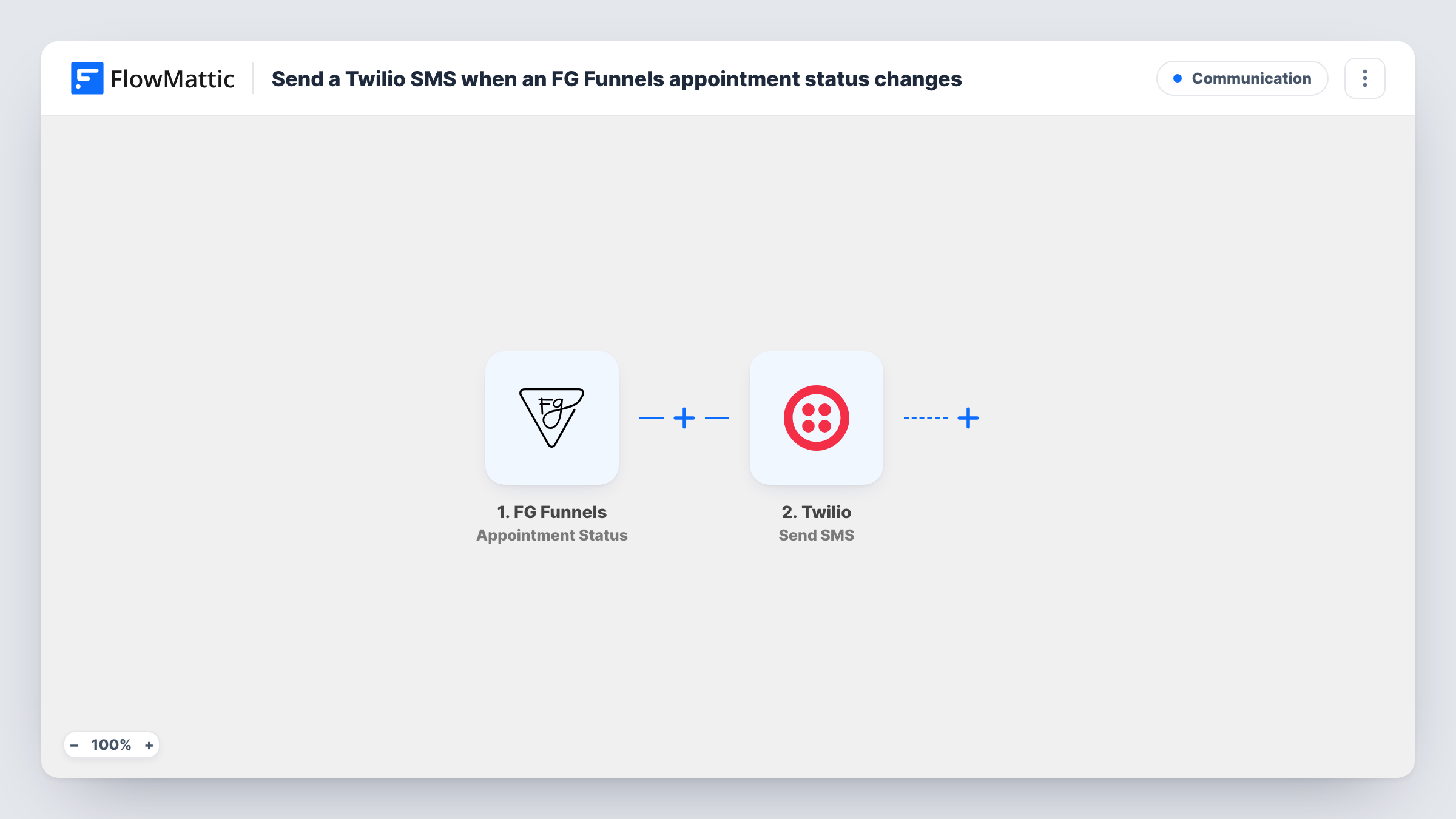
What this workflow does
Appointments booked through an FG Funnels page change over time, and a quick text is often the simplest way to keep someone informed. This workflow turns each appointment status event into a Twilio SMS, either to the lead who booked or to a team member who needs to know.
Runs begin with the FG Funnels Appointment Status trigger, which reports each new status of an appointment. An appointment that changes status several times starts a run each time, so every status gets its own text. Send a test event to see which details arrive, such as the lead's name and phone, the appointment time and the status itself.
Nothing is mapped yet in the Twilio Send SMS step. After import you connect Twilio, pick the sending number, map the recipient and write the message. Map the lead's phone to text the person who booked, or type in a fixed number to alert your own team. Including the status in the text tells the reader what changed.
The same message goes out for every status as imported. If you want different wording for, say, a confirmed and a cancelled appointment, or no text at all for some statuses, add the conditions described in the tips. Task History shows each run and what Twilio returned.
Status texts for clients of a coach
A coach's clients get an SMS with the new status of their session whenever it changes in the FG Funnels calendar.
Front desk alerted to schedule changes
A dental practice sends each appointment status to the receptionist's phone, so changes made through the funnel don't go unnoticed.
Sales rep heads-up on booked calls
An agency's rep receives a text with the lead's name and time each time an appointment from the ad funnel reports a status.
How this workflow runs
What happens at each step once the workflow is on, and what you need before you import it.
 FG Funnels Appointment Status
Fires for each new appointment status reported by FG Funnels. Every status change starts its own run, with the lead and appointment details passed to the SMS step.
- Twilio Send SMS
Texts the recipient you set, using your connected Twilio account. The step ships unmapped: choose the sender, map the recipient, such as the lead's phone or a fixed team number, and write the text with the status in it.
What you need
- FlowMatticCore
- FG Funnels AccountAccount
- Twilio AccountAccount
After importing, map your own data. To keep the template universal, not every step is pre-filled. Open each step in the builder and connect your accounts and fields (channels, lists, sheets, recipients) before you switch the workflow on.
Make it yours
Changes worth making after you import it.
- Put a Filter between the FG Funnels trigger and the Twilio step that continues only for the statuses you want a text for. Copy the status values from a test event.
- For different wording per status, add a Router between the trigger and the Twilio step, with one route per status value and a Send SMS step on each route, and remove the original Send SMS step.
- Make sure phone numbers reach Twilio with the country code, the full international format Twilio uses to deliver.
Questions about this workflow
Does the lead get a text for every FG Funnels status change?
Yes, as imported, if you map the lead's phone as the recipient. Each status event starts a run and sends one SMS. A Filter on the status, placed between the FG Funnels trigger and the Twilio step, limits which statuses send a text.
Can I send the SMS to my team instead of the lead?
Yes. Type your team's number into the recipient field instead of mapping the lead's phone, and put the lead's name and appointment time in the message.
Is this a reminder before the appointment?
No. The text goes out at the moment FG Funnels reports a status, not at a set time before the appointment starts.
More Communication workflows
Other ready-to-import templates from the same category.







Import this workflow into your WordPress site
Download the JSON, import it from the Workflows screen and connect your accounts. Every run stays on your server, with no per-task fees.
30-day money-back guarantee Unlimited workflows and runs Self-hosted