

Send a Zenzap message when a new Stripe payment succeeds
Every successful Stripe charge posts a text message to a Zenzap topic, so the people who handle orders, fulfilment or bookkeeping see each payment in the team chat they already use.
 Stripe
 Zenzap
2 steps Setup ~5 min Used on 1.4k sites Free to import
What this workflow does
Stripe records every payment in its dashboard, but few teams keep that dashboard open all day. When a sale needs someone to act, such as shipping a product or starting a client project, the news has to reach the right people. This workflow posts each successful charge into Zenzap, your team's chat.
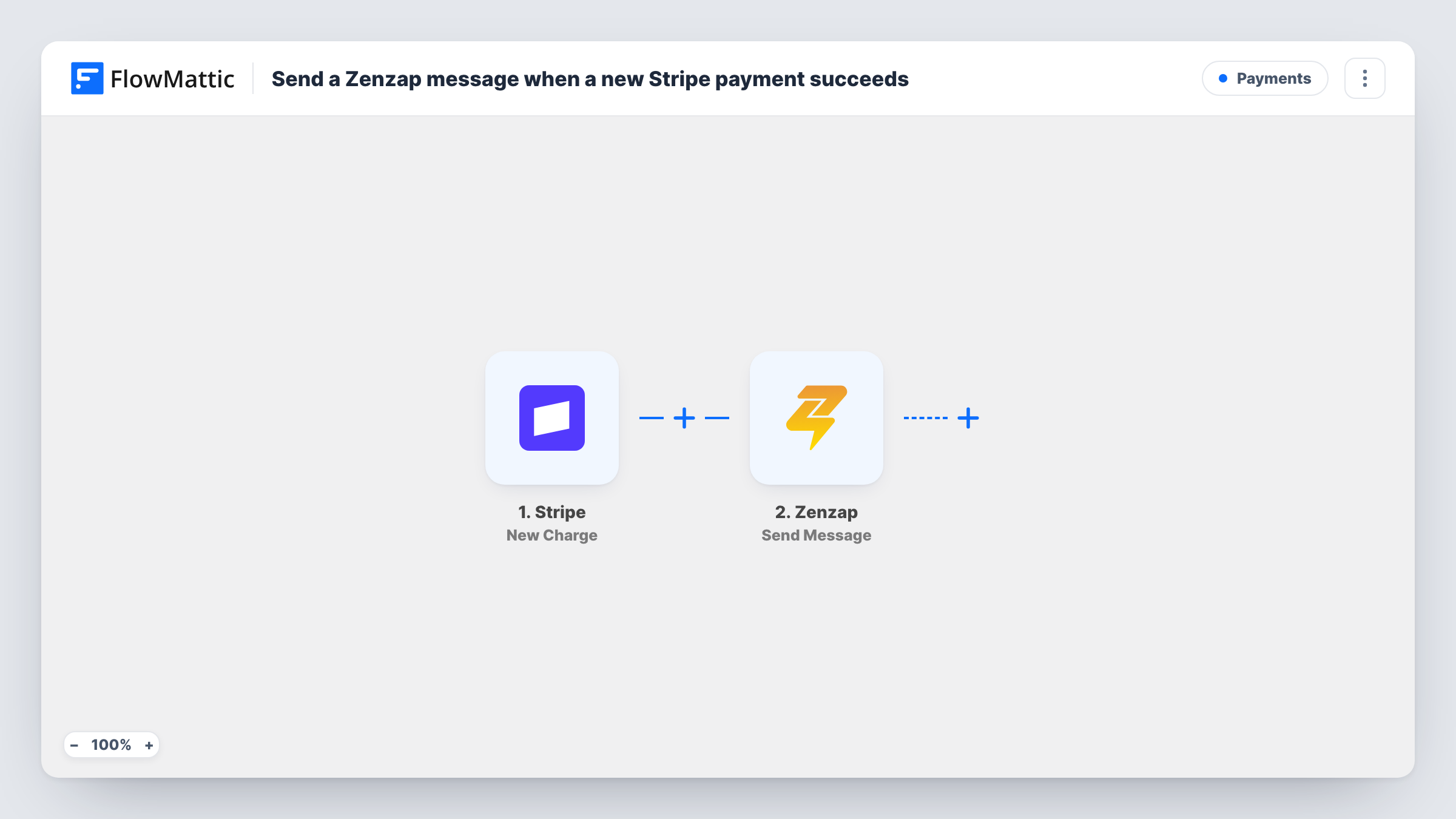
The Stripe New Charge trigger fires whenever a charge is created and succeeds. FlowMattic passes the charge data to the Zenzap Send Message action, which sends a text message to the topic you pick. You write the message and drop in values from the charge, like the amount or currency, wherever you want them.
Failed or declined charges never reach the trigger, so the topic only hears about money that went through. Every successful charge posts one message, whatever the amount or product. If that gets noisy, a Filter can narrow it down, as the tips explain. Task History keeps a record of each run and the data it sent to Zenzap.
Sales channel for a small team
A Zenzap topic called Sales gets a message for each Stripe payment, so everyone sees new revenue as it comes in without logging into Stripe.
Start work as soon as a client pays
A design studio takes deposits through Stripe. The project lead sees the payment in Zenzap and books the kickoff call.
Fulfilment heads-up
The person who packs orders follows a Zenzap topic, and each successful charge tells them a new order is ready to prepare.
How this workflow runs
What happens at each step once the workflow is on, and what you need before you import it.
 Stripe New Charge
Fires whenever a new charge is created in your Stripe account and is successful. The charge data, such as the amount and currency, can be used in the message.
- Zenzap Send Message
Sends a text message to a Zenzap topic. Choose the topic, write the message and map Stripe charge values into it. Send a test charge to check how the message reads.
What you need
- FlowMatticCore
- Stripe AccountAccount
- Zenzap AccountAccount
After importing, map your own data. To keep the template universal, not every step is pre-filled. Open each step in the builder and connect your accounts and fields (channels, lists, sheets, recipients) before you switch the workflow on.
Make it yours
Changes worth making after you import it.
- Add a Filter after the Stripe trigger so only charges above an amount reach Zenzap. Stripe reports amounts in the smallest currency unit, so 5000 means 50.00 in dollars or euros.
- Run a test charge in Stripe's test mode first, then map the fields you want in the Zenzap message once FlowMattic has captured a real charge.
- Point the message at a dedicated payments topic instead of a busy general one, so payment alerts stay easy to scan.
Questions about this workflow
Does a failed Stripe payment post anything in Zenzap?
No. The New Charge trigger only fires for charges that succeed, so declined or failed payments do not run the workflow.
Will refunds show up in the Zenzap topic?
No. The workflow listens only for new successful charges. Refunding a charge in Stripe does not run it, so nothing is posted to Zenzap for refunds.
Can the Stripe alert go to more than one Zenzap topic?
As imported, one Send Message step posts to one topic. Add another Zenzap Send Message step after it and pick a second topic.
Do I need to change anything in my Stripe account?
You connect Stripe to FlowMattic when you set up the trigger. Your checkout, products and payment settings stay as they are.
More Payments workflows
Other ready-to-import templates from the same category.







Import this workflow into your WordPress site
Download the JSON, import it from the Workflows screen and connect your accounts. Every run stays on your server, with no per-task fees.
30-day money-back guarantee Unlimited workflows and runs Self-hosted