

Send alert on WhatsApp every time there's new alert in TradingView
Whenever a TradingView alert fires, FlowMattic forwards its message as a WhatsApp text through the WhatsApp Cloud API, so signals reach your phone in a chat app instead of only the TradingView screen.
 Tradingview
 WhatsApp Cloud API
2 steps Setup ~5 min Used on 2.7k sites Free to import
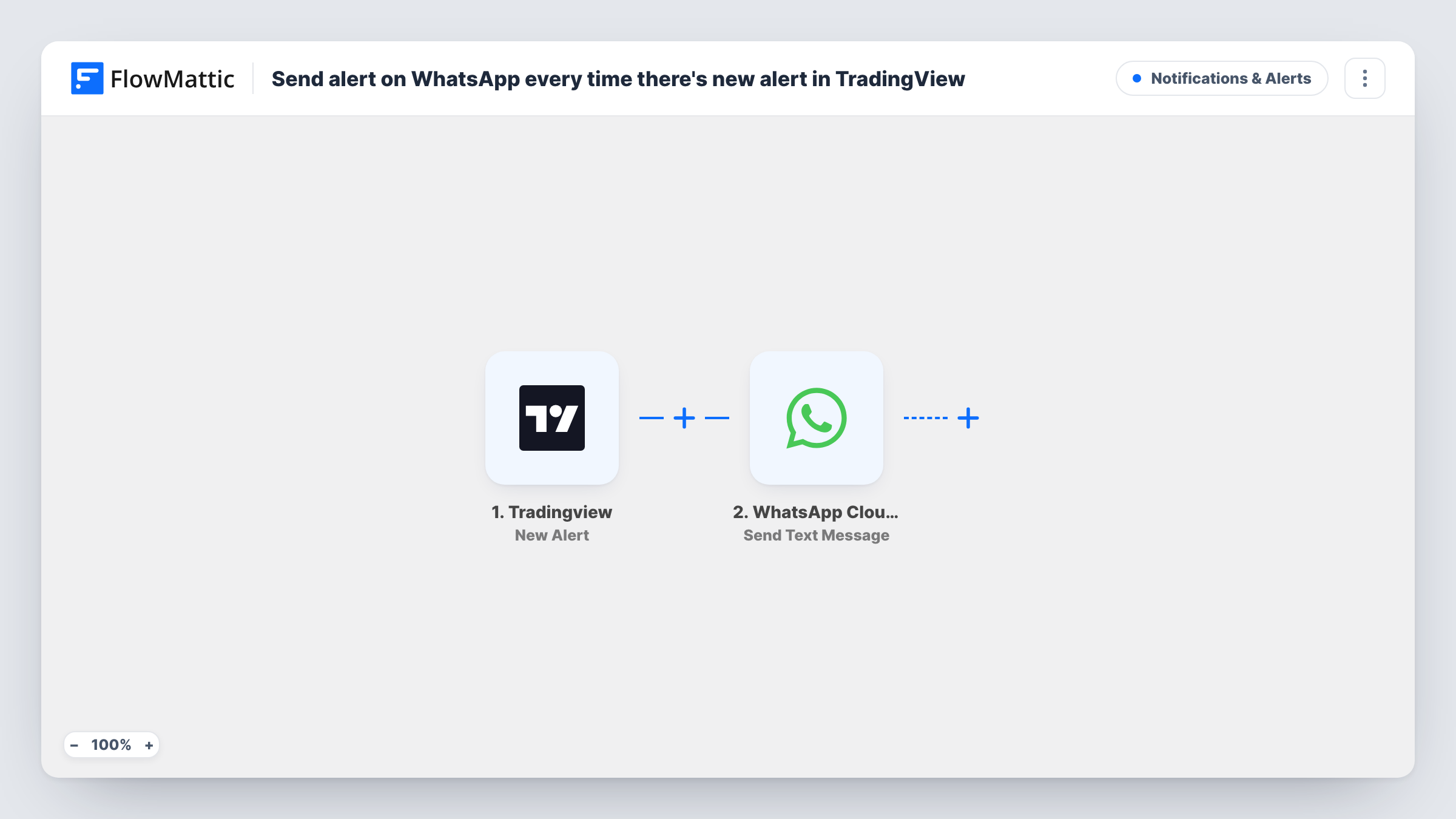
What this workflow does
TradingView can watch prices and indicators for you, but its alerts are easy to miss when you are away from the chart. Many traders already live in WhatsApp. This workflow carries each alert into a WhatsApp chat as soon as TradingView sends it.
The TradingView trigger New Alert gives you a webhook address to set on your alerts. When an alert fires, TradingView posts its message to FlowMattic, and anything you wrote in that message becomes data you can map. The WhatsApp Cloud API step Send Text Message then sends a free-form text to the number you set, with the alert details inside.
Know WhatsApp's rule before you rely on this. WhatsApp delivers a free-form text only if its recipient wrote to your business number during the previous 24 hours. If the recipient has not written to you recently, the message usually won't arrive. For alerts to people who rarely reply, switch to the Send Template Message action with an approved template. Task History shows WhatsApp's response for every run.
Price levels while you are out
You set TradingView alerts on key levels for a few stocks. Each time one is crossed, the symbol and price arrive as a WhatsApp text on your phone.
Strategy signals for your own review
A strategy alert sends its buy or sell message to WhatsApp, so you can decide whether to act before opening your broker app.
Alerts to a trading partner
A partner who keeps a chat open with your WhatsApp business number gets the same alert texts, as long as they messaged it within the last day.
How this workflow runs
What happens at each step once the workflow is on, and what you need before you import it.
 Tradingview New Alert
Receives each TradingView alert sent to the workflow's webhook address. Set that address on your alerts, and the alert message becomes data to map into WhatsApp.
- WhatsApp Cloud API Send Text Message
Texts the alert to a WhatsApp number using the Cloud API's free-form Send Text Message action. Set the recipient's number and write the text with the alert details. Delivery needs a message from that person in the last 24 hours.
What you need
- FlowMatticCore
- TradingView AccountAccount
- WhatsApp Cloud API AccountAccount
After importing, map your own data. To keep the template universal, not every step is pre-filled. Open each step in the builder and connect your accounts and fields (channels, lists, sheets, recipients) before you switch the workflow on.
Make it yours
Changes worth making after you import it.
- Write your TradingView alert message as JSON with the ticker, price and a short note. Each value then shows up as a separate field to place in the WhatsApp text.
- Message your WhatsApp business number from the phone that should receive alerts, then fire a test alert. That opens the 24-hour window so you can confirm delivery.
- If alerts must arrive outside that window, replace the step with the WhatsApp Cloud API Send Template Message action and an approved template that holds the alert details.
Questions about this workflow
Why didn't my WhatsApp alert arrive?
Most often the 24-hour window has closed. A plain text alert reaches a phone only when that person has written to your business number within the past day. Task History shows the error WhatsApp returned.
Which TradingView alerts reach WhatsApp?
Any alert that has the workflow's webhook address set on it. Alerts without it are not sent to FlowMattic, so add the address to every alert you want on WhatsApp.
Can I send TradingView alerts to several WhatsApp numbers?
The step sends to the number you set. For more people, add another Send Text Message step per number, keeping in mind each one needs an open 24-hour window.
Do I need a Meta business setup for the WhatsApp Cloud API?
Yes. The WhatsApp Cloud API runs through a WhatsApp Business account on Meta's platform with its own phone number, which you connect to FlowMattic on import.
More Notifications & Alerts workflows
Other ready-to-import templates from the same category.






Import this workflow into your WordPress site
Download the JSON, import it from the Workflows screen and connect your accounts. Every run stays on your server, with no per-task fees.
30-day money-back guarantee Unlimited workflows and runs Self-hosted