

Send an email in Gmail for new webhooks
Send any data to a FlowMattic webhook URL and this workflow emails it through Gmail, so events from tools, scripts or services without a native integration still reach an inbox.
 Webhook
 Gmail
2 steps Setup ~5 min Used on 2.8k sites Free to import
What this workflow does
Plenty of tools can post to a webhook but have no email alerts of their own, or none you can shape. A custom script, a monitoring service, a payment system or another website might all fall into that group. This workflow gives them a simple path to your inbox through a webhook URL.
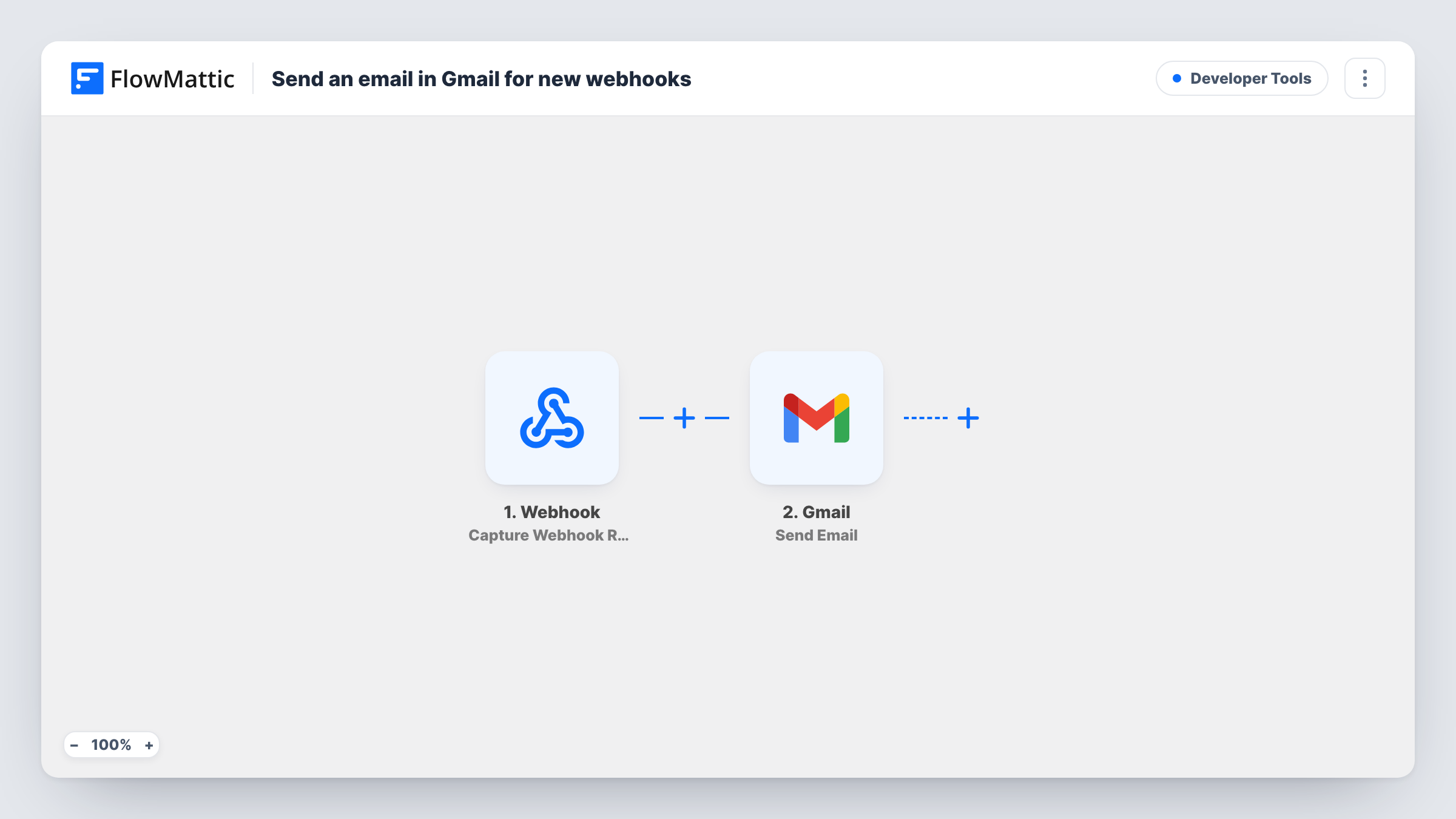
The Webhook trigger gives you a unique URL. Whatever is sent to it is captured, and each value in the payload becomes data you can map. The next step sends an email through Gmail. You write the subject and body and drop in the webhook values where they belong, so the email reads like a message rather than raw data.
Every request to the URL sends one email, so a sender that posts often fills an inbox quickly. Keep the URL private, since anyone who has it can trigger an email. Task History shows each payload that arrived and the email that went out.
Alerts from a custom script
A nightly backup script posts its result to the webhook. You get an email with the status and file name each time it runs.
Notifications from a tool without email
A service you use can send webhooks but has no email option. Point it at the URL, and each event becomes an email you can filter in Gmail.
Order or lead pings from another site
A second website you run posts new leads to the webhook. Your sales inbox gets an email with the lead's details for each one.
How this workflow runs
What happens at each step once the workflow is on, and what you need before you import it.
 Webhook Capture Webhook Response
Captures each request sent to this workflow's webhook URL. Send one test request after import so FlowMattic records the payload and its values are ready to map.
- Gmail Send Email
Emails the captured webhook data from your connected Gmail account. Write the subject and body, map in the payload values you need, and set who receives the message.
What you need
- FlowMatticCore
- Gmail AccountAccount
After importing, map your own data. To keep the template universal, not every step is pre-filled. Open each step in the builder and connect your accounts and fields (channels, lists, sheets, recipients) before you switch the workflow on.
Make it yours
Changes worth making after you import it.
- Add a Filter between the Webhook and Gmail steps that continues only for certain events, such as a status equal to failed, so you only get the emails that matter.
- Put a key value from the payload, like an event name or ID, in the email subject so messages are easy to search and sort in Gmail.
- If the sender posts in bursts, add a Google Sheets step instead of email for routine events and keep Gmail for the ones that need attention.
Questions about this workflow
What data can the webhook send to Gmail?
Anything the sending service includes in its request. FlowMattic captures the payload, and you place its values in the Gmail subject and body.
Does every webhook request send a separate Gmail message?
Yes. Each request to the URL starts its own run. Add a Filter if some requests should not produce an email.
Can anyone trigger an email through my webhook URL?
Not if you turn on Require authentication on incoming requests in the Webhook trigger. Then only callers that send your authentication key, or a valid signature from services that sign webhooks, get through. With it off, the URL alone is enough to send an email.
Which Gmail account sends the webhook alerts?
Whichever Gmail account you link when setting up Send Email. Recipients see that address as the sender.
More Developer Tools workflows
Other ready-to-import templates from the same category.





Import this workflow into your WordPress site
Download the JSON, import it from the Workflows screen and connect your accounts. Every run stays on your server, with no per-task fees.
30-day money-back guarantee Unlimited workflows and runs Self-hosted