

Send Gmail notifications for new Zoho Projects bugs
When a bug or issue is added in Zoho Projects, this workflow emails the details from your Gmail account to the people you choose, so new bugs reach them without anyone forwarding them.
 Zoho Projects
 Gmail
2 steps Setup ~5 min Used on 1.0k sites Free to import
What this workflow does
Bugs logged in Zoho Projects only help if the right people notice them. Developers who don't watch the project, or a client contact who wants to know about problems, can miss new entries for days. This workflow sends an email from Gmail each time a bug is added.
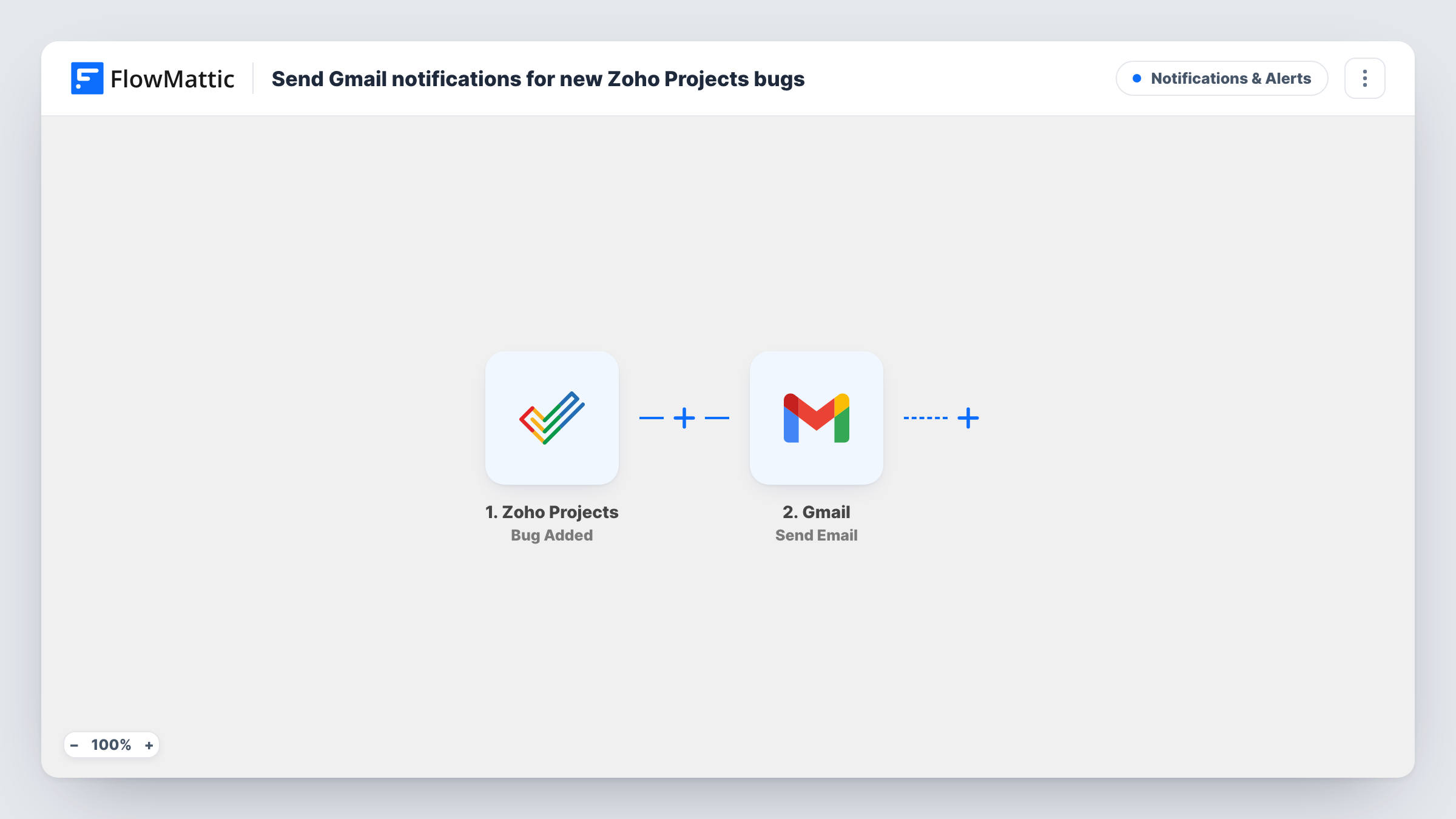
The Zoho Projects trigger fires when a new bug or issue is added. FlowMattic passes the bug's data to Gmail, whose Send Email action sends a message from your connected Google account. You set the recipients, write the subject and body, and insert values from the bug, such as its title and description, if a test run shows them.
Every new bug sends one email, with no check on severity or project. Updates to an existing bug don't trigger it, because Zoho Projects has a separate Bug Updated trigger. Task History shows each email Gmail sent.
Alerting an on-call developer
The developer on rota gets a Gmail message for every bug added to the project, even if they don't keep Zoho Projects open.
Keeping a client informed
An agency logs issues found in a client's site in Zoho Projects. The client's contact receives an email for each one, written in plain language.
QA team reporting to product owners
Testers log bugs in Zoho Projects during a release. The product owner's inbox collects a message per bug to review at the end of the day.
How this workflow runs
What happens at each step once the workflow is on, and what you need before you import it.
 Zoho Projects Bug Added
Fires when a new bug or issue is added in Zoho Projects. The bug's details become available to place in the email.
- Gmail Send Email
Emails the bug through your connected Gmail account. Set who receives it, then build the subject and body from the bug fields a test run shows.
What you need
- FlowMatticCore
- Zoho Projects AccountAccount
- Gmail AccountAccount
After importing, map your own data. To keep the template universal, not every step is pre-filled. Open each step in the builder and connect your accounts and fields (channels, lists, sheets, recipients) before you switch the workflow on.
Make it yours
Changes worth making after you import it.
- Add a Filter after the trigger that continues only when the bug's severity or priority, if the bug data includes it, is high, so only urgent bugs send an email.
- Use a Router with one route per project, each emailing that project's team, if one Zoho Projects portal holds several teams' work.
- Put the bug's title in the email subject. Recipients can then search their inbox for a specific bug later.
Questions about this workflow
Who receives the Zoho Projects bug email?
Whoever you enter in the Gmail step. It can be a fixed address or list of addresses, or a value from the bug data if a test run shows one.
Does editing a Zoho Projects bug send another email?
No. The trigger only fires when a bug is added. Zoho Projects also has Bug Updated and Bug Closed triggers you could use in other workflows.
Can Gmail send to the bug's assignee automatically?
Only if the bug data includes the assignee's email. Check a test run, and if it does, map that field into the To address.
Which address do the bug alerts come from?
The Gmail address of the Google account you connect in the Send Email step, so replies come back to that inbox.
More Notifications & Alerts workflows
Other ready-to-import templates from the same category.




Import this workflow into your WordPress site
Download the JSON, import it from the Workflows screen and connect your accounts. Every run stays on your server, with no per-task fees.
30-day money-back guarantee Unlimited workflows and runs Self-hosted