

Send an alert to Slack when a new Fluent Support ticket subject contains 'urgent'
When a new Fluent Support ticket’s subject contains the word urgent, FlowMattic posts the ticket number and subject to a Slack channel, so your team spots pressing requests without watching the help desk.
 Fluent Support
 Filter
 Slack
3 steps Setup ~5 min Used on 463 sites Free to import
What this workflow does
Most tickets can wait their turn, but a customer who writes urgent in the subject usually expects someone to look now. This workflow pulls those tickets out of the Fluent Support queue and into Slack, where the team is already talking.
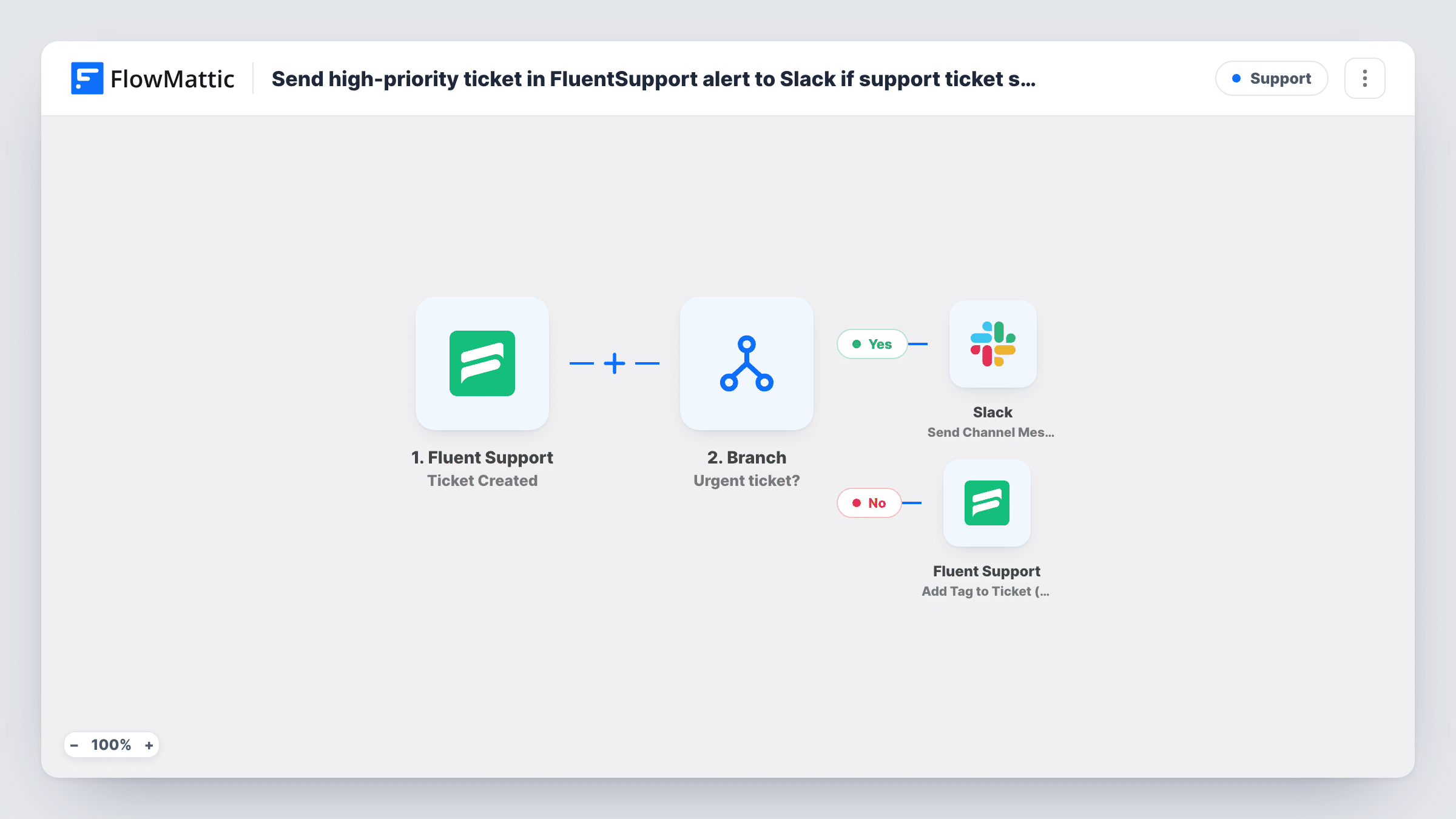
The Fluent Support Ticket Created trigger fires for every new ticket, whether a customer opens it or an agent creates it. A Filter then checks the subject. The run continues only when the subject contains urgent, matched as a piece of text with case ignored, so URGENT and Urgent: also pass. Tickets without it stop at the Filter.
The Slack step posts a message that is already written: Urgent ticket, the ticket number and the subject. After import, connect Slack and pick the public channel for these alerts.
Because the check looks for the text anywhere in the subject, a subject like not urgent or non-urgent also passes. Customers who don't use the word won't trigger an alert, however pressing their issue is. Task History shows each ticket's Filter result and the Slack response.
Out-of-hours escalation channel
A hosting company's on-call engineer keeps notifications on for one Slack channel, which only receives Fluent Support tickets marked urgent.
Faster replies for an online store
A shop's support lead sees urgent delivery problems in Slack during the day and grabs them before they sit in the queue.
Agent-raised escalations
Agents who open a ticket on a customer's behalf add urgent to the subject, which flags it to the whole team in Slack.
How this workflow runs
What happens at each step once the workflow is on, and what you need before you import it.
 Fluent Support Ticket Created
Starts a run for every new Fluent Support ticket, whether a customer or an agent opens it. The ticket ID, subject and other details are passed to the Filter and the Slack step.
- Filter Continue If Condition Meet
Lets the run continue only if the ticket subject contains urgent, with case ignored. Any subject containing that text passes, including not urgent; other tickets stop here.
- Slack Send Channel Message
Posts Urgent ticket followed by the ticket number and subject to a Slack channel. The text is preset; connect Slack and choose the public channel after import.
What you need
- FlowMatticCore
- Fluent Support PluginPlugin
- Slack AccountAccount
After importing, map your own data. To keep the template universal, not every step is pre-filled. Open each step in the builder and connect your accounts and fields (channels, lists, sheets, recipients) before you switch the workflow on.
Make it yours
Changes worth making after you import it.
- Add conditions to the existing Filter, between the Ticket Created trigger and the Slack step, for other words your customers use, such as asap, then send a test ticket with each word to confirm it passes the way you intended.
- Put a link to the ticket in the Slack message by mapping the ticket ID into your help desk's ticket URL, so the team can open it in one click.
- For a private escalation channel, swap the Slack step for Send Private Channel Message, or use Send Direct Message to alert one on-call person.
Questions about this workflow
Does it matter whether a customer types Urgent or URGENT?
No. The Filter ignores upper and lower case, so urgent, Urgent and URGENT in the subject all pass and post to Slack.
Will a Fluent Support ticket marked not urgent post to Slack?
Yes. The Filter checks whether the subject contains the text urgent, so not urgent and non-urgent pass too.
Does the Filter look at the ticket body or priority?
No. It only checks the subject. If a test ticket shows a priority value in the trigger data, you can point the Filter's condition at that field instead of the subject.
Do tickets agents create count as well?
Yes. Ticket Created fires for tickets created by customers and by agents, so an agent-opened ticket with urgent in the subject posts an alert too.
More Support workflows
Other ready-to-import templates from the same category.






Import this workflow into your WordPress site
Download the JSON, import it from the Workflows screen and connect your accounts. Every run stays on your server, with no per-task fees.
30-day money-back guarantee Unlimited workflows and runs Self-hosted