

Trigger Airtable Record Creation from New HARO Email Queries
When a HARO email reaches FlowMattic’s HARO Email Parser, this workflow creates an Airtable record from the parsed details, giving your PR team a base of reporter queries to sort and follow up.
 HARO Email Parser
 Airtable
2 steps Setup ~5 min Used on 3.1k sites Free to import
What this workflow does
HARO emails arrive packed with reporter requests, and the useful ones get lost in the inbox. Keeping them in Airtable lets you sort by topic or deadline, assign them and mark which ones you answered. This workflow saves you the copy and paste.
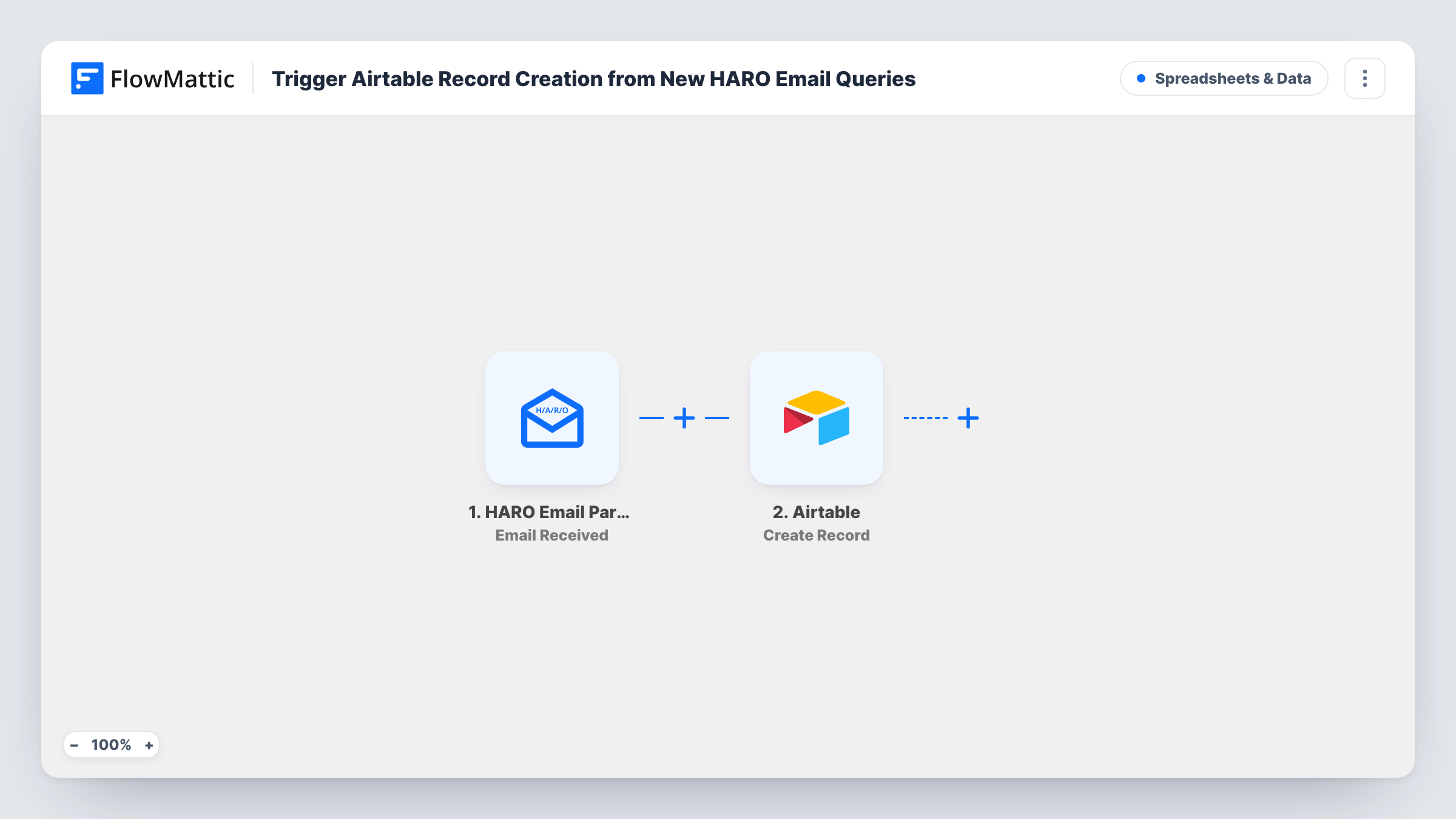
The trigger is FlowMattic's HARO Email Parser, which fires when an email arrives at the parser's email address and pulls information out of it. You send or forward your HARO emails to that address. FlowMattic passes the parsed data to Airtable, where Create Record adds a record to the base and table you choose, with the fields you map.
The template creates one record per run. Check with a test email how the parser returns the queries in a message: if they come back as a list, add an Iterator before Airtable so each query gets its own record. Task History shows every run and the data sent to Airtable.
PR agency pitching for several clients
Account managers filter the Airtable base by topic and pick the queries that suit each client, then mark them as pitched.
Founder building press mentions
A startup founder reviews the base once a day instead of reading every HARO email, and replies to the few that fit.
Content team tracking deadlines
Writers add a status field in Airtable and mark each query as drafted, sent or passed, so the team knows which ones are still open.
How this workflow runs
What happens at each step once the workflow is on, and what you need before you import it.
 HARO Email Parser Email Received
Fires when an email is received at the HARO Email Parser's address and makes the parsed information available. Forward one HARO email after import to see what the parser returns.
- Airtable Create Record
Adds a record to the Airtable base and table you pick, filled with parsed HARO details. Connect your Airtable account and map each parsed value to a field in your table.
What you need
- FlowMatticCore
- Airtable AccountAccount
After importing, map your own data. To keep the template universal, not every step is pre-filled. Open each step in the builder and connect your accounts and fields (channels, lists, sheets, recipients) before you switch the workflow on.
Make it yours
Changes worth making after you import it.
- Set up a forwarding rule in your mail app so HARO emails go straight to the parser's address, instead of forwarding each one by hand.
- Add an Iterator after the trigger if a test run shows the queries as a list, then put the Airtable step inside it so every query becomes a separate record.
- Add a Filter that continues only when a parsed value contains a topic you cover, such as Business or Health, to keep the base focused on queries you can answer.
Questions about this workflow
Do I need a separate email parsing service for HARO emails?
No. The HARO Email Parser is part of FlowMattic. You send your HARO emails to the parser's address, and the trigger fires when one arrives.
Will each reporter query get its own Airtable record?
As imported, the workflow creates one record per email. Run a test to see how the parser returns the queries; if they arrive as a list, add an Iterator so each one gets a record.
What Airtable fields do I need?
Create a field for each detail the parser returns that you want to keep. Forward a test email first to see those details, then map them in the Airtable step.
Are HARO emails I received before import added?
No. Only emails that reach the parser after the workflow is on create records. You can forward older ones to the parser's address to add them.
More Spreadsheets & Data workflows
Other ready-to-import templates from the same category.




Import this workflow into your WordPress site
Download the JSON, import it from the Workflows screen and connect your accounts. Every run stays on your server, with no per-task fees.
30-day money-back guarantee Unlimited workflows and runs Self-hosted