

Create a HubSpot CRM contact when an Appcues web flow is completed
When a user completes an Appcues web flow, FlowMattic creates a contact for them in HubSpot CRM, so people who finish your onboarding or product tours appear in your CRM.
 Appcues
 HubSpot CRM
2 steps Setup ~5 min Used on 483 sites Free to import
What this workflow does
Finishing an onboarding flow is a useful signal: the person saw your product tour through to the end. Sales and success teams working in HubSpot rarely see that signal unless someone exports it. This workflow sends each completion to HubSpot as a new contact.
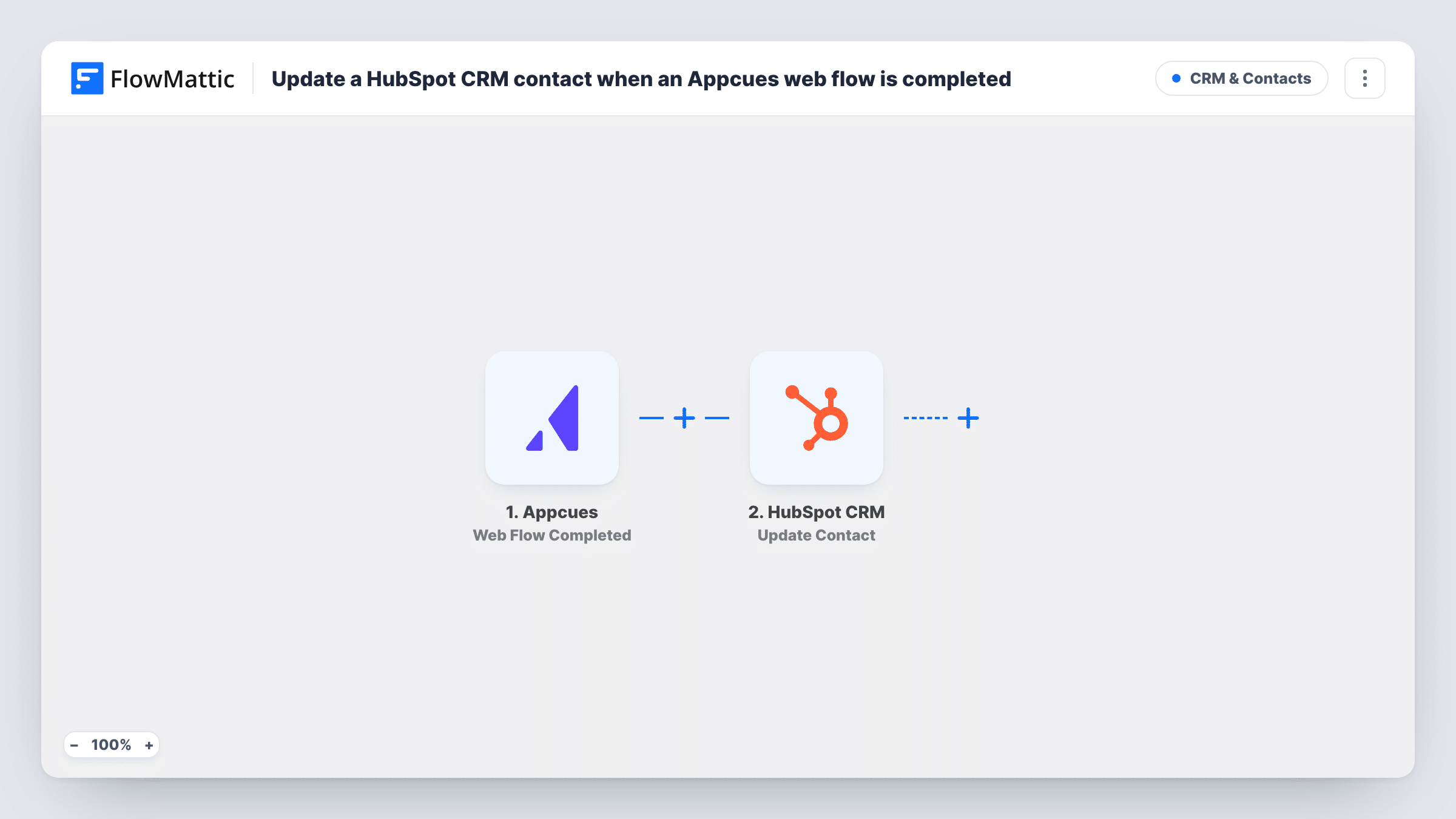
The Appcues Web Flow Completed trigger fires when a user completes a web flow. FlowMattic then runs the HubSpot CRM Create Contact action with the user's details.
The HubSpot step ships unmapped. After import, connect HubSpot and map the user data from the trigger into the contact, for example the email address and name. Which user fields reach FlowMattic depends on what your Appcues installation knows about each user, so complete a test flow first and check what arrives. If the email isn't there, add it to the user properties you send to Appcues.
Nothing in this flow checks HubSpot for the person before the create step runs. A user who completes a second flow, or who is already in HubSpot, runs the step again, and HubSpot may refuse a duplicate email. You can read HubSpot's reply to every attempt in Task History.
Trial users who finished onboarding
A SaaS company adds trial users to HubSpot only after they complete the Appcues welcome tour, so its sales team calls people who have seen the product.
Feature adoption list for success
A customer success team builds a HubSpot view of contacts created from a feature walkthrough flow and checks in with them a week later.
Product-qualified leads in the CRM
A startup treats completing its setup checklist flow as a sign of intent, and an account executive reaches out to each contact the workflow creates in HubSpot.
How this workflow runs
What happens at each step once the workflow is on, and what you need before you import it.
 Appcues Web Flow Completed
Fires when a user completes an Appcues web flow. The flow and the user details Appcues holds are passed on; a test run shows whether the email and name are included.
- HubSpot CRM Create Contact
Adds the user to HubSpot CRM as a brand-new contact. The step ships unmapped, so after import connect HubSpot and map the Appcues user's email address, name and any other details you want on the contact.
What you need
- FlowMatticCore
- Appcues AccountAccount
- HubSpot CRM AccountAccount
After importing, map your own data. To keep the template universal, not every step is pre-filled. Open each step in the builder and connect your accounts and fields (channels, lists, sheets, recipients) before you switch the workflow on.
Make it yours
Changes worth making after you import it.
- Put a Filter between the Appcues trigger and the HubSpot step that continues only for the flow you care about, such as your onboarding flow, since every completed web flow starts a run. Choose the flow field after a test run.
- Make sure your Appcues setup sends each user's email as a property, so the HubSpot step has an address to map.
- Map the name of the completed flow into a HubSpot contact property, so your team can see which flow brought each contact in.
Questions about this workflow
Which Appcues web flows create HubSpot contacts?
Every web flow a user completes, as imported. To limit it to one flow, put a Filter on the flow name or ID between the Appcues trigger and the HubSpot step.
What happens if the user is already a HubSpot contact?
The Create Contact action doesn't look for an existing contact first. HubSpot may refuse a duplicate email, and Task History shows the response it returned.
Does Appcues send the user's email to FlowMattic?
Only if Appcues has it for that user. Complete a test flow after import and check the trigger data. If no email arrives, send it to Appcues as a user property from your app.
More CRM & Contacts workflows
Other ready-to-import templates from the same category.





Import this workflow into your WordPress site
Download the JSON, import it from the Workflows screen and connect your accounts. Every run stays on your server, with no per-task fees.
30-day money-back guarantee Unlimited workflows and runs Self-hosted