

Update a HubSpot CRM contact with notes from a recorded Fathom call
After Fathom records a call and its content is ready, this workflow updates the matching HubSpot CRM contact with details from the meeting, such as the summary, so the record reflects your latest conversation.
 Fathom
 HubSpot CRM
2 steps Setup ~5 min Used on 3.2k sites Free to import
What this workflow does
Sales and account calls produce useful notes, but copying a Fathom summary into HubSpot after every meeting is easy to skip when the day is busy. This workflow writes meeting details onto the contact's record once Fathom has processed the call.
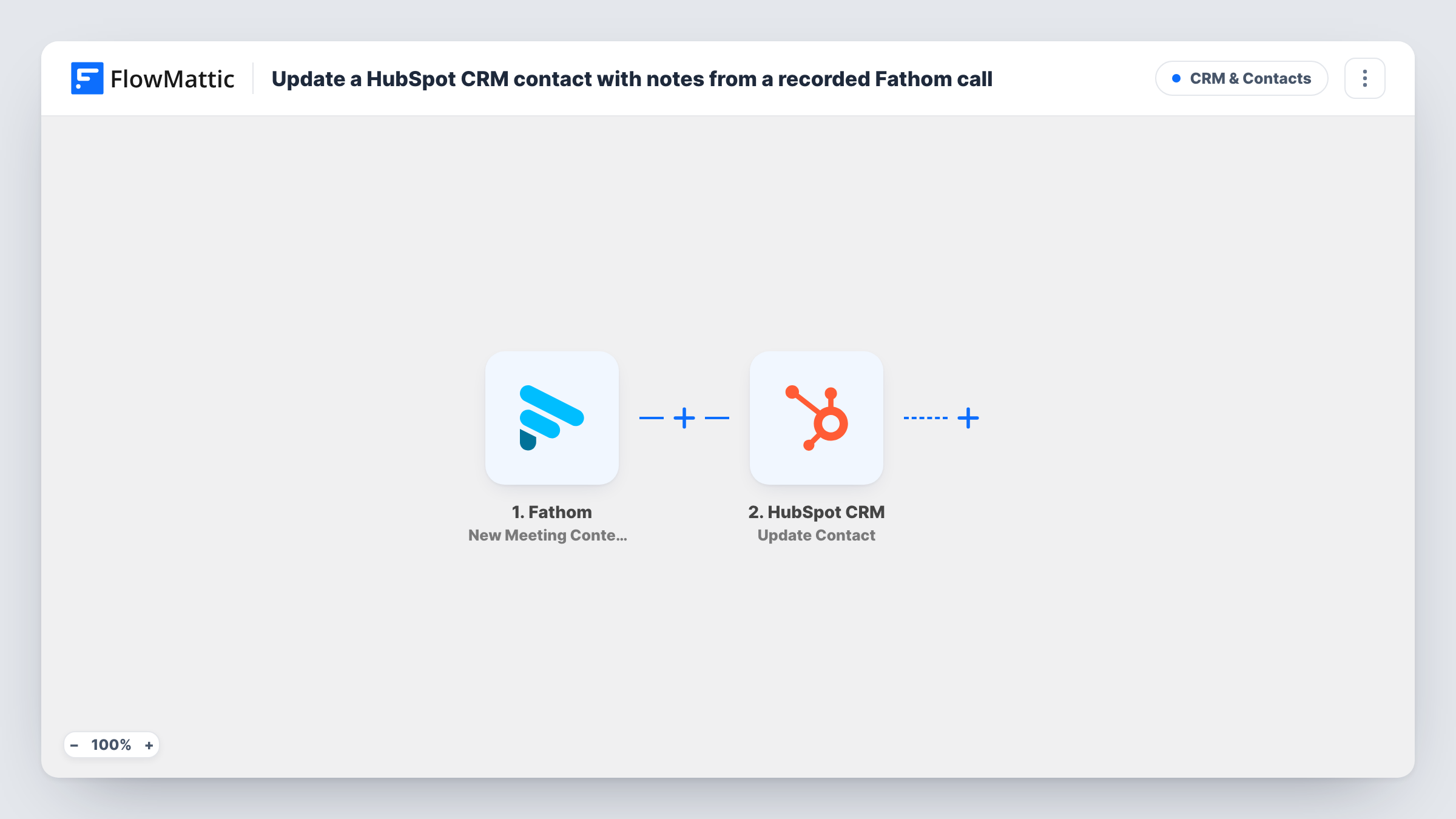
The Fathom trigger fires when new meeting content is ready. FlowMattic passes the meeting data to HubSpot CRM, where the Update Contact action changes an existing contact. You choose which contact to update by mapping the attendee's email from the Fathom data, and you map the meeting summary or other details into the contact fields that should hold them.
This updates fields on the contact record. It does not log a separate note or activity in HubSpot. A meeting can have several attendees, and the step updates only the one you map. Test with a call involving a contact you already have in HubSpot, then check Task History and the contact record.
Discovery calls with new prospects
After a first call recorded in Fathom, the prospect's HubSpot contact shows the summary, so the rep who picks up the deal next knows what was said.
Customer success check-ins
Account managers record regular check-ins in Fathom. The customer's contact record carries the latest summary for anyone reviewing the account.
Handover between team members
When a contact changes owner, the new owner reads the last meeting's details on the HubSpot record instead of hunting through recordings.
How this workflow runs
What happens at each step once the workflow is on, and what you need before you import it.
 Fathom New Meeting Content Ready
Fires when Fathom has processed a recorded meeting and its content is ready. The meeting data is passed on for mapping into HubSpot.
- HubSpot CRM Update Contact
Updates an existing HubSpot contact with details from the Fathom meeting. Map the attendee's email to find the contact and the summary into the field you want, then test with a known contact.
What you need
- FlowMatticCore
- Fathom AccountAccount
- HubSpot CRM AccountAccount
After importing, map your own data. To keep the template universal, not every step is pre-filled. Open each step in the builder and connect your accounts and fields (channels, lists, sheets, recipients) before you switch the workflow on.
Make it yours
Changes worth making after you import it.
- Create a custom contact property in HubSpot, such as Last meeting summary, so each call's details go to one clear place.
- Add a Filter after the trigger that continues only when the attendee email you map is not empty, so internal meetings with no outside guest don't reach HubSpot.
- Record a short test call with a contact who is already in HubSpot, then check the record and Task History before you turn the workflow on.
Questions about this workflow
Does this add a note to the HubSpot contact's timeline?
No. Update Contact changes fields on the contact record. The meeting details are written into the fields you map, not logged as a separate HubSpot note.
What if the Fathom attendee isn't a HubSpot contact yet?
There is no contact to update, so HubSpot returns an error and Task History shows it on that step. Nothing new is created.
Which contact is updated when a Fathom meeting has several attendees?
Only the one whose email you map in the HubSpot step. Run a test to see how Fathom lists attendees and pick the value that points to your external guest.
Does each new Fathom call replace the previous details on the contact?
Yes. The update writes the new values into the same fields, so the record shows the most recent meeting you mapped.
More CRM & Contacts workflows
Other ready-to-import templates from the same category.







Import this workflow into your WordPress site
Download the JSON, import it from the Workflows screen and connect your accounts. Every run stays on your server, with no per-task fees.
30-day money-back guarantee Unlimited workflows and runs Self-hosted