

When a call is completed in OpenPhone, create a contact in HubSpot CRM
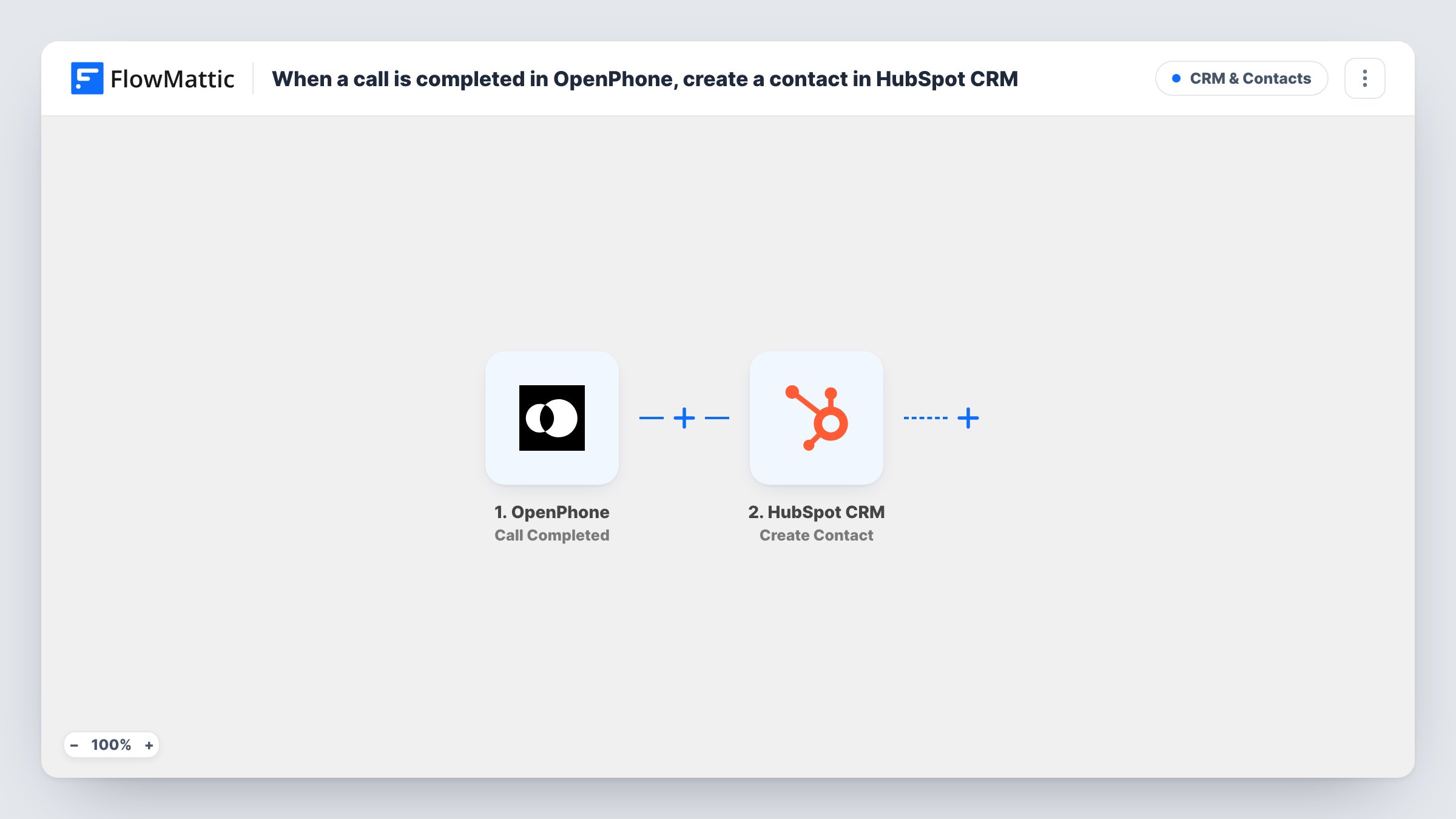
Each time a call finishes in OpenPhone, FlowMattic creates a contact in HubSpot CRM from the call details you map, such as the other party’s phone number.
 OpenPhone
 HubSpot CRM
2 steps Setup ~5 min Used on 942 sites Free to import
What this workflow does
Phone calls are often the first contact a small business has with a new customer, and those numbers rarely make it into the CRM. This workflow takes each completed OpenPhone call and creates a HubSpot contact from it, so callers show up where your sales and support team already work.
The OpenPhone trigger fires when a call is completed. The call details OpenPhone sends, which typically include the phone numbers involved, are passed to HubSpot. Make a test call after import and look at the data in Task History before you map anything.
The HubSpot CRM step creates a new contact. It ships unmapped: connect HubSpot and map the caller's phone number, plus any other value the call carries. A call usually has no email or name, so expect phone-only contacts that you fill in later.
Every completed call runs the workflow, including calls with people already in HubSpot. Create Contact only creates, it doesn't look anyone up first, so a repeat caller can end up as a second contact. Check Task History and your HubSpot contacts after a few calls, and decide whether a phone-only record per call suits your team.
Inbound sales calls into the CRM
A solar company's sales line runs on OpenPhone, and each finished call adds the caller's number to HubSpot so a rep can add notes and a deal.
Service calls logged as contacts
A plumbing business records new callers in HubSpot after each call, then completes the name and address when the job is booked.
Recruiters tracking phone screens
A small recruiting firm creates a HubSpot contact for each candidate it speaks to on OpenPhone and updates the record after the screen.
How this workflow runs
What happens at each step once the workflow is on, and what you need before you import it.
 OpenPhone Call Completed
Fires when a call ends in OpenPhone. The call's details, such as the phone numbers on the call, become available to map into HubSpot. A test call shows which fields arrive.
- HubSpot CRM Create Contact
Creates a new HubSpot contact from the call. The step ships unmapped, so after import connect HubSpot and map the caller's phone number and any other call details into contact properties.
What you need
- FlowMatticCore
- OpenPhone AccountAccount
- HubSpot CRM AccountAccount
After importing, map your own data. To keep the template universal, not every step is pre-filled. Open each step in the builder and connect your accounts and fields (channels, lists, sheets, recipients) before you switch the workflow on.
Make it yours
Changes worth making after you import it.
- Map the call's direction or your OpenPhone number into a custom contact property, if the trigger sends them, so you can tell in HubSpot which line a contact called.
- Use OpenPhone's Call Summary Completed trigger in a second workflow if you want call summaries as well, and log them somewhere your team reads, such as a Google Sheet.
- Review new phone-only contacts in HubSpot each week and merge any duplicates from repeat callers.
Questions about this workflow
Will a repeat OpenPhone caller become a second HubSpot contact?
It can. Create Contact always tries to add a new record and nothing checks for the caller first. HubSpot matches duplicates on email, which calls usually don't carry, so check your contacts after a repeat call and merge if needed.
Does the HubSpot contact get the caller's name?
Only if OpenPhone sends one and you map it. Many calls only carry a phone number, so the contact may start with just that.
Do outgoing OpenPhone calls create contacts too?
The trigger fires for completed calls, and FlowMattic doesn't describe it as limited to incoming ones. Make a test outgoing call and check Task History to see if it runs on your account.
More CRM & Contacts workflows
Other ready-to-import templates from the same category.





Import this workflow into your WordPress site
Download the JSON, import it from the Workflows screen and connect your accounts. Every run stays on your server, with no per-task fees.
30-day money-back guarantee Unlimited workflows and runs Self-hosted