

When a Chartink alert fires, add a row to Google Sheets and send a Pushover push notification
Each time a Chartink screener alert fires, this workflow records it as a new Google Sheets row and then sends a Pushover notification to your devices, so you get a log and a phone alert for every signal.
 Chartink
 Google Sheets
 Pushover
3 steps Setup ~5 min Used on 3.2k sites Free to import
What this workflow does
Chartink alerts tell you when stocks match your screener, but alerts that only arrive by email are easy to miss and hard to review later. Traders who act on signals want an instant ping on the phone and a record they can study afterwards. This workflow gives you both from a single alert.
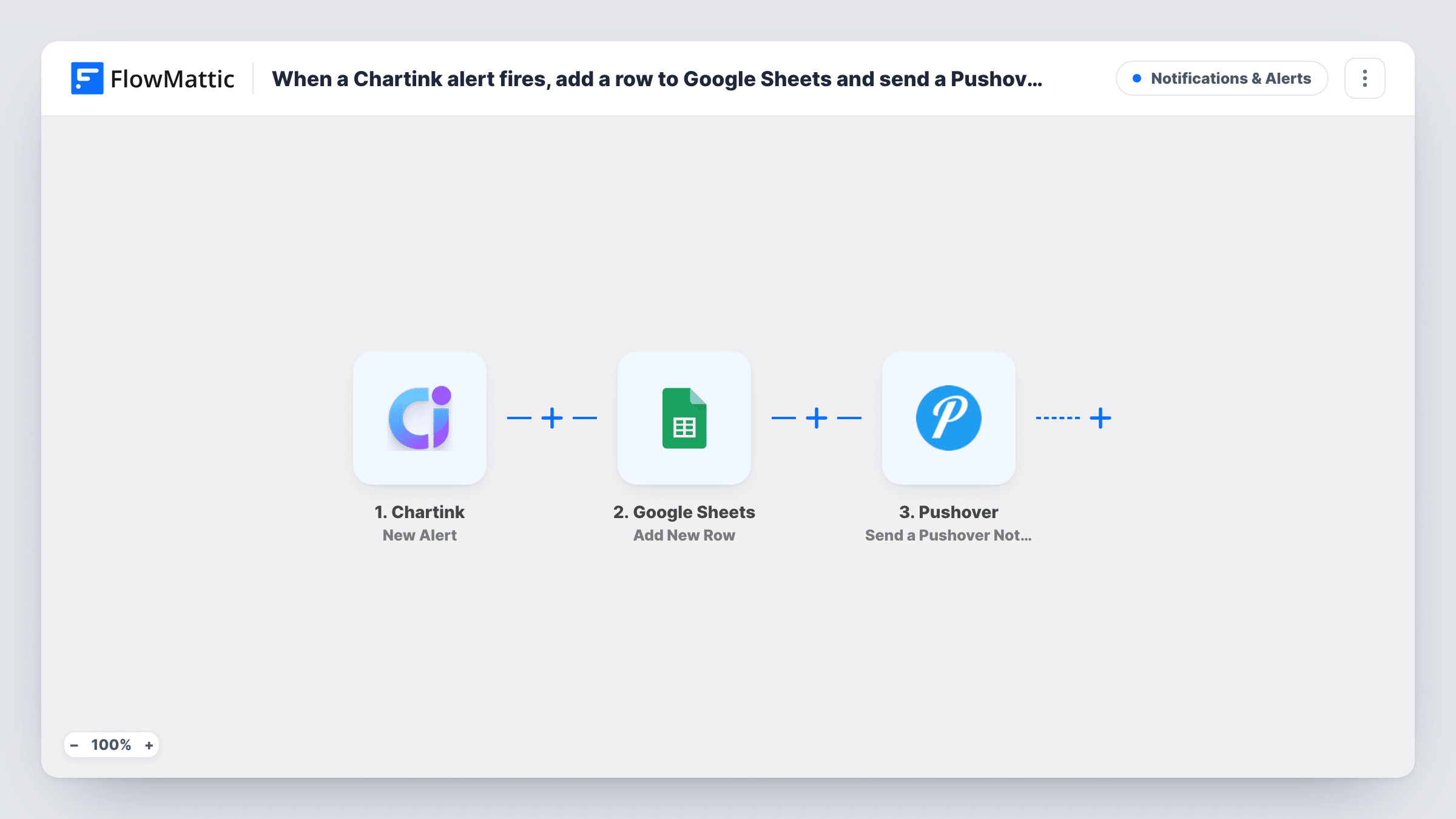
The Chartink trigger, New Alert, fires when an alert you set up in Chartink sends its webhook. FlowMattic passes the alert data, such as the scan name and the stocks it found, to Google Sheets, where Add New Row writes it to the sheet you choose.
The run then reaches Pushover, which sends a notification to your subscribed devices with the message you write. Every alert follows the same path, with no Filter, so the sheet becomes a full history of the alerts Chartink sent you.
Intraday breakout scans
Your Chartink breakout screener fires during market hours. Pushover buzzes your phone right away, and the sheet keeps each alert for your end-of-day review.
Testing a new screener
Before trading a new scan, let it run for a few weeks. The Google Sheet collects every alert so you can check how the signals played out.
Several screeners, one log
Point more than one Chartink alert at the same webhook. Each row records which scan fired, so you can compare them in one spreadsheet.
How this workflow runs
What happens at each step once the workflow is on, and what you need before you import it.
 Chartink New Alert
Fires when a Chartink alert sends its webhook to FlowMattic. Paste the trigger's webhook URL into your Chartink alert, then run a test so the alert fields are captured.
- Google Sheets Add New Row
Adds a new row to the Google Sheets spreadsheet you pick, holding the alert data. Map the scan name, stocks and time into separate columns so the log is easy to sort.
- Pushover Send a Pushover Notification
Pushes an alert to the phones and devices registered in your Pushover account. Write the message with values from the Chartink alert, such as the scan name and the stocks it matched.
What you need
- FlowMatticCore
- Chartink AccountAccount
- Google Sheets AccountAccount
- Pushover AccountAccount
After importing, map your own data. To keep the template universal, not every step is pre-filled. Open each step in the builder and connect your accounts and fields (channels, lists, sheets, recipients) before you switch the workflow on.
Make it yours
Changes worth making after you import it.
- Add a Filter after the Chartink trigger that continues only for the scan names you trade, so other screeners log nothing and send no phone alerts.
- Put a Google Sheets formula column next to the mapped columns, such as a date taken from the alert time, so you can group alerts by day.
- Use a Router after the trigger to send alerts from different scans to different sheet tabs, each with its own Pushover message.
Questions about this workflow
How does Chartink send alerts to FlowMattic?
Chartink alerts can post to a webhook URL. Copy the URL shown in the New Alert trigger into the alert's settings in Chartink, then wait for the alert to fire or trigger a test.
Does every Chartink alert reach Pushover, or only some?
Every alert that reaches the trigger runs both steps, since there is no Filter. Add one if only certain scans should notify your phone.
Where do the Pushover alerts for Chartink signals show up?
On the devices registered to your Pushover account. Install the Pushover app on your phone and connect that account in the workflow's last step.
Will one Chartink alert with several stocks add several sheet rows?
No. Each alert adds one row as imported, with the matched stocks together in it. For a row per stock, add an Iterator over that list before the Google Sheets step, splitting it first if it arrives as text.
More Notifications & Alerts workflows
Other ready-to-import templates from the same category.






Import this workflow into your WordPress site
Download the JSON, import it from the Workflows screen and connect your accounts. Every run stays on your server, with no per-task fees.
30-day money-back guarantee Unlimited workflows and runs Self-hosted