

When a conversation ends in Chatra, create task in ClickUp
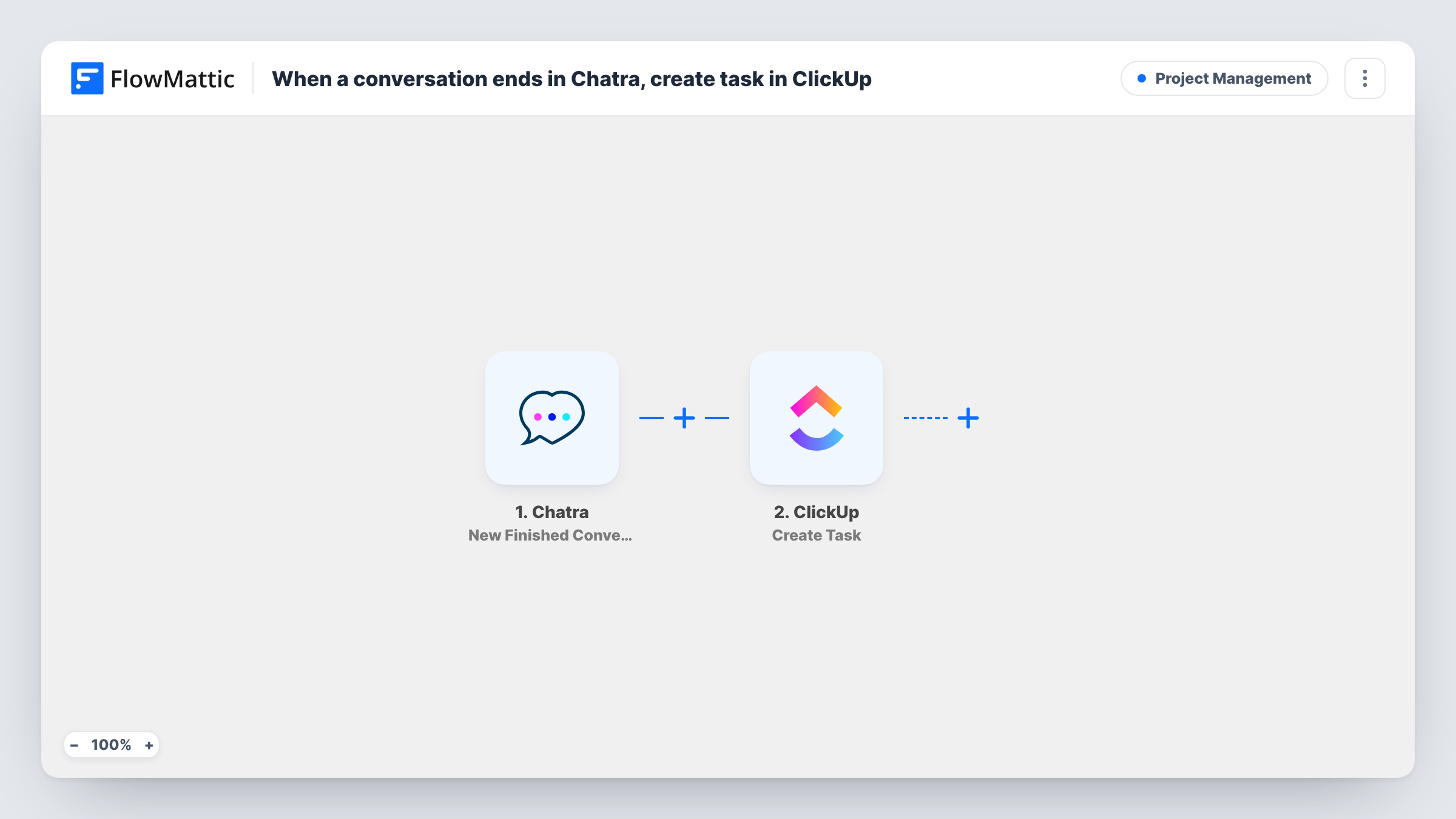
When a Chatra conversation ends, this workflow creates a ClickUp task from it, using the visitor and chat details you map, so each finished chat leaves a follow-up on your team’s list.
 Chatra
 ClickUp
2 steps Setup ~5 min Used on 937 sites Productivity Free to import
What this workflow does
A chat often ends with a promise: send a quote, check an order, call back tomorrow. If that promise only lives in the Chatra transcript, it is easy to lose once the window closes. This workflow puts a task in ClickUp for every conversation that finishes.
The Chatra trigger fires once when a conversation ends, rather than on each message. FlowMattic receives the data for that finished conversation and passes it to ClickUp. The Create Task action adds a new task in the place you choose, and you build its name and description from the chat values, such as who the visitor was and what was said.
Every finished conversation creates a task, including short chats that need no follow-up. If that is too many, add a Filter between the two steps. Run a test chat after import to see which values Chatra sends, and check Task History for each run.
Sales chats that need a quote
A prospect asks about pricing in chat. When the conversation closes, a ClickUp task appears for your sales rep to prepare and send the quote.
Support issues that need investigation
Your agent can't fix a bug during the chat. The finished conversation becomes a ClickUp task for the developer, with the transcript details in the description.
Reviewing chats as a team
A small team logs every finished chat as a task in a review list, then goes through them weekly to spot repeat questions worth an FAQ page.
How this workflow runs
What happens at each step once the workflow is on, and what you need before you import it.
 Chatra New Finished Conversation
Fires when a conversation ends in Chatra. It runs once per finished chat, and the conversation data becomes available to map into the ClickUp task.
- ClickUp Create Task
Creates a new task in ClickUp from the finished chat. Connect your ClickUp account, choose where the task goes, and fill the task name and description with Chatra values.
What you need
- FlowMatticCore
- Chatra AccountAccount
- ClickUp AccountAccount
After importing, map your own data. To keep the template universal, not every step is pre-filled. Open each step in the builder and connect your accounts and fields (channels, lists, sheets, recipients) before you switch the workflow on.
Make it yours
Changes worth making after you import it.
- Add a Filter after the Chatra trigger if only some chats need a task, for example continue only when the conversation data contains a word like quote or refund.
- Use the visitor's name or email in the ClickUp task name, if Chatra sends it, so the task list shows whose chat each task came from.
- Run one test conversation and close it after import. The captured Chatra data then shows exactly which values you can place in the task description.
Questions about this workflow
Does a ClickUp task get created for every Chatra message?
No. The trigger is New Finished Conversation, so it runs once when the chat ends. One conversation gives one task.
Will chats that didn't need follow-up also create ClickUp tasks?
Yes, as imported. Every finished conversation creates a task. Add a Filter to keep only chats that meet a condition you set.
Can I choose which ClickUp list gets the Chatra tasks?
Yes. You pick where the task goes when you set up the Create Task step after import. To send different chats to different lists, add a Router with a ClickUp step on each route.
More Project Management workflows
Other ready-to-import templates from the same category.




Import this workflow into your WordPress site
Download the JSON, import it from the Workflows screen and connect your accounts. Every run stays on your server, with no per-task fees.
30-day money-back guarantee Unlimited workflows and runs Self-hosted