

Create a ClickUp task when a KnowledgeOwl article status changes
Whenever an article’s status changes in your KnowledgeOwl knowledge base, FlowMattic creates a ClickUp task, so your documentation team can review, publish or retire the article from its normal task list.
 Knowledgeowl
 ClickUp
2 steps Setup ~5 min Used on 773 sites Productivity Free to import
What this workflow does
Knowledge base articles move through stages: drafts go to review, reviewed pieces get published, and old ones are retired. If your writers and editors plan their week in ClickUp, those changes are easy to miss inside KnowledgeOwl. This workflow turns each status change into a task where the team already works.
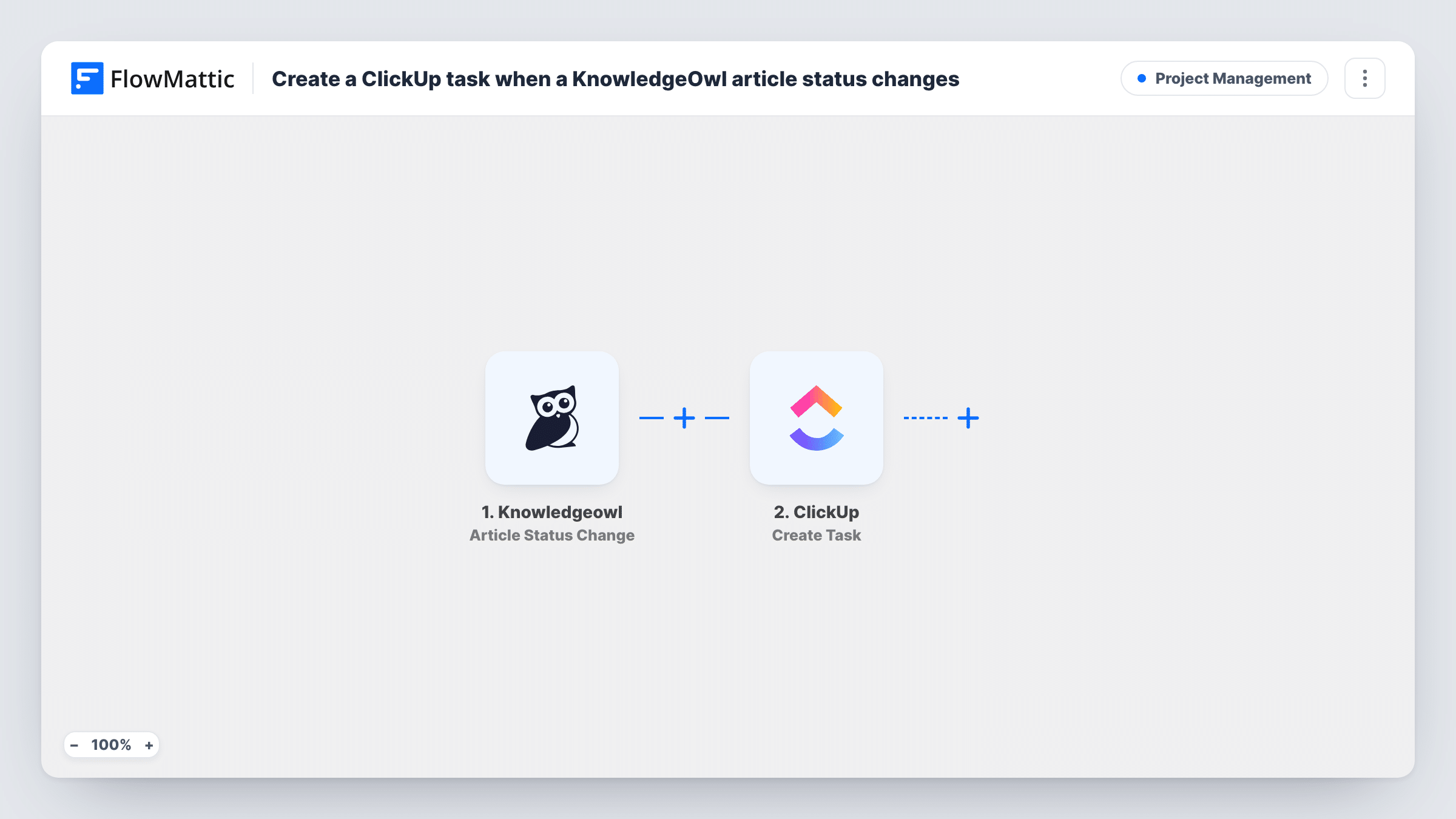
The KnowledgeOwl trigger fires whenever an article's status changes, whatever the old and new status are. The article's details, such as its title and new status, are passed to the next step.
A task is then added in ClickUp. It ships unmapped, so after import you pick the list where tasks should land and write the task name and description, mapping in the article title, the status and a link to the article if the trigger provides one.
Every status change creates one task, so an article that moves through several stages in a day produces several tasks. If you only care about one stage, such as articles sent for review, add a Filter on the status, as described in the tips. Change an article's status while testing and check Task History to see what KnowledgeOwl sent.
Review queue for editors
Writers set finished drafts to a review status in KnowledgeOwl, and an editor finds a ClickUp task for each one in the documentation list.
Publishing checklist
When an article goes live, the support lead gets a ClickUp task to link it from the help widget and tell the team in the weekly update.
Tracking retired articles
Articles moved to an archived status create a task to check that no other page or product screen still links to them.
How this workflow runs
What happens at each step once the workflow is on, and what you need before you import it.
 Knowledgeowl Article Status Change
Fires whenever an article's status changes in KnowledgeOwl, for any status. The article's details, including its new status, are passed on to ClickUp.
- ClickUp Create Task
Adds a task to ClickUp for the article. Nothing is set yet, so choose the list and write the task name and description, mapping the article title and status from KnowledgeOwl.
What you need
- FlowMatticCore
- Knowledgeowl AccountAccount
- ClickUp AccountAccount
After importing, map your own data. To keep the template universal, not every step is pre-filled. Open each step in the builder and connect your accounts and fields (channels, lists, sheets, recipients) before you switch the workflow on.
Make it yours
Changes worth making after you import it.
- Put a Filter between the KnowledgeOwl trigger and the ClickUp step that continues only for the status you care about, such as review. Other status changes then stop before a task is made.
- Include the new status in the task name, so the team can tell a review task from a publishing task at a glance.
- Assign the task to your documentation lead or set a due date a few days out, if the Create Task step offers those options when you set it up.
Questions about this workflow
Which KnowledgeOwl status changes create a ClickUp task?
All of them. The trigger fires whenever an article's status changes. To limit it, add a Filter on the new status between the trigger and the Create Task step.
Does a new KnowledgeOwl article start this workflow?
The trigger watches status changes. FlowMattic's KnowledgeOwl integration has separate Article Created and Article Publish triggers if you want tasks for those events instead.
Will editing an article's text create a task?
Not by itself. Only a change of status fires this trigger. FlowMattic also offers an Article Updated trigger for KnowledgeOwl if you want edits tracked.
More Project Management workflows
Other ready-to-import templates from the same category.





Import this workflow into your WordPress site
Download the JSON, import it from the Workflows screen and connect your accounts. Every run stays on your server, with no per-task fees.
30-day money-back guarantee Unlimited workflows and runs Self-hosted