

When a Fillout form is submitted, create a HubSpot CRM contact and alert the team in Slack
Each new Fillout form submission becomes a HubSpot CRM contact, and a Slack channel message tells your team who just came in and what they asked for.
 Fillout
 HubSpot CRM
 Slack
3 steps Setup ~5 min Used on 766 sites Free to import
What this workflow does
Fillout makes it easy to collect leads, but the answers sit in Fillout until someone moves them. Your sales process probably runs in HubSpot, and your team talks in Slack. This workflow connects the three so a submission turns into a contact and a heads-up at once.
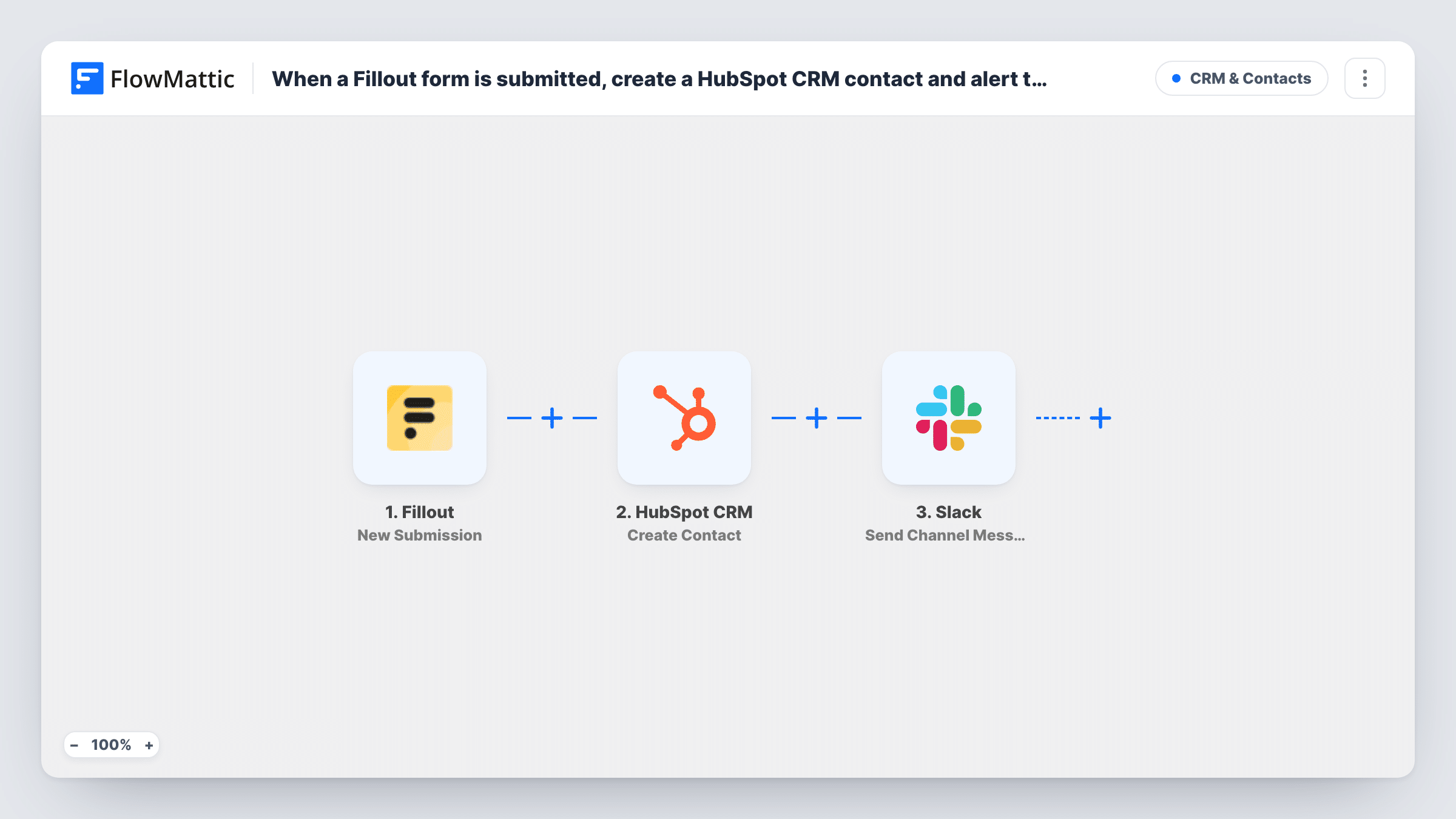
A run begins as soon as Fillout records a fresh response. FlowMattic sends the answers to HubSpot CRM, where Create Contact adds a contact from the email, name and other properties you map. Then a Slack step posts a message to a channel, built from the form answers and anything HubSpot returns.
The HubSpot action never edits an existing record. If the email already belongs to a HubSpot contact, HubSpot may refuse it, and Task History shows that response.
Consultation booking forms
A consultancy uses Fillout for discovery-call requests. Each request becomes a HubSpot contact, and the Slack sales channel sees the company name and the topic straight away.
Product waitlists
Sign-ups for an upcoming product arrive through Fillout. HubSpot gathers them as contacts for launch emails, and the founders watch the Slack channel fill up.
Wholesale enquiry forms
Retailers ask for wholesale terms through a Fillout form. The account team works the contacts in HubSpot and divides them up from the Slack message.
How this workflow runs
What happens at each step once the workflow is on, and what you need before you import it.
 Fillout New Submission
Starts the workflow with each new Fillout response. Every answer is passed along to map into HubSpot and Slack.
- HubSpot CRM Create Contact
Adds the Fillout respondent to HubSpot CRM as a contact. Map the email address and any other properties you collect, such as first name, last name and company.
- Slack Send Channel Message
Posts a message to a public Slack channel with the details you choose. For a private channel, switch to Slack's Send Private Channel Message action.
What you need
- FlowMatticCore
- Fillout AccountAccount
- HubSpot CRM AccountAccount
- Slack AccountAccount
After importing, map your own data. To keep the template universal, not every step is pre-filled. Open each step in the builder and connect your accounts and fields (channels, lists, sheets, recipients) before you switch the workflow on.
Make it yours
Changes worth making after you import it.
- Make the email question required in Fillout, so every HubSpot contact has an address to match against later.
- Add a Filter between the HubSpot step and the Slack step that continues only when a budget or company-size answer meets your bar. HubSpot still gets everyone, because its step comes before the Filter.
- Use Slack's Send Direct Message action instead of a channel post if a single person handles all Fillout leads.
Questions about this workflow
What happens if the Fillout submitter is already a HubSpot contact?
This step can't edit a contact that is already there, so HubSpot may reject the repeat address. Task History records HubSpot's reply for that submission.
Do I need to map Fillout answers by hand?
Yes. Submit a test response after import so FlowMattic captures the answer fields, then pick them in the HubSpot and Slack steps.
Can the Slack message link to the new HubSpot contact?
If HubSpot returns the contact ID in the test run, you can build a link to the contact record in the message text. Check what the step returns first.
Can existing HubSpot contacts be updated from Fillout instead?
Not with this template. It only creates contacts. Updating existing ones would need a different HubSpot action and a test with a known contact first.
More CRM & Contacts workflows
Other ready-to-import templates from the same category.





Import this workflow into your WordPress site
Download the JSON, import it from the Workflows screen and connect your accounts. Every run stays on your server, with no per-task fees.
30-day money-back guarantee Unlimited workflows and runs Self-hosted