

When a Kixie call ends, log it in Google Sheets and notify the sales team in Slack
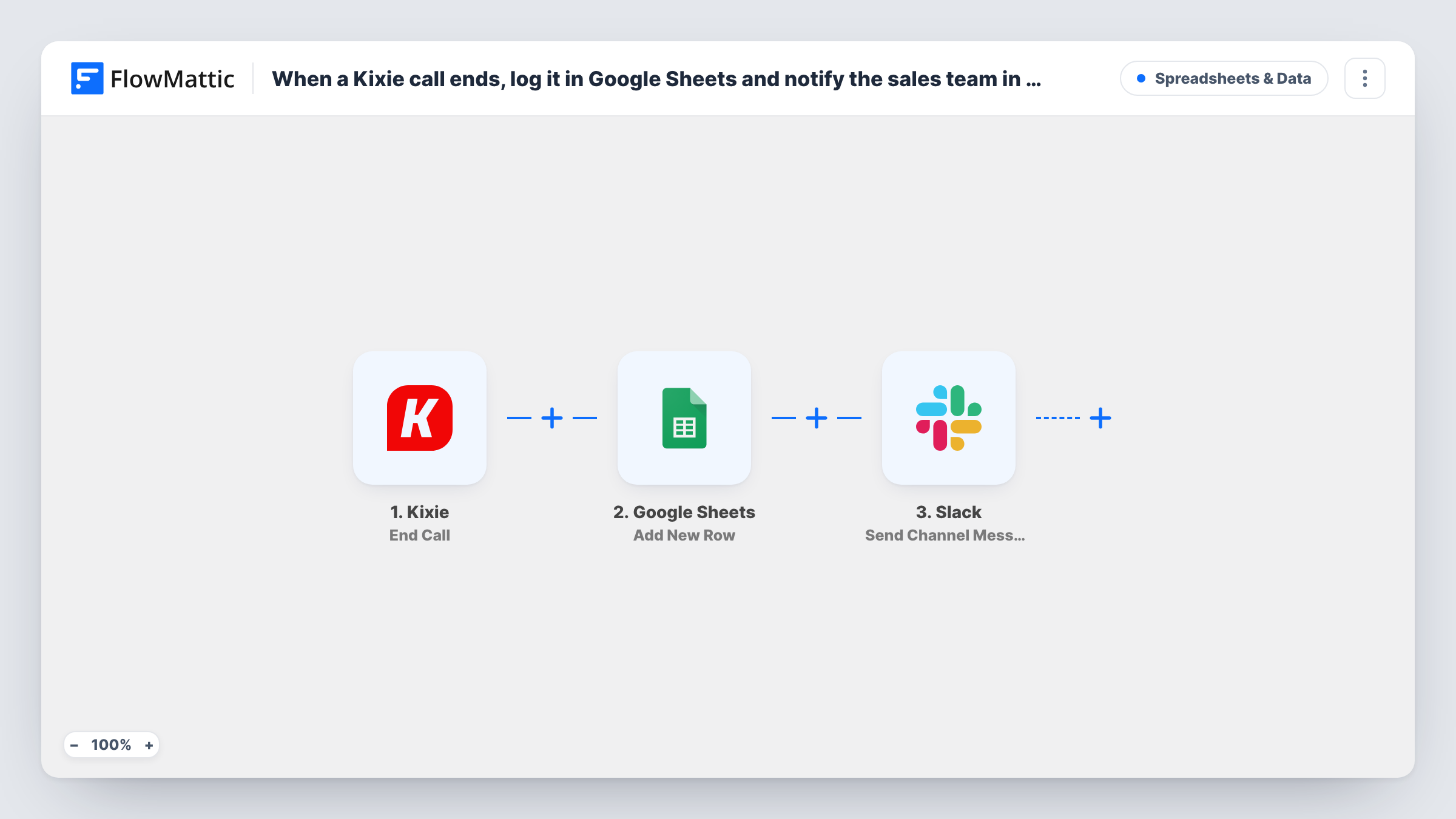
When a Kixie call ends, this workflow writes the call’s details to a Google Sheets row and then posts a summary in a Slack channel, giving your sales team a call log and a live feed of finished calls.
 Kixie
 Google Sheets
 Slack
3 steps Setup ~5 min Used on 1.1k sites Free to import
What this workflow does
Sales managers want to see who called whom and when, and reps want to know when a teammate has just spoken to a shared prospect. Kixie records the call, but that record lives in Kixie. This workflow copies each finished call to a spreadsheet and tells the team in Slack.
The Kixie trigger fires when a call ends. FlowMattic first adds a row to Google Sheets with the call values you map, such as the rep, the number and the duration if Kixie sends them. It then posts a message to the Slack channel you pick, built from the same call data.
Every ended call runs both steps, whether the call was long or short. For any single call, Task History lists what the sheet and Slack steps returned.
Daily call log for a sales manager
Each finished Kixie call adds a row, and the manager filters the sheet by rep to review the day's activity.
Shared prospect list
When one rep finishes a call with a lead, the Slack post tells others not to call the same number again that day.
Weekly call reports
A pivot table on the Google Sheet counts calls per rep each week without exporting anything from Kixie.
How this workflow runs
What happens at each step once the workflow is on, and what you need before you import it.
 Kixie End Call
Starts a run each time a Kixie call is hung up. The call details Kixie sends become available to the Google Sheets and Slack steps.
- Google Sheets Add New Row
Adds a row for the ended call to the spreadsheet you choose. Map the Kixie call values you want logged, such as rep, number and time, to your columns.
- Slack Send Channel Message
Posts a call summary in the Slack channel you select. Write the text and insert Kixie values so the team sees who made the call and to whom.
What you need
- FlowMatticCore
- Kixie AccountAccount
- Google Sheets AccountAccount
- Slack AccountAccount
After importing, map your own data. To keep the template universal, not every step is pre-filled. Open each step in the builder and connect your accounts and fields (channels, lists, sheets, recipients) before you switch the workflow on.
Make it yours
Changes worth making after you import it.
- Add a Filter between the Kixie trigger and the Google Sheets step that skips very short calls, if Kixie sends a duration. A Filter stops every later step, so dropped calls reach neither the sheet nor the channel.
- Kixie also has a Disposition trigger in FlowMattic. Use it in a separate workflow if you'd rather log calls once the rep has picked an outcome.
- Make a test call after import so FlowMattic captures Kixie's call fields before you map the sheet columns and Slack text.
Questions about this workflow
Does every Kixie call get logged, inbound and outbound?
The trigger fires when a call ends. Make one inbound and one outbound test call after import and check Task History to confirm both reach the workflow.
Can the Slack message include a link to the Kixie call recording?
Only if the End Call event includes one. Check the data from a test call; if a recording URL is there, insert it into the message.
Does each Kixie call get its own row in the sheet?
Yes. Add New Row adds one row for every ended call. It doesn't update an earlier row for the same number, so repeat calls to a prospect appear as separate lines.
More Spreadsheets & Data workflows
Other ready-to-import templates from the same category.




Import this workflow into your WordPress site
Download the JSON, import it from the Workflows screen and connect your accounts. Every run stays on your server, with no per-task fees.
30-day money-back guarantee Unlimited workflows and runs Self-hosted