

When a MyOperator call ends, log it in Google Sheets and update the matching Zoho CRM lead
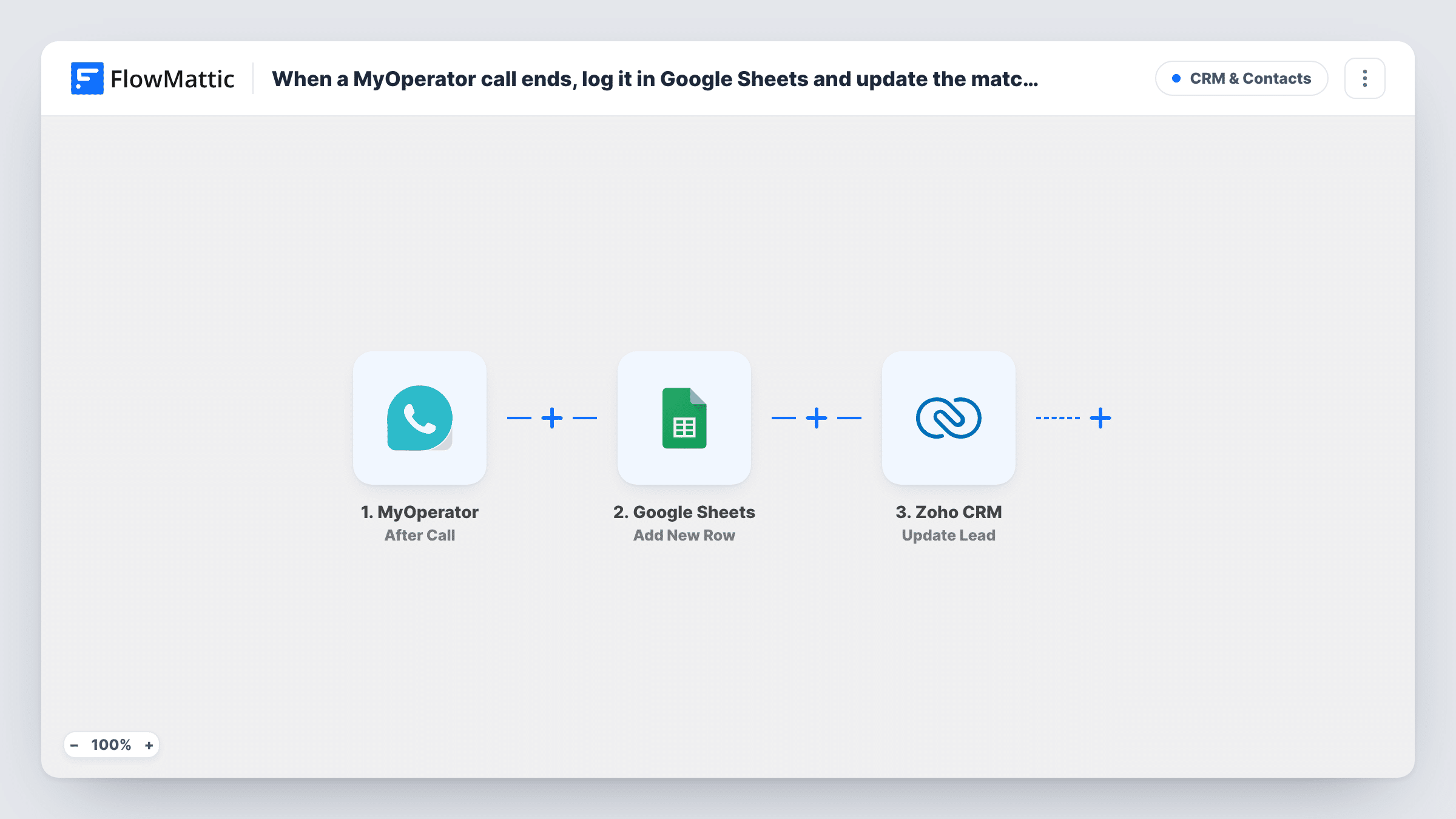
After every MyOperator call, FlowMattic logs the call in Google Sheets, searches Zoho CRM for the lead with the caller’s phone number and updates that lead with details you choose.
 MyOperator
 Google Sheets
 Zoho CRM
4 steps Setup ~8 min Used on 1.6k sites Free to import
What this workflow does
Sales teams on MyOperator make and take dozens of calls a day, and the CRM rarely shows who was called last or what came of it. This workflow writes each finished call to a spreadsheet and brings the matching Zoho CRM lead up to date, so reps and managers see call activity in both places without typing it in.
The MyOperator After Call trigger delivers information about the call once it ends. The Google Sheets step then adds a row for that call. Its columns aren't mapped in the template, so pick your sheet and map values such as the caller number, agent, duration and call time.
Next, the workflow turns to Zoho CRM. Search Lead via Phone looks for a lead with a phone number you supply; map the caller's number from MyOperator into it. Update Lead then changes an existing lead record. Both Zoho steps ship unmapped, so map the lead ID found by the search into the update, along with the fields to change, for example a last-call date or a call status.
Numbers must be stored the same way in MyOperator and Zoho CRM for the search to match. Test with a call from a number that belongs to a known lead and read Task History for each step's result.
Last contacted date on every lead
An inside sales team has the lead's last-call date written into Zoho CRM after each MyOperator call, so stale leads are easy to find in a view.
Call log for team reviews
A sales manager sorts the Google Sheet by agent each Friday to see call volume and durations without exporting reports from MyOperator.
Inbound enquiry tracking
A real estate office logs every call to its MyOperator line and updates the lead status in Zoho CRM when a known prospect calls back.
How this workflow runs
What happens at each step once the workflow is on, and what you need before you import it.
 MyOperator After Call
Starts the workflow when a MyOperator call ends, with real-time information about that call, such as the numbers involved and timing, ready for the next steps.
- Google Sheets Add New Row
Adds a row with the call details to the Google Sheet you choose. No columns are mapped in the template, so match MyOperator values such as caller, agent and duration to your headers.
- Zoho CRM Search Lead via Phone
Searches Zoho CRM for a lead by phone number. The template leaves the number empty: map the caller's number from MyOperator, written the way your leads store it.
- Zoho CRM Update Lead
Updates an existing Zoho CRM lead. Map the lead ID returned by the search, then choose the fields to change, such as a last-call date or a status, from the call data.
What you need
- FlowMatticCore
- MyOperator AccountAccount
- Google Sheets AccountAccount
- Zoho CRM AccountAccount
After importing, map your own data. To keep the template universal, not every step is pre-filled. Open each step in the builder and connect your accounts and fields (channels, lists, sheets, recipients) before you switch the workflow on.
Make it yours
Changes worth making after you import it.
- Put a Filter between Search Lead via Phone and Update Lead that continues only when the search returned a lead ID. Every call is still logged in the sheet, and calls from unknown numbers stop before the update.
- Store phone numbers in Zoho CRM in the same format MyOperator sends, including or leaving out the country code consistently, so the search can find the lead.
- Map the recording link, if MyOperator includes one for the call, into the sheet so managers can listen back from the log.
Questions about this workflow
What happens when a MyOperator caller isn't a Zoho CRM lead?
The call is still added to the sheet, since that step comes first. The search finds no lead for the update to use, and Zoho may return an error. Open Task History to read each step's output for that call.
Does the workflow create a new Zoho lead for unknown callers?
No. It only searches for and updates existing leads. To add new ones you would need a Zoho CRM create step and a way to tell found and not-found callers apart.
Are contacts in Zoho CRM updated too, or only leads?
Only leads. Both Zoho steps work with the Leads module. A converted lead that now lives as a contact won't be found by this search.
Which call details are saved in Google Sheets?
The ones you map. The Add New Row step ships without columns, so pick MyOperator values like the caller number and call time and match them to your sheet.
More CRM & Contacts workflows
Other ready-to-import templates from the same category.






Import this workflow into your WordPress site
Download the JSON, import it from the Workflows screen and connect your accounts. Every run stays on your server, with no per-task fees.
30-day money-back guarantee Unlimited workflows and runs Self-hosted