

When a new row is added in Google Sheets, create a record in Teable
Each new row added to your Google Sheets spreadsheet is copied into a Teable table as a new record, so data collected in a sheet also lives in your Teable database.
 Google Sheets
 Teable
2 steps Setup ~5 min Used on 3.1k sites Free to import
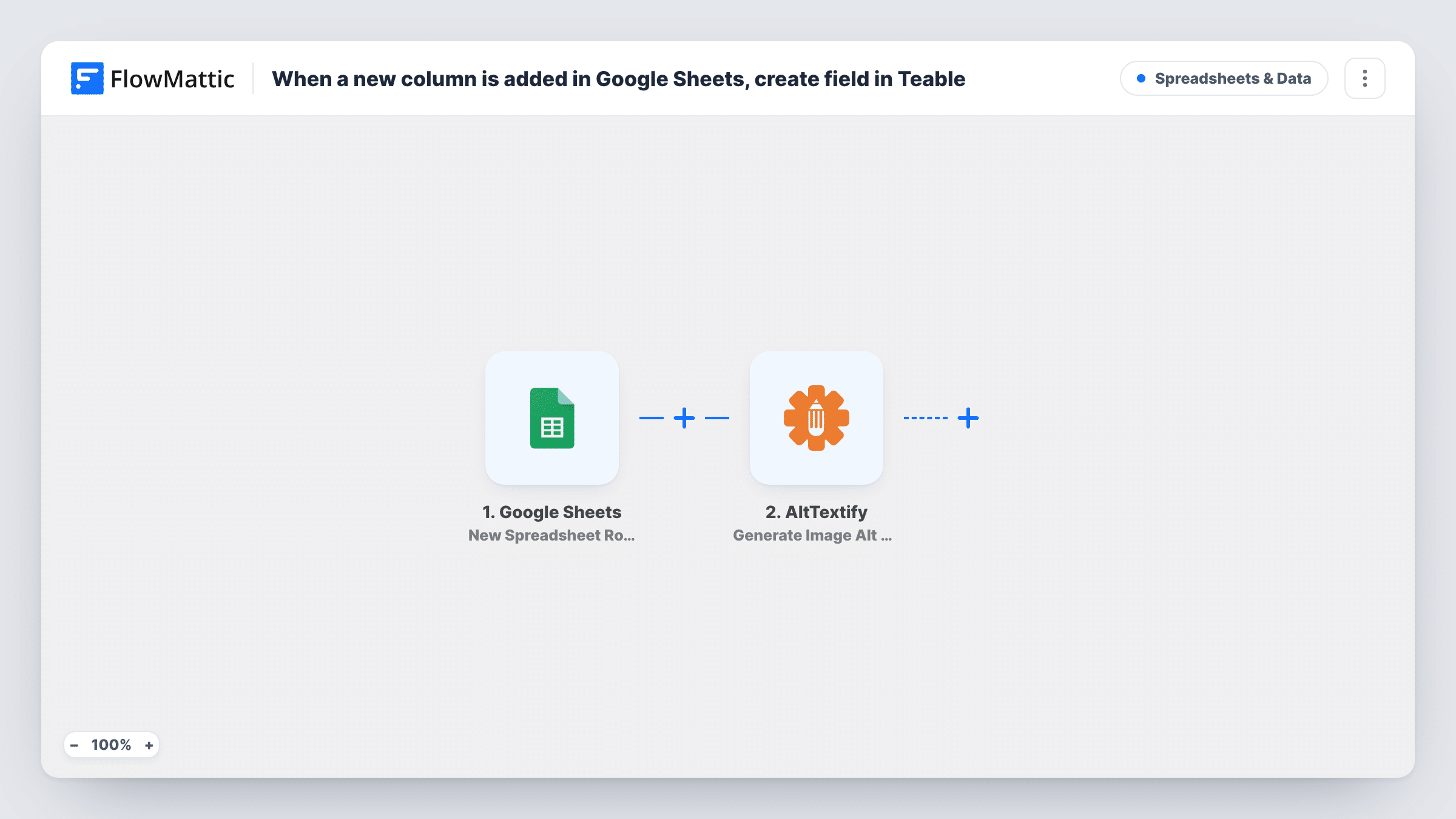
What this workflow does
Plenty of data starts life in a spreadsheet: a sign-up list, a shared intake sheet or rows another tool writes for you. If your team works from Teable, copying those rows across by hand is slow and easy to get wrong. This workflow adds each new sheet row to a Teable table as a record.
The Google Sheets New Spreadsheet Row trigger fires when a new row is added to the spreadsheet and sheet you choose after import, and passes the row's values on, one value per column. Editing a row that already exists doesn't count as a new row; FlowMattic has a separate New Or Updated Spreadsheet Row trigger for that.
The Teable Create Record step then adds one record per row. It ships unmapped: connect Teable, pick the table and map each sheet column into the matching Teable field. Using the same names for columns and fields makes the mapping quick.
The copy goes one way and happens once per row. Later edits in the sheet don't reach Teable, and rows deleted from the sheet stay in Teable. Add a test row after setup and check Task History to confirm the record was created with the right values.
Event sign-ups into a Teable base
An organiser collects sign-ups in a Google Sheet linked to a form, and each new row becomes a Teable record where the team manages attendance.
Moving from spreadsheets to a database
A small team keeps entering data in the familiar sheet while every new row also appears in Teable, where they are building views and filters.
Rows from other tools
A business whose ad platform or survey tool writes leads into Google Sheets gets each lead in Teable as well, for the sales team to work through.
How this workflow runs
What happens at each step once the workflow is on, and what you need before you import it.
 Google Sheets New Spreadsheet Row
Starts when a new row is added to the Google Sheets spreadsheet and sheet you choose. Each new row is one run, and its column values become available to map into Teable.
- Teable Create Record
Creates a new record in your Teable table. The step ships unmapped: connect Teable, pick the table and map each Google Sheets column into the Teable field that should hold it.
What you need
- FlowMatticCore
- Google Sheets AccountAccount
- Teable AccountAccount
After importing, map your own data. To keep the template universal, not every step is pre-filled. Open each step in the builder and connect your accounts and fields (channels, lists, sheets, recipients) before you switch the workflow on.
Make it yours
Changes worth making after you import it.
- Give your sheet a header row before connecting the trigger, so each column shows by name when you map it into Teable.
- Match Teable field types to the sheet's data, such as number fields for amounts and date fields for dates, so values arrive in a usable form.
- To copy only some rows, put a Filter between the Google Sheets trigger and the Teable step that checks a column you choose. Rows it stops create no record.
Questions about this workflow
Do edits to an existing Google Sheets row update the Teable record?
No. The New Spreadsheet Row trigger fires only for new rows, and the workflow only creates records. Later edits in the sheet don't reach Teable.
Will rows already in the sheet be copied into Teable?
No. The trigger reacts to rows that appear in the sheet once the workflow is live, not to the ones already there. Copy the rows you already have into Teable separately if you need them there.
Do the Teable fields need the same names as my sheet columns?
No, you match them by hand in the Create Record step. Using the same names just makes the mapping quicker and easier to check.
More Spreadsheets & Data workflows
Other ready-to-import templates from the same category.




Import this workflow into your WordPress site
Download the JSON, import it from the Workflows screen and connect your accounts. Every run stays on your server, with no per-task fees.
30-day money-back guarantee Unlimited workflows and runs Self-hosted