

When a new conversation is created in ThriveDesk, check if the email is valid with MailRefine, and add new member to list in Mailchimp
When someone starts a new conversation in ThriveDesk, their email address is checked with MailRefine, then they are added to a Mailchimp audience, with the check result available to map.
 ThriveDesk
 MailRefine
 Mailchimp
3 steps Setup ~5 min Used on 2.5k sites Free to import
What this workflow does
People who contact your support desk are often customers or prospects you also want on a mailing list. Adding them by hand is tedious, and a support inbox picks up mistyped and throwaway addresses. This workflow checks each address and then adds the person to Mailchimp.
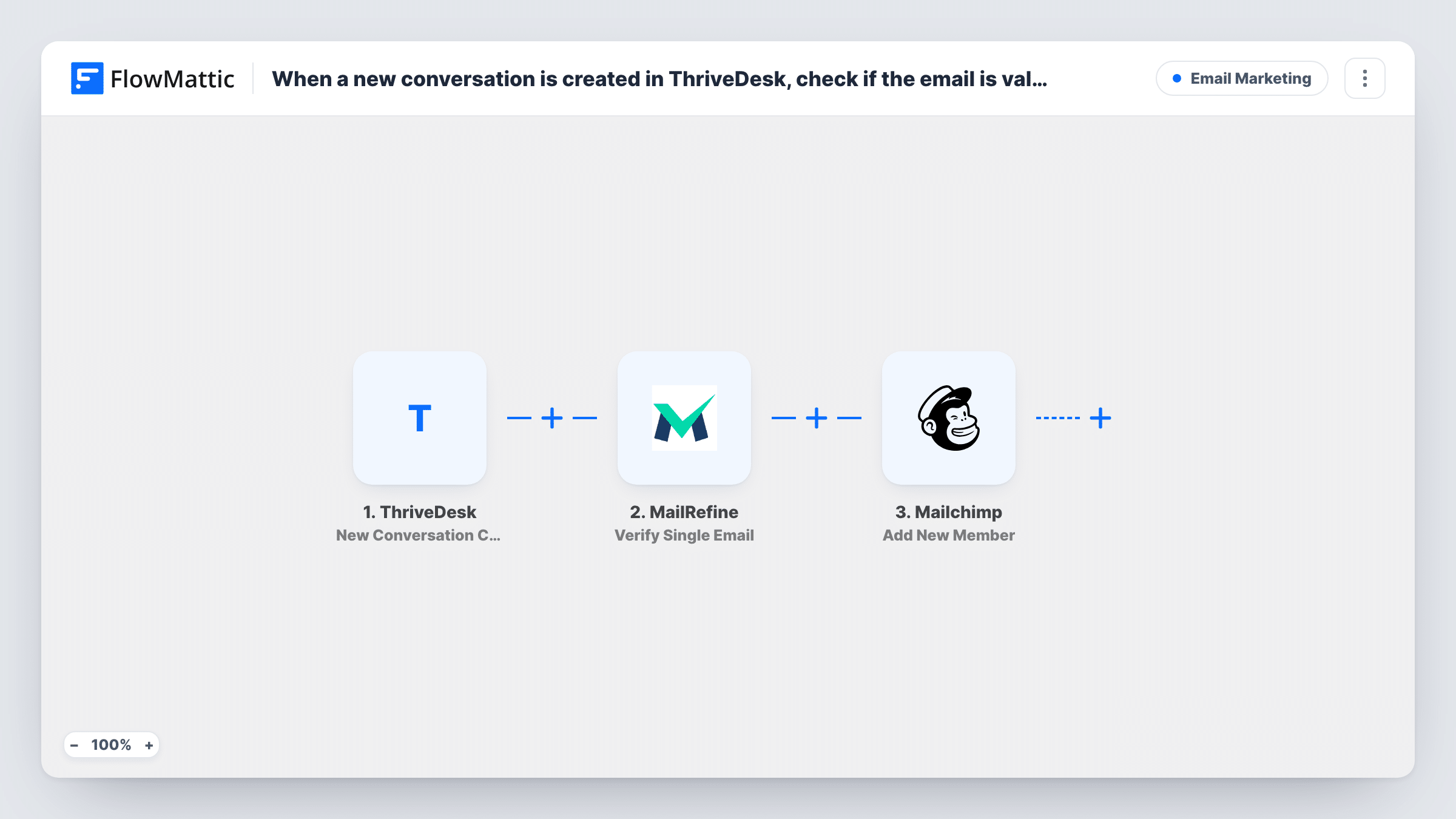
The ThriveDesk trigger fires when a new conversation is created. FlowMattic sends the customer's email address to MailRefine using Verify Single Email, and the response becomes data you can map. The last step runs Add New Member in Mailchimp.
As imported, nothing acts on the MailRefine result, so every new conversation reaches Mailchimp whether the address passed or not. Add a Filter between the two steps to change that. Also think about consent: writing to support doesn't mean someone agreed to marketing emails, so only add people who did, or use an audience you email for service reasons only.
No mappings are included. Start a test conversation after import to map the email into both steps.
Product update list for users who ask for help
A software company keeps a Mailchimp audience for release notes. Users who contact support and agreed to updates are added after their address passes MailRefine.
Catching bad addresses from support
A store sees fake addresses in its help desk. With a Filter added after MailRefine, those never reach the Mailchimp audience.
Building a customer contact list
A small team uses one Mailchimp audience as a record of everyone who has written in, kept separate from marketing.
How this workflow runs
What happens at each step once the workflow is on, and what you need before you import it.
 ThriveDesk New Conversation Created
Fires when a new conversation is created in ThriveDesk. Connect ThriveDesk on import; the customer's email and other conversation details are passed on.
- MailRefine Verify Single Email
Sends the customer's email address to MailRefine to verify it. Connect MailRefine and map the email from the ThriveDesk conversation.
- Mailchimp Add New Member
Adds the person to your Mailchimp audience as a new member. Map the email from ThriveDesk, and any name details, after a test conversation.
What you need
- FlowMatticCore
- ThriveDesk AccountAccount
- MailRefine AccountAccount
- Mailchimp AccountAccount
After importing, map your own data. To keep the template universal, not every step is pre-filled. Open each step in the builder and connect your accounts and fields (channels, lists, sheets, recipients) before you switch the workflow on.
Make it yours
Changes worth making after you import it.
- Add a Filter after MailRefine that continues only when the response shows a valid address. Check a test run to see which response field and value to use.
- Add a second Filter condition if your ThriveDesk setup records marketing consent, so only people who agreed are added to Mailchimp.
- Test with your own address and a made-up one after import, and compare the two MailRefine responses in Task History.
Questions about this workflow
Does MailRefine stop invalid ThriveDesk emails from reaching Mailchimp?
Not as imported. MailRefine checks the address, but no step acts on the answer. Add a Filter before the Mailchimp step to keep failed addresses out.
What if the customer is already in my Mailchimp audience?
Add New Member updates that customer's existing member record with the values you map, rather than making a duplicate.
Will a customer who opens several ThriveDesk conversations be checked each time?
Yes. Every new conversation starts a run, so the address is sent to MailRefine again and Mailchimp is asked to add it again.
Do I need MailRefine and Mailchimp accounts?
Yes. Both steps run through your own accounts, which you connect after import. Check your MailRefine plan for how many verifications it covers.
More Email Marketing workflows
Other ready-to-import templates from the same category.





Import this workflow into your WordPress site
Download the JSON, import it from the Workflows screen and connect your accounts. Every run stays on your server, with no per-task fees.
30-day money-back guarantee Unlimited workflows and runs Self-hosted