

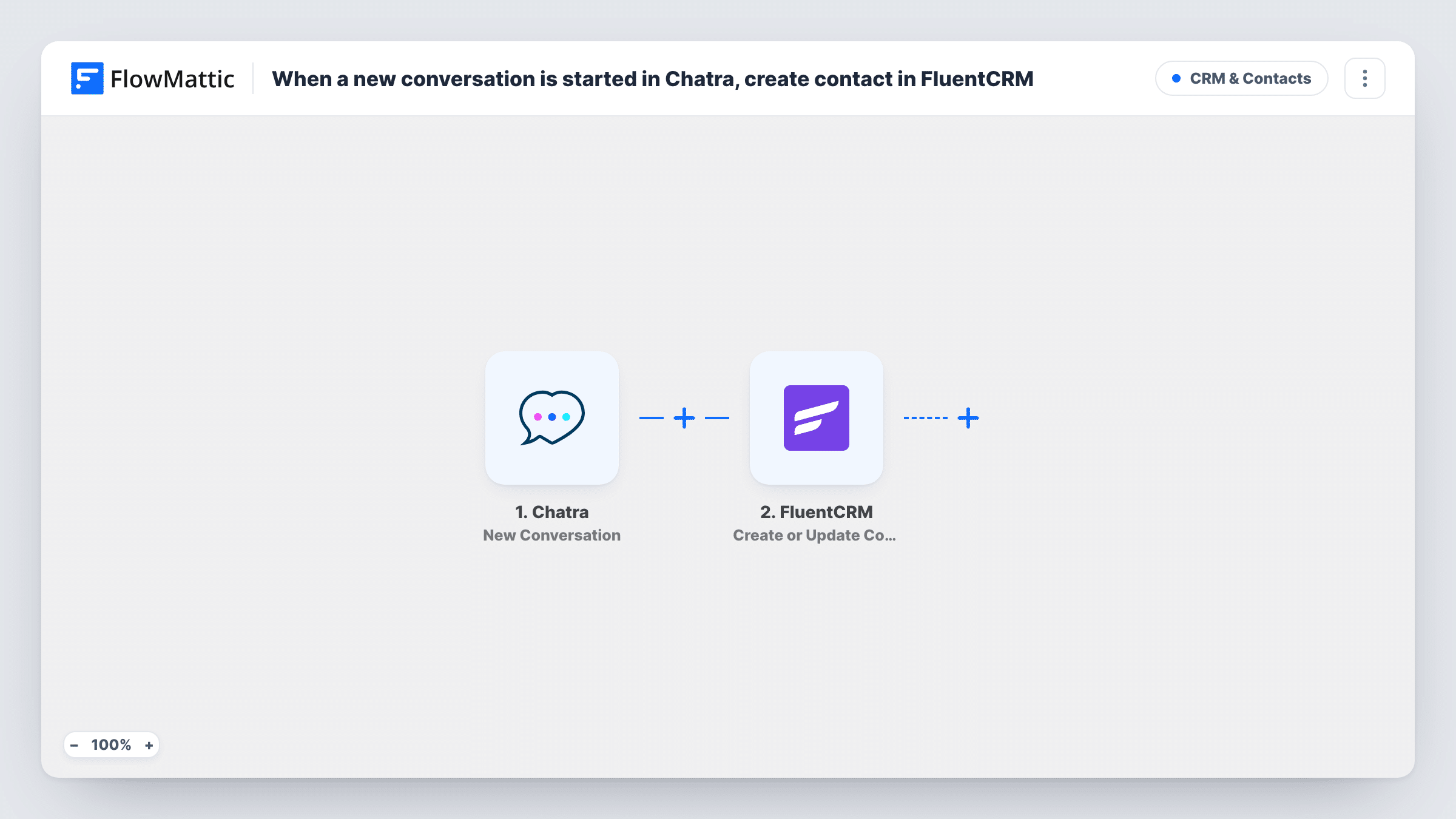
When a new conversation is started in Chatra, create contact in FluentCRM
When a conversation starts in Chatra, this workflow creates a FluentCRM contact from the chat details, or updates the contact if that email is already in your CRM, so chat visitors join your list.
 Chatra
 FluentCRM
2 steps Setup ~5 min Used on 435 sites Free to import
What this workflow does
Live chat brings in people who never fill in a form. If their details stay in Chatra, you cannot follow up by email or see them alongside your other leads. This workflow copies each chat contact into FluentCRM on your WordPress site.
The Chatra trigger fires when a new conversation is started, whether by a visitor or by an agent. FlowMattic passes the conversation data on to FluentCRM, which creates a contact or updates the existing one based on email address. You map the visitor's email and name into the contact.
FluentCRM matches contacts by email, so the step needs one. A chat from a visitor who has not given an email leaves nothing to match on, and Task History shows what happened in that run. Start a test chat after import to see which visitor fields Chatra sends.
Online store answering pre-sale questions
Shoppers who chat before buying become FluentCRM contacts, so you can send them a follow-up email about the product they asked about.
Agency capturing chat leads
Prospects who open a chat on your services page land in FluentCRM next to your form leads, ready for a nurture sequence.
Support site building a customer list
Customers who chat about an issue are added or updated in FluentCRM, so their contact record shows they reached out.
How this workflow runs
What happens at each step once the workflow is on, and what you need before you import it.
 Chatra New Conversation
Runs when a new Chatra conversation is started by a visitor or an agent. The conversation and visitor data are passed on for mapping.
- FluentCRM Create or Update Contact
Creates a FluentCRM contact, or updates an existing one with the same email address. Map the Chatra visitor's email and name into the contact.
What you need
- FlowMatticCore
- Chatra AccountAccount
- FluentCRM PluginPlugin
After importing, map your own data. To keep the template universal, not every step is pre-filled. Open each step in the builder and connect your accounts and fields (channels, lists, sheets, recipients) before you switch the workflow on.
Make it yours
Changes worth making after you import it.
- Set Chatra to ask visitors for their email before or during the chat, so the FluentCRM step has an address to work with.
- Add a Filter after the trigger that continues only when the visitor email is not empty, so chats without one stop before FluentCRM.
- Start a test chat using your own email, then open FluentCRM to confirm the contact appears with the values you mapped.
Questions about this workflow
What if the Chatra visitor is already a FluentCRM contact?
The step creates or updates by email address, so the existing contact is updated rather than added twice.
Do agent-started Chatra conversations also create contacts?
Yes. The trigger fires for conversations started by a visitor or an agent. Add a Filter if you want to treat them differently.
What happens when a chat visitor gives no email?
FluentCRM has no email to match or create the contact with, so no contact is made for that chat. Task History shows the step's response.
Can FluentCRM run on a different WordPress site from the one with this Chatra workflow?
No. FluentCRM is a WordPress plugin, and this step creates the contact on the site where FlowMattic runs, so both belong on the same install.
More CRM & Contacts workflows
Other ready-to-import templates from the same category.





Import this workflow into your WordPress site
Download the JSON, import it from the Workflows screen and connect your accounts. Every run stays on your server, with no per-task fees.
30-day money-back guarantee Unlimited workflows and runs Self-hosted