

When a new entry is submitted in Gravity Forms, create text-to-speech confirmation in Murf AI
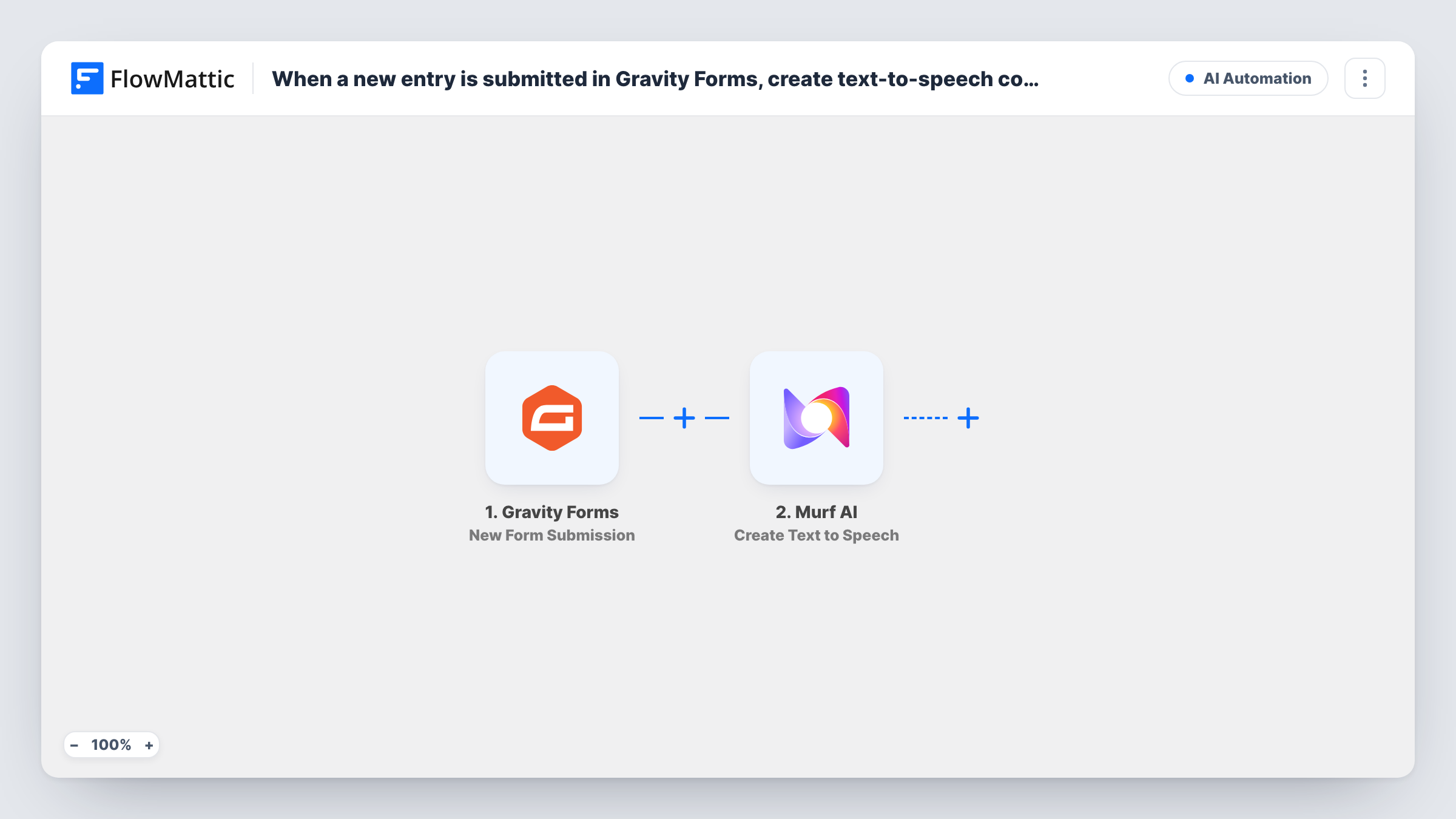
Each new Gravity Forms entry sends text you build from the answers to Murf AI, which creates a text-to-speech audio confirmation. Add a step afterwards to store or deliver the audio.
 Gravity Forms
 Murf AI
2 steps Setup ~5 min Used on 3.3k sites Free to import
What this workflow does
A spoken confirmation can feel more personal than a plain email, for example a short audio message that repeats someone's booking details. Recording one by hand for every entry is not realistic. This workflow asks Murf AI to generate the speech for you each time a form comes in.
The Gravity Forms trigger fires when a new form entry is submitted on your WordPress site. FlowMattic passes the answers to Murf AI, whose Create Text to Speech action turns text into speech. You write the confirmation text in that step and drop in answers such as the person's name or chosen date.
Be clear on where the template stops. Murf AI creates the audio, and its response is available in the run, but no step sends it to the respondent or saves it anywhere. Nobody hears the confirmation until you add a step that uses the Murf AI output, such as an email that includes it. Run a test entry and look at the Murf AI response in Task History to see what you can map into that step.
Spoken booking confirmations
A tour operator's Gravity Forms booking form produces a Murf AI clip that reads back the tour name and date, ready to attach to a follow-up email you add.
Accessible acknowledgements
An organisation serving people with low vision creates an audio version of each form confirmation, then adds a step that sends it by email.
Trying Murf AI voices on real data
Import the two steps, submit a few test entries, and compare how the confirmation sounds in Murf AI before building the delivery step.
How this workflow runs
What happens at each step once the workflow is on, and what you need before you import it.
 Gravity Forms New Form Submission
Fires when a new entry is submitted through Gravity Forms on your site. The answers are passed on so you can use them in the text Murf AI reads.
- Murf AI Create Text to Speech
Sends the text you write, with Gravity Forms answers mapped in, to Murf AI to create text to speech. The audio result stays in the run until a later step uses it.
What you need
- FlowMatticCore
- Gravity Forms PluginPlugin
- Murf AI AccountAccount
After importing, map your own data. To keep the template universal, not every step is pre-filled. Open each step in the builder and connect your accounts and fields (channels, lists, sheets, recipients) before you switch the workflow on.
Make it yours
Changes worth making after you import it.
- Add a Gmail or Email step after Murf AI and include the audio result from its response, so the respondent actually receives the confirmation.
- Use Murf AI's Get Available Voices action once in a test workflow to see which voices your account offers before you settle on one.
- Add a Filter after the trigger if only one of your Gravity Forms forms should create audio confirmations.
Questions about this workflow
Does the person who filled in Gravity Forms hear the Murf AI audio?
Not as imported. Murf AI creates the speech, but no step sends or stores it. Add an email or another delivery step after Murf AI to pass it on.
What text does Murf AI turn into speech?
Whatever you write in the Create Text to Speech step. Mix your own wording with mapped answers, such as a name and a date, to make each confirmation specific.
Does this change Gravity Forms' own confirmation message?
No. Gravity Forms shows its confirmation and sends its notifications as usual. This workflow runs alongside them.
Will past Gravity Forms entries get audio too?
No. Only entries submitted after the workflow is turned on start a run.
More AI Automation workflows
Other ready-to-import templates from the same category.






Import this workflow into your WordPress site
Download the JSON, import it from the Workflows screen and connect your accounts. Every run stays on your server, with no per-task fees.
30-day money-back guarantee Unlimited workflows and runs Self-hosted