

When a new file is submitted to SendSafely Dropzone, send an SMS notification via Twilio
When someone submits a file through your SendSafely Hosted Dropzone, this workflow sends a Twilio SMS to the number you set, so you know a secure file is waiting without checking SendSafely.
 SendSafely
 Twilio
2 steps Setup ~5 min Used on 1.3k sites Free to import
What this workflow does
A Hosted Dropzone lets clients and partners send you files securely through SendSafely. The catch is knowing when something arrives, especially if you're away from your desk. This workflow texts you each time a file comes in.
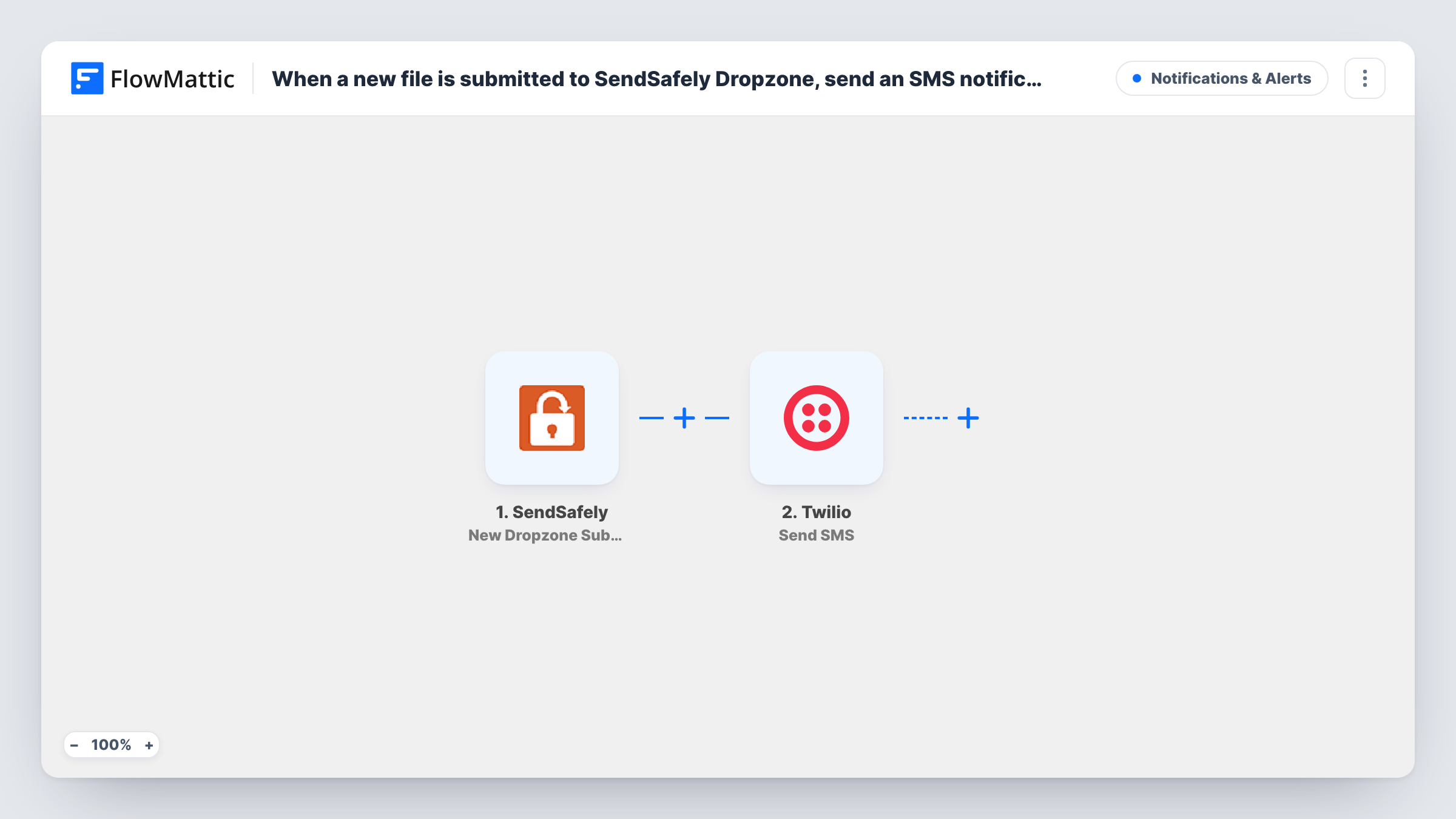
The SendSafely New Dropzone Submission trigger fires when a new file is submitted to your Hosted Dropzone. The submission details become data you can map. The Twilio step then sends an SMS from your Twilio number to the phone number you enter, with a message you write.
The text tells you a submission arrived. It doesn't carry the file itself, which stays in SendSafely for you to open there. Keep the message short and avoid putting sensitive details from the submission into it, since SMS isn't encrypted the way SendSafely is. Each text sent is logged in Task History.
Accountant receiving client documents
Clients upload tax papers to your Dropzone during busy season, and a text tells you each time new documents are ready to download.
Legal team on the move
A lawyer at court gets an SMS when opposing counsel submits files, and opens them in SendSafely once back at a computer.
IT support file drops
Users send log files to the support Dropzone, and the on-call engineer's phone gets a text so the files are picked up quickly.
How this workflow runs
What happens at each step once the workflow is on, and what you need before you import it.
 SendSafely New Dropzone Submission
Starts a run each time a file arrives in your SendSafely Hosted Dropzone. The submission's details become available for the SMS text.
- Twilio Send SMS
Texts the phone number you type into the step, using your Twilio account. Write a short alert and connect Twilio; check that the sending number is one your Twilio account owns.
What you need
- FlowMatticCore
- SendSafely AccountAccount
- Twilio AccountAccount
After importing, map your own data. To keep the template universal, not every step is pre-filled. Open each step in the builder and connect your accounts and fields (channels, lists, sheets, recipients) before you switch the workflow on.
Make it yours
Changes worth making after you import it.
- Submit a test file to your Dropzone after import so FlowMattic captures the submission data, then decide which values, if any, belong in the text.
- To alert more than one person, add a second Twilio Send SMS step with another phone number after the first.
- Add an Email step after the SMS if you also want an inbox record of each Dropzone submission alongside the text.
Questions about this workflow
Does the Twilio SMS include the SendSafely file?
No. The SMS is a text alert only. The file stays in SendSafely, where you open it as usual.
Who receives the Dropzone SMS?
The phone number you enter in the Twilio step. It is the same number for every submission unless you change the step.
Does the Dropzone text need a number from my Twilio account?
Yes. Twilio sends the SMS from a number on your Twilio account, which you connect in FlowMattic.
More Notifications & Alerts workflows
Other ready-to-import templates from the same category.




Import this workflow into your WordPress site
Download the JSON, import it from the Workflows screen and connect your accounts. Every run stays on your server, with no per-task fees.
30-day money-back guarantee Unlimited workflows and runs Self-hosted