

When a new form submission is received in forms.app, store the response in Google Sheets
When someone submits a forms.app form, this workflow adds their answers to a new row in Google Sheets, so every response is in a spreadsheet you can sort, filter and share.
 forms.app
 Google Sheets
2 steps Setup ~5 min Used on 2.2k sites Free to import
What this workflow does
forms.app collects answers well, but your team may plan, report and share their work from a spreadsheet. Copying responses across is slow and easy to get wrong. This workflow writes each forms.app response straight into Google Sheets.
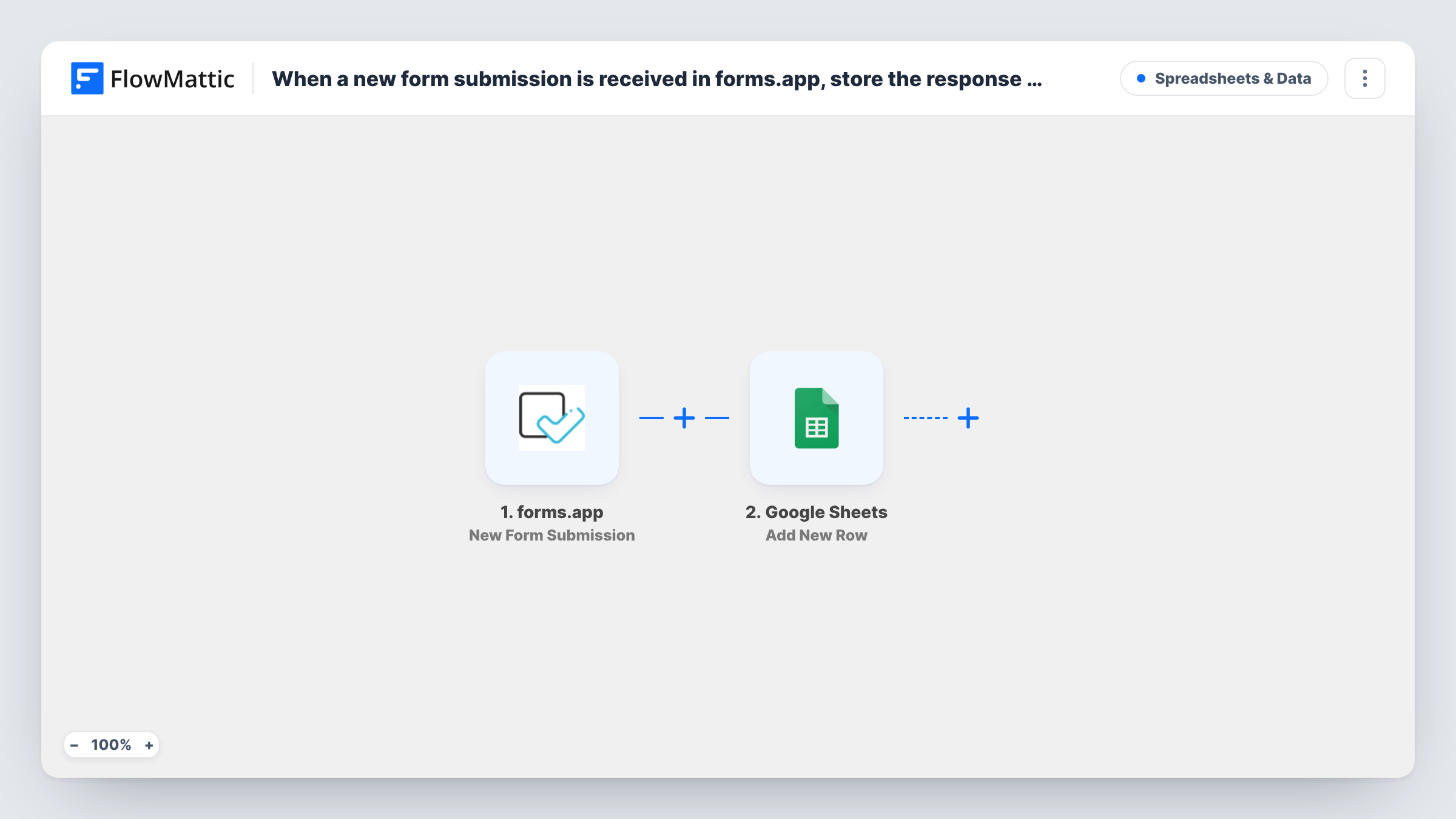
The forms.app trigger is New Form Submission, which fires when a new submission is received for a form. FlowMattic passes the answers to Google Sheets, and Add New Row writes them into the columns you map. One response becomes one row.
Because the row is added as each response comes in, the sheet is always as current as the form. Every run is listed in Task History, which shows the forms.app data and the result from Google Sheets.
Customer feedback survey
A forms.app satisfaction survey feeds a sheet where you chart ratings over time and share the comments with your product team.
Job application form
Applicants fill in a forms.app form, and the hiring team reviews each one in a shared sheet with columns for notes and status.
Order or booking requests
A small business takes requests through forms.app and works through them in a spreadsheet, adding a column to mark each as done.
How this workflow runs
What happens at each step once the workflow is on, and what you need before you import it.
 forms.app New Form Submission
Fires when forms.app receives a new submission for your form. The answers come through as fields you can map in the next step.
- Google Sheets Add New Row
Writes the forms.app response to a new row in your Google Sheets spreadsheet. Map each question to a column and connect your Google account on import.
What you need
- FlowMatticCore
- forms.app AccountAccount
- Google Sheets AccountAccount
After importing, map your own data. To keep the template universal, not every step is pre-filled. Open each step in the builder and connect your accounts and fields (channels, lists, sheets, recipients) before you switch the workflow on.
Make it yours
Changes worth making after you import it.
- Add a header row to the sheet that matches your forms.app questions before you map the step, so each answer lands under a clear heading.
- Submit a test response in forms.app after import. FlowMattic then shows every answer field, which makes the column mapping quick.
- Leave a few empty columns at the right of the sheet for your own notes. Columns you don't map in the Google Sheets step stay untouched by forms.app responses.
Questions about this workflow
Do I need a separate workflow for each forms.app form?
Open the forms.app trigger after import and see how it is set up. If it is tied to one form, import the template again for each extra form and point each copy at its own sheet or tab.
What happens if I add a question to my forms.app form later?
The new answer isn't written until you map it. Send a fresh test response so FlowMattic sees the new field, then add it to a column in the Google Sheets step.
Are older forms.app responses added to the sheet?
No. Rows appear only for forms.app responses that arrive after the workflow is switched on. Export earlier ones from forms.app if you need them in the same file.
More Spreadsheets & Data workflows
Other ready-to-import templates from the same category.




Import this workflow into your WordPress site
Download the JSON, import it from the Workflows screen and connect your accounts. Every run stays on your server, with no per-task fees.
30-day money-back guarantee Unlimited workflows and runs Self-hosted