

When a new G2 Crowd lead arrives, create a HubSpot CRM contact and email them via Gmail
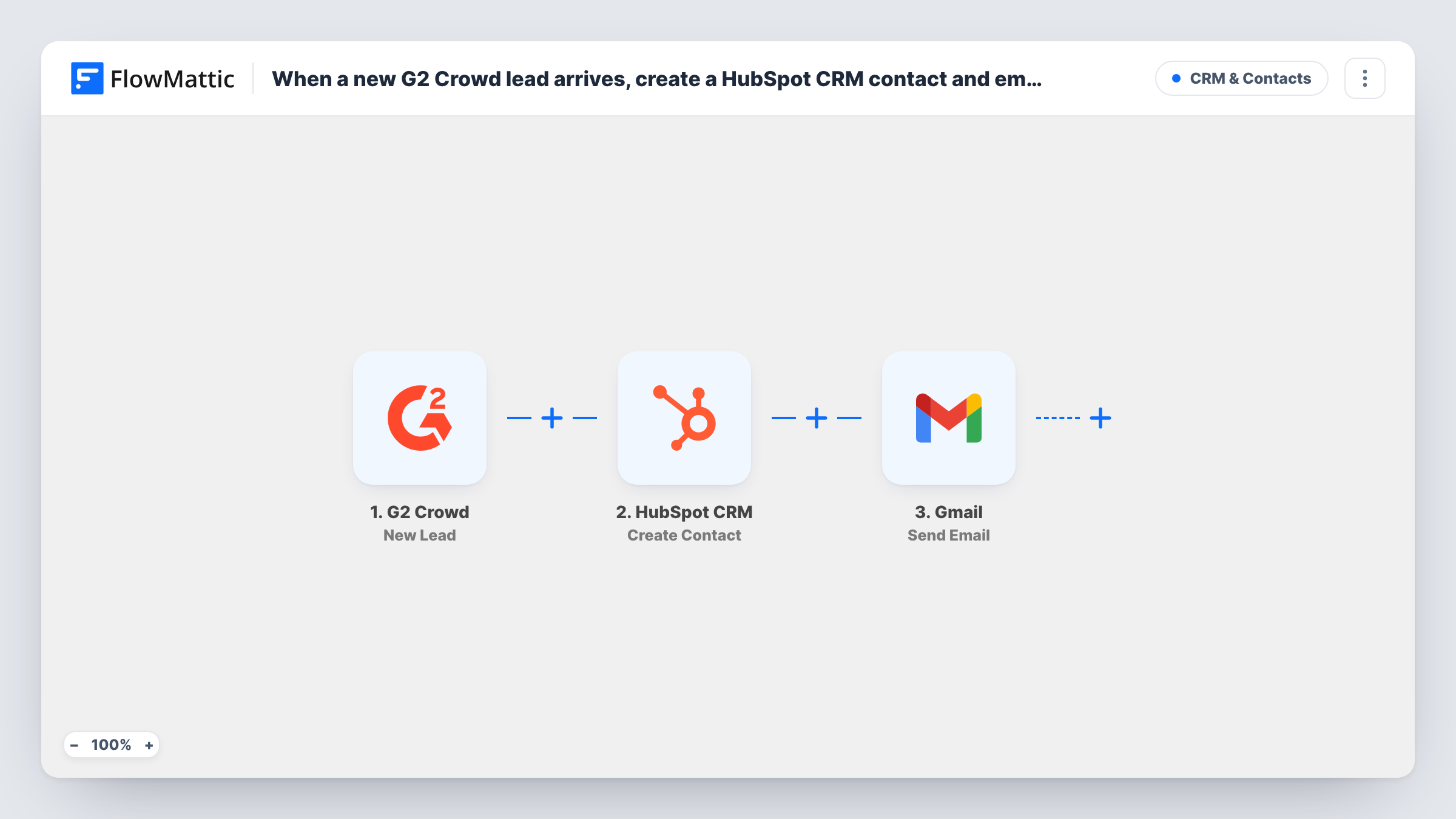
Each new lead from G2 Crowd becomes a contact in HubSpot CRM, and Gmail then sends that lead an email you write, so buyers who found you on G2 are recorded and contacted from one workflow.
 G2 Crowd
 HubSpot CRM
 Gmail
3 steps Setup ~5 min Used on 1.6k sites Free to import
What this workflow does
Leads captured on G2 Crowd are buyers who are already comparing products. If they sit in G2 until someone exports them, the moment passes. This workflow records each new G2 lead in HubSpot and sends them an email from your Gmail account.
Each time G2 Crowd captures a lead for your listing, FlowMattic starts a run. FlowMattic passes the lead's details to HubSpot CRM, where Create Contact adds a contact from the fields you map. The lead data then reaches Gmail, which sends an email to the lead's address with the subject and message you write.
The HubSpot step only creates contacts, so a lead whose email is already in your CRM may be turned away by HubSpot, with its reply logged in Task History. Send yourself a test lead first and check both the HubSpot contact and the Gmail message before you rely on it.
Software vendor listed on G2
A buyer requests information on your G2 profile. They appear in HubSpot for the sales team and get an email from a rep's Gmail inviting them to book a call.
Agency answering comparison shoppers
Leads who compare your service on G2 receive an email with a case study link, while HubSpot holds their record for later follow-up.
Sales team without a G2 export routine
No one has to download G2 leads at the end of the week, because each one is in HubSpot and has received an email by then.
How this workflow runs
What happens at each step once the workflow is on, and what you need before you import it.
 G2 Crowd New Lead
Fires when a new lead is captured on the G2 Crowd platform. The lead's details become data you can map into HubSpot and Gmail.
- HubSpot CRM Create Contact
Adds the G2 lead to HubSpot CRM as a new contact. Map the email address and the other lead details you want on the record, and connect your HubSpot account.
- Gmail Send Email
Sends an email from your connected Gmail account to the G2 lead. Map their email address as the recipient and write a subject and message using the lead's details.
What you need
- FlowMatticCore
- G2 Crowd AccountAccount
- HubSpot CRM AccountAccount
- Gmail AccountAccount
After importing, map your own data. To keep the template universal, not every step is pre-filled. Open each step in the builder and connect your accounts and fields (channels, lists, sheets, recipients) before you switch the workflow on.
Make it yours
Changes worth making after you import it.
- Write the Gmail message as a plain personal note from a named rep, and map the lead's name into the greeting if the G2 lead data includes it.
- Add a Filter between HubSpot and Gmail if only some G2 leads should get an email, for example based on a field the G2 lead carries.
- Trigger a test lead after import if your G2 account allows it, so FlowMattic captures the fields you need for mapping.
Questions about this workflow
What if the G2 lead is already a contact in HubSpot?
The step uses Create Contact, so HubSpot may refuse the duplicate email. Open that run in Task History to read HubSpot's reply and see whether a new contact was made for the G2 lead.
Which Gmail address does the G2 lead receive the email from?
The Gmail account you connect on import. Use the inbox of the person who will handle replies.
Are G2 leads captured before import added to HubSpot?
No. Only leads that arrive after you turn on the workflow reach HubSpot and get an email.
Do I need a paid G2 Crowd plan to use this?
You need a G2 account that captures leads and can connect to FlowMattic. Check with G2 which of its plans include lead access.
More CRM & Contacts workflows
Other ready-to-import templates from the same category.




Import this workflow into your WordPress site
Download the JSON, import it from the Workflows screen and connect your accounts. Every run stays on your server, with no per-task fees.
30-day money-back guarantee Unlimited workflows and runs Self-hosted