

When a new Helpjuice user is created, add a row in Airtable and alert the team in Slack
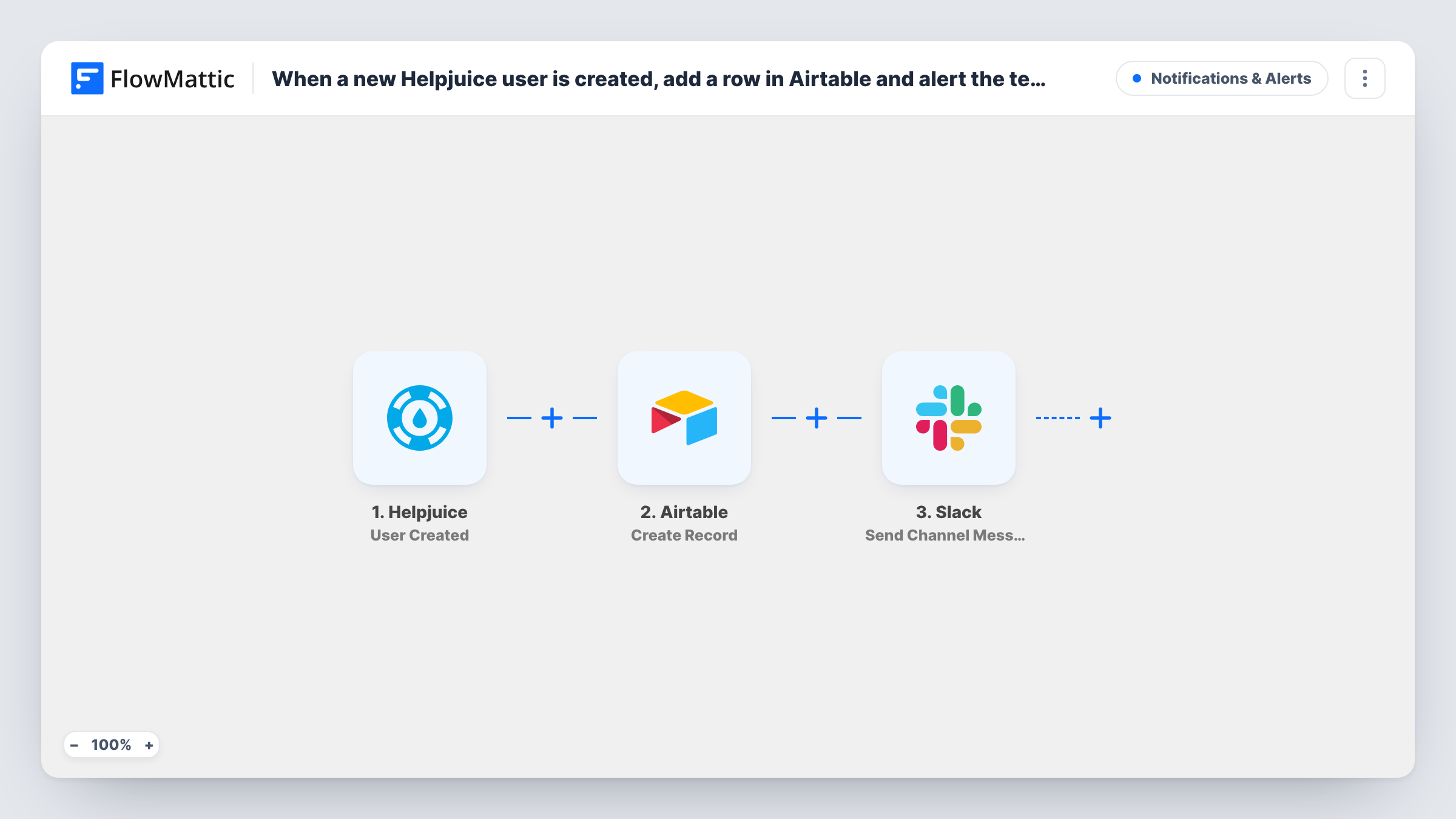
When a user is created in Helpjuice, FlowMattic adds a record to an Airtable table and posts a Slack channel message, giving you a log of new knowledge base users and a heads-up for the team.
 Helpjuice
 Airtable
 Slack
3 steps Setup ~5 min Used on 1.6k sites Free to import
What this workflow does
New users in a Helpjuice knowledge base might be new editors, new staff, or customers given access to private articles. Whoever manages the knowledge base usually wants a record of who joined and when, and the team may want to welcome them. Here the Helpjuice event takes care of the record and the welcome at once.
The Helpjuice User Created trigger fires when a user is created. FlowMattic sends the user's details to Airtable, where Create Record adds a record to the base and table you choose. The run then reaches Slack and posts a message in your channel, using the Helpjuice details and anything Airtable returned.
Each new Helpjuice user creates one Airtable record and one Slack post. The workflow doesn't change the user in Helpjuice. Task History lists every run with the data each step handled.
Access log for a customer help centre
Customers given logins to a private Helpjuice knowledge base are recorded in Airtable, where support can review who has access.
New editor welcome
When a writer joins the Helpjuice team, the docs channel in Slack sees their name and can point them to the style guide.
Internal wiki roll-out
While staff are added to an internal Helpjuice site, the Airtable table tracks who has been set up.
How this workflow runs
What happens at each step once the workflow is on, and what you need before you import it.
 Helpjuice User Created
Fires when a user is created in your Helpjuice account. The user's details are available to the Airtable and Slack steps.
- Airtable Create Record
Logs the new Helpjuice user as a record in the Airtable table you point it at. Connect Airtable and map Helpjuice user details, such as name and email, to the table's fields.
- Slack Send Channel Message
Posts in the Slack channel of your choice about the new Helpjuice user. Map details from Helpjuice, or from the Airtable record, into the text.
What you need
- FlowMatticCore
- Helpjuice AccountAccount
- Airtable AccountAccount
- Slack AccountAccount
After importing, map your own data. To keep the template universal, not every step is pre-filled. Open each step in the builder and connect your accounts and fields (channels, lists, sheets, recipients) before you switch the workflow on.
Make it yours
Changes worth making after you import it.
- Create the Airtable fields before mapping, and add a date field for when the user was added if the trigger data includes it.
- Use a second workflow on Helpjuice's User Deleted trigger to post when someone loses access, so the team sees both sides.
- If the Slack channel is private, change the action to Slack's Send Private Channel Message.
Questions about this workflow
Does a changed Helpjuice user profile add another Airtable record?
No. This workflow listens only to User Created. Helpjuice's User Updated trigger is separate and isn't used here.
Do I need to set up the Airtable table for Helpjuice users first?
Yes. Create the base and table with the fields you want to keep, then pick them in Create Record. Add a test user in Helpjuice and map the details it sends to those fields.
Can the Slack message link to the Airtable record?
It can use any value Create Record returns, such as the record ID. Check a test run to see what Airtable sends back.
More Notifications & Alerts workflows
Other ready-to-import templates from the same category.



Import this workflow into your WordPress site
Download the JSON, import it from the Workflows screen and connect your accounts. Every run stays on your server, with no per-task fees.
30-day money-back guarantee Unlimited workflows and runs Self-hosted