

When a new lead is captured in Convertbox, add new member to list in Mailchimp
Every lead captured by a ConvertBox opt-in goes to your Mailchimp audience as a member, or updates the member if that email is already there, so new sign-ups are ready for your next email.
 Convertbox
 Mailchimp
2 steps Setup ~5 min Used on 1.3k sites Free to import
What this workflow does
ConvertBox catches visitors with on-site opt-in boxes, but the emails it gathers do nothing until they reach the list you send from. Exporting leads and importing them into Mailchimp is a chore that tends to slip. This workflow moves each lead across as ConvertBox records it.
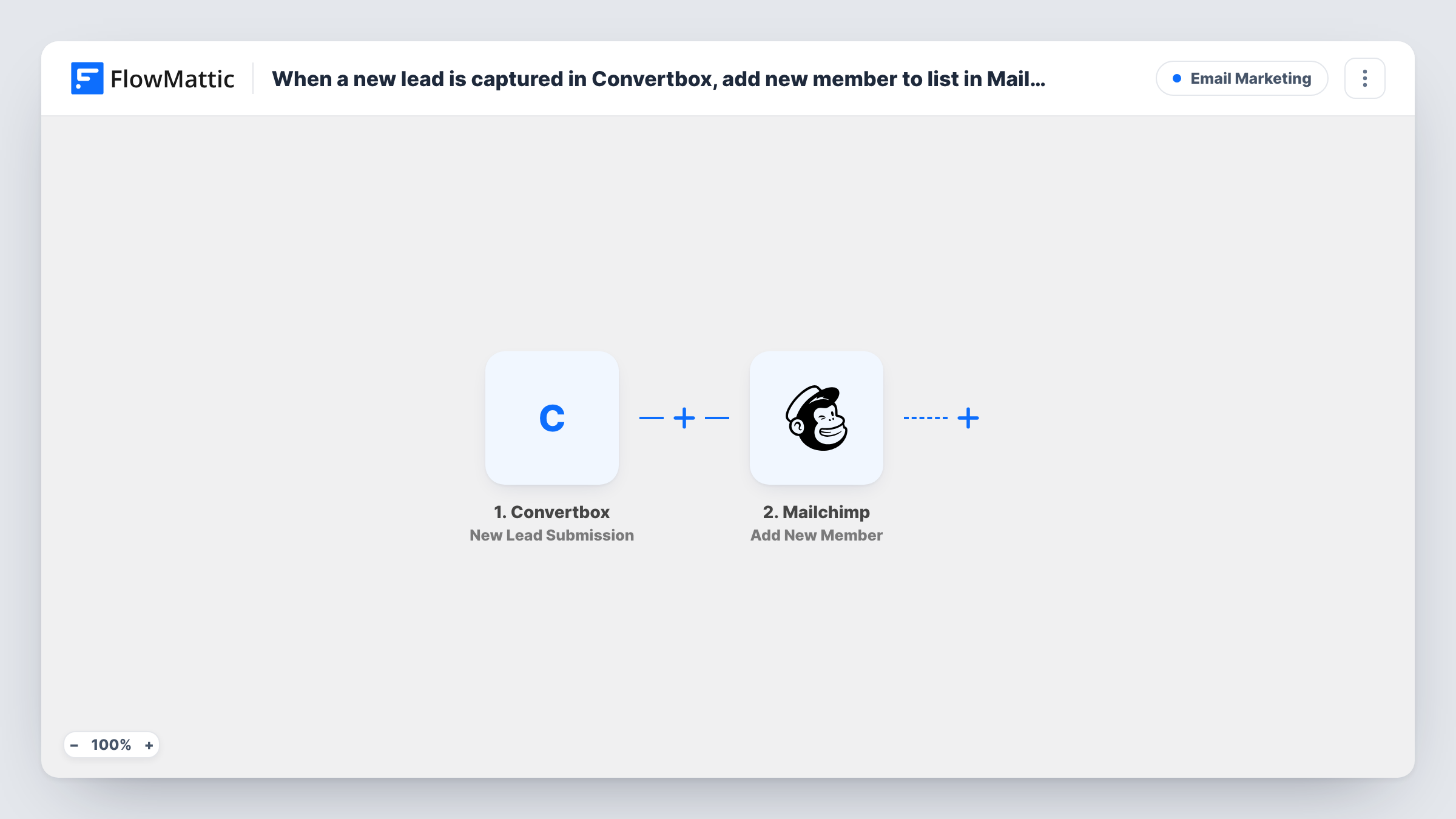
The Convertbox trigger fires when a new lead is submitted through one of your boxes. The lead's details, such as the email and any name field you ask for, are passed to FlowMattic for mapping.
The Mailchimp step runs Add New Member against your audience. It adds the person to the audience you choose, and if the address is already a member it updates them instead. You map the ConvertBox email to the member's email and any extra fields you want stored. Task History lists each run, with Mailchimp's response for that lead.
Exit-intent offer on a blog
A ConvertBox box offers a checklist when a reader is about to leave. Each reader who opts in joins your Mailchimp audience for the follow-up emails.
Discount box for an online store
Shoppers enter their email in a ConvertBox discount offer. They land in Mailchimp, where your welcome email can carry the code.
Waitlist for a course launch
A ConvertBox on the sales page collects waitlist sign-ups, and each one is added to the Mailchimp audience you'll email on launch day.
How this workflow runs
What happens at each step once the workflow is on, and what you need before you import it.
 Convertbox New Lead Submission
Fires when a new lead is submitted through a ConvertBox on your site. The fields the box collects are passed on to the Mailchimp step. Submit a test lead first so they appear for mapping.
- Mailchimp Add New Member
Adds the lead to the Mailchimp audience you pick, or updates the member if that email is already on it. Map the ConvertBox email to the member email and add name fields if your box asks for them.
What you need
- FlowMatticCore
- Convertbox AccountAccount
- Mailchimp AccountAccount
After importing, map your own data. To keep the template universal, not every step is pre-filled. Open each step in the builder and connect your accounts and fields (channels, lists, sheets, recipients) before you switch the workflow on.
Make it yours
Changes worth making after you import it.
- If you run several boxes, add a Filter after the trigger that continues only for the box you want in this audience, using a value from the lead data that names the box.
- Map a fixed value such as the offer name into a Mailchimp field you use for tracking, so you can tell later which ConvertBox each member came from.
- Make sure the box always asks for an email. Mailchimp needs an address to add a member, and a lead without one shows an error on the Mailchimp step in Task History.
Questions about this workflow
What if the ConvertBox lead is already in my Mailchimp audience?
Add New Member updates an existing member rather than adding a copy. The fields you map from the new lead can change what Mailchimp holds, and a blank value may overwrite a field that had data.
Which ConvertBox boxes send leads to Mailchimp?
As imported, every new lead the trigger receives starts a run. Add a Filter on a value that names the box if only some boxes should feed this audience.
Are earlier ConvertBox leads copied to Mailchimp?
No. The trigger fires on new lead submissions, so only leads captured after you turn the workflow on are added.
More Email Marketing workflows
Other ready-to-import templates from the same category.




Import this workflow into your WordPress site
Download the JSON, import it from the Workflows screen and connect your accounts. Every run stays on your server, with no per-task fees.
30-day money-back guarantee Unlimited workflows and runs Self-hosted