

When a new lead is created in Outgrow, create a support ticket in Fluent Support
Every new Outgrow lead opens a ticket in Fluent Support on your WordPress site, using the lead’s email address and the answers they gave in your quiz, calculator or form.
 Outgrow
 Fluent Support
2 steps Setup ~5 min Used on 962 sites Free to import
What this workflow does
Outgrow quizzes and calculators collect leads who often have a question or a need behind their answers. If those leads sit in Outgrow, nobody on your support team sees them. This workflow turns each one into a Fluent Support ticket your team already knows how to work through.
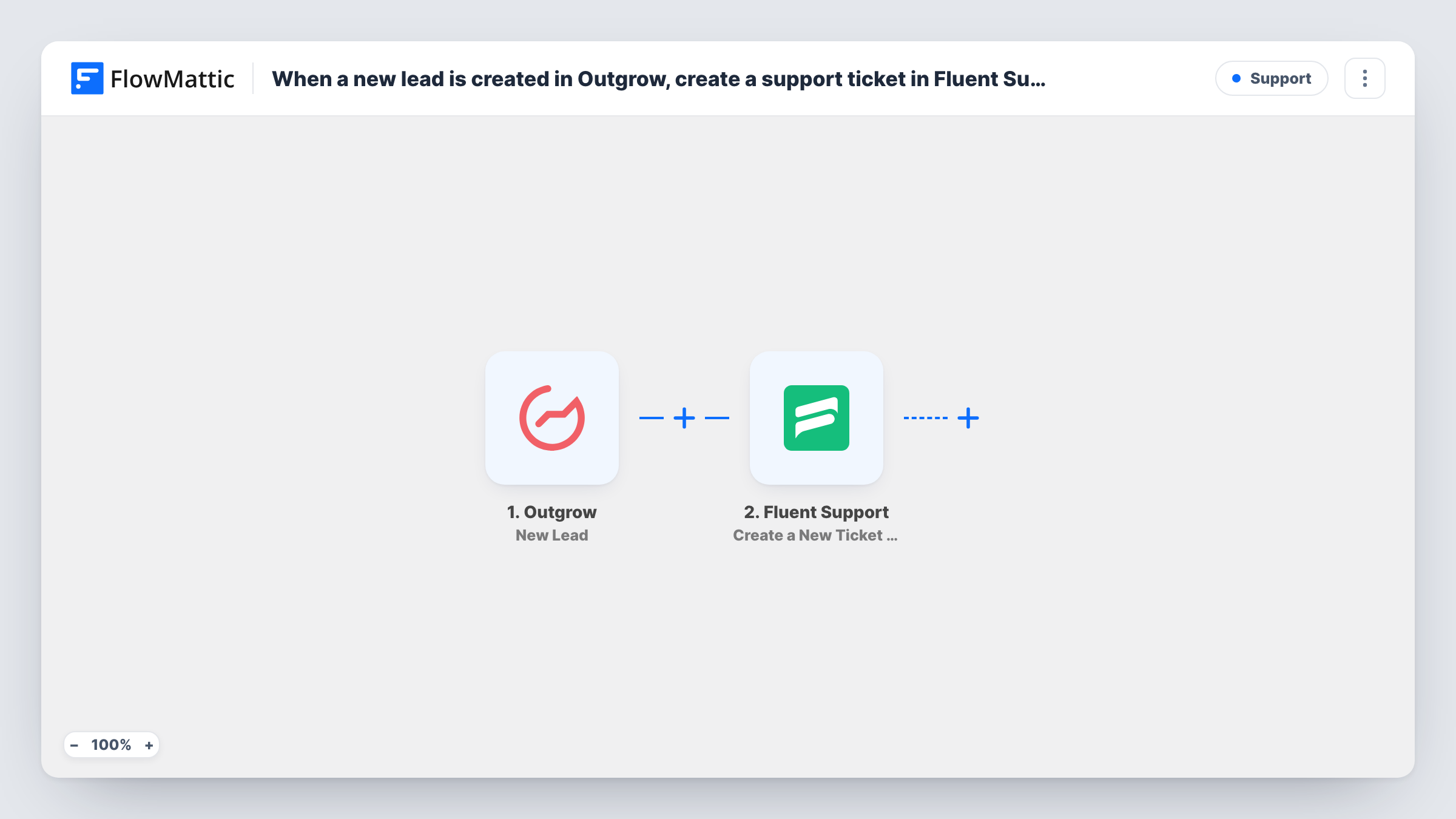
The Outgrow trigger, New Lead, fires when a new lead is created in one of your Outgrow experiences. FlowMattic passes the lead's details to Fluent Support, where Create a New Ticket Using Customer opens a ticket. You map the lead's email address to identify the customer and build the ticket's subject and message from their answers.
Every lead creates a ticket, since there is no Filter. That suits experiences built to collect requests, such as a quote calculator. Fluent Support runs inside WordPress, so the ticket is stored on your own site. Test with a new email address to check how Fluent Support handles someone it hasn't seen before.
Quote calculator for a service business
A visitor finishes your Outgrow pricing calculator. Their estimate and contact details arrive as a Fluent Support ticket so a team member can follow up.
Product finder quiz with questions
Leads who end your recommendation quiz with an open question become tickets, and support answers them from the usual queue.
Onboarding assessment
New customers complete an Outgrow assessment. Each result opens a ticket that your onboarding team uses to plan the first call.
How this workflow runs
What happens at each step once the workflow is on, and what you need before you import it.
 Outgrow New Lead
Fires when a new lead is created in Outgrow, after someone completes one of your experiences. Their contact details and answers are passed to Fluent Support.
- Fluent Support Create a New Ticket Using Customer
Opens a new ticket in Fluent Support. Map the lead's email address so the ticket is linked to a customer, and build the subject and message from the Outgrow answers.
What you need
- FlowMatticCore
- Outgrow AccountAccount
- Fluent Support PluginPlugin
After importing, map your own data. To keep the template universal, not every step is pre-filled. Open each step in the builder and connect your accounts and fields (channels, lists, sheets, recipients) before you switch the workflow on.
Make it yours
Changes worth making after you import it.
- Add a Filter after the Outgrow trigger that continues only for the experience or answer that should reach support, so leads from other quizzes don't fill the ticket queue.
- Put the lead's key answers at the top of the ticket message, so the agent sees what they asked for without scrolling.
- If tickets for first-time leads don't attach to a customer, add Fluent Support's Create OR Get Customer Info step before the ticket step and map its result.
Questions about this workflow
What if the Outgrow lead is not yet a Fluent Support customer?
Fluent Support's Create OR Get Customer Info action creates a customer if none exists. Test the template with a new email first; if the ticket step fails, add that action before it.
Does a lead who completes two Outgrow experiences get two tickets?
Yes. Each new lead runs the workflow, and the ticket step always opens a new ticket rather than adding to an existing one.
Can I send only some Outgrow leads to Fluent Support?
Add a Filter after the trigger with a condition on the experience name or an answer. Leads that don't match stop there and no ticket is created.
Is the Outgrow lead's data stored outside WordPress?
Outgrow keeps the lead in your Outgrow account. The ticket itself is created by Fluent Support, a WordPress plugin, so that copy lives on your own site.
More Support workflows
Other ready-to-import templates from the same category.






Import this workflow into your WordPress site
Download the JSON, import it from the Workflows screen and connect your accounts. Every run stays on your server, with no per-task fees.
30-day money-back guarantee Unlimited workflows and runs Self-hosted