

When a Dixa conversation is closed, log it in Google Sheets, notify Slack, then mark the row resolved
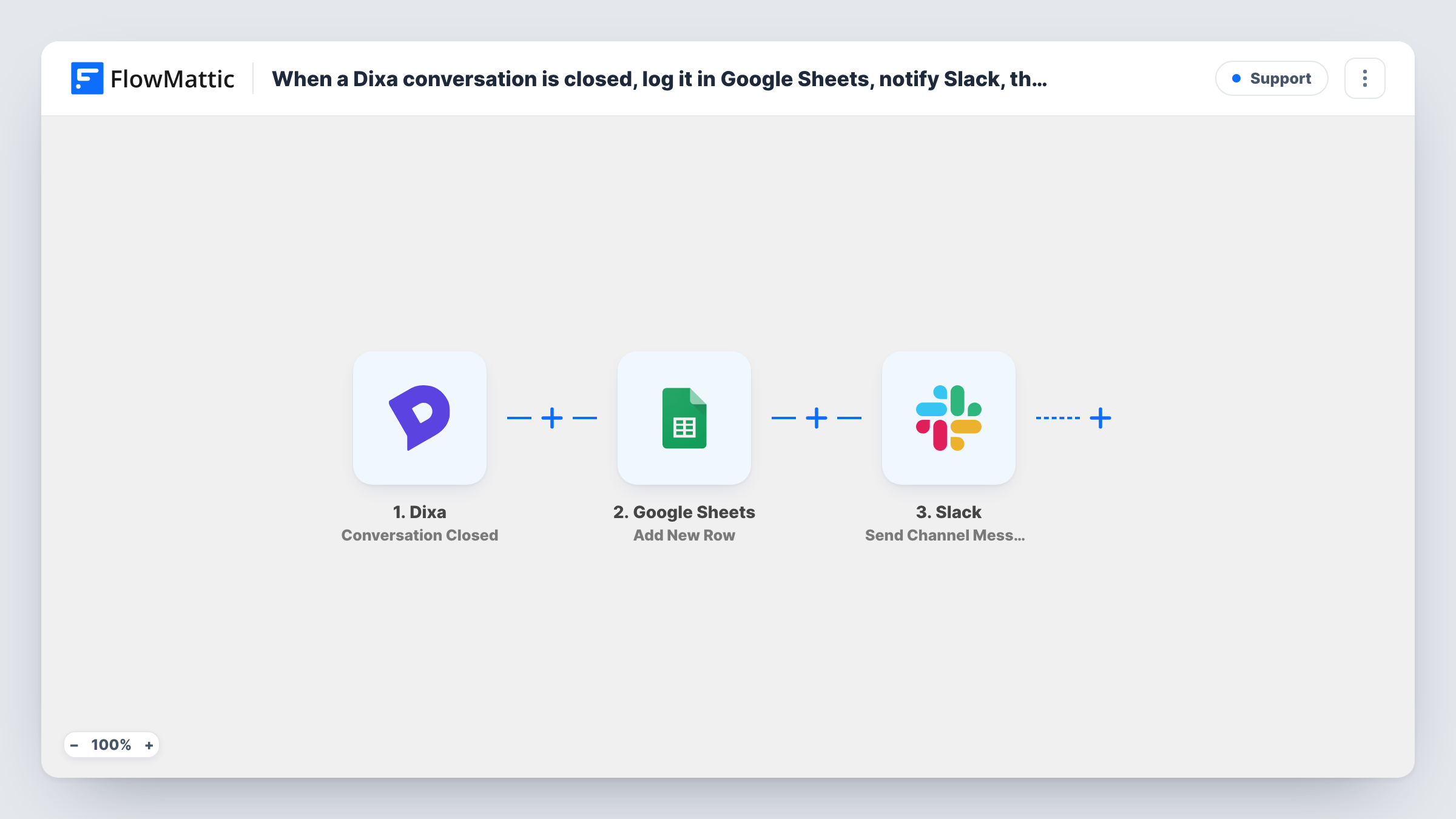
When a Dixa conversation is closed, FlowMattic adds it as a row in Google Sheets, posts a note to a Slack channel, and then updates that same row by its row number to mark it resolved.
 Dixa
 Google Sheets
 Slack
4 steps Setup ~8 min Used on 666 sites Free to import
What this workflow does
Support leads often want a simple record of closed conversations outside the helpdesk, for weekly reviews or for sharing with people who don't have a Dixa seat. This workflow builds that record one closed conversation at a time and lets the team know in Slack as each one wraps up.
The Dixa Conversation Closed trigger fires when a conversation gets closed. Google Sheets then adds a row with the details you map, and the step returns the new row's number. A Slack message goes to the channel you choose. Last, Update Row edits the same row, because its row number is mapped to {google_spreadsheets2.row_number} from the Add New Row step.
Plan a few minutes for setup after import. Pick the spreadsheet and sheet in both Sheets steps and map the conversation fields Dixa sends. Choose a channel and write the Slack text. In Update Row, set a status column to Resolved, or whatever wording matches your reports.
The Resolved mark is written as soon as the Slack message is out, matching the fact that Dixa closed the conversation. Each closed conversation adds its own row, and Task History shows each run and step replies.
Weekly support review sheet
A support lead opens the Google Sheet every Monday to review last week's closed Dixa conversations, grouped by agent or queue.
Closed-conversation feed for managers
Managers without Dixa access follow a #support-closed Slack channel to see conversations wrap up across the day.
Sharing outcomes with product
A product team reads the closed-conversation sheet each sprint, using the columns support mapped from Dixa, to spot repeated questions worth fixing in the product.
How this workflow runs
What happens at each step once the workflow is on, and what you need before you import it.
 Dixa Conversation Closed
Fires when a conversation gets closed in Dixa. The conversation data passes on to later steps; check a test run in Task History for the fields you can use.
- Google Sheets Add New Row
Logs the closed conversation as a new row in the spreadsheet and sheet you choose and returns the row number. The template maps no columns, so connect Google and map the Dixa fields you want.
- Slack Send Channel Message
Posts a message about the closed conversation to the Slack channel you pick. Write the message after import and map in Dixa details such as the agent or customer name.
- Google Sheets Update Row
Rewrites the row added in step 2, found by the row number that step returned, which the template maps for you. Use the same spreadsheet and sheet and set a status column to Resolved.
What you need
- FlowMatticCore
- Dixa AccountAccount
- Google Sheets AccountAccount
- Slack AccountAccount
After importing, map your own data. To keep the template universal, not every step is pre-filled. Open each step in the builder and connect your accounts and fields (channels, lists, sheets, recipients) before you switch the workflow on.
Make it yours
Changes worth making after you import it.
- Create a Status column in the sheet before you set up Update Row, so the Resolved value has a clear place to land.
- If the alerts belong in a private Slack channel, swap the step to Slack's Send Private Channel Message action.
- To skip Slack alerts for some conversations, put a Filter between the first Google Sheets step and the Slack step. It also stops Update Row, so those rows are logged without the Resolved mark.
Questions about this workflow
How does Update Row change the right Dixa row?
The Add New Row step returns the number of the row it created, and Update Row ships with {google_spreadsheets2.row_number} mapped, so the row that was just added is the one updated.
Can I record who handled the Dixa conversation?
Yes, if the Dixa trigger data includes it. Run a test with a closed conversation, look at the fields in Task History, and map the agent field into a column of its own in Add New Row.
Which Dixa details appear in the sheet and in Slack?
Only what you map. Both Add New Row and the Slack step ship empty, so you pick the fields from a test run of a closed conversation.
More Support workflows
Other ready-to-import templates from the same category.




Import this workflow into your WordPress site
Download the JSON, import it from the Workflows screen and connect your accounts. Every run stays on your server, with no per-task fees.
30-day money-back guarantee Unlimited workflows and runs Self-hosted