

Create a ClickUp task for each new Kommunicate message
Every message sent in a Kommunicate conversation becomes a new ClickUp task through FlowMattic, so chat requests sit in the same place your team plans and assigns its work.
 Kommunicate
 ClickUp
2 steps Setup ~5 min Used on 2.9k sites Free to import
What this workflow does
Chat is quick for customers, but requests that need real work, like a bug report or a refund, can scroll out of sight once the conversation ends. Putting them in ClickUp gives each one an owner and a due date. This workflow creates the task for you instead of relying on an agent to copy it over.
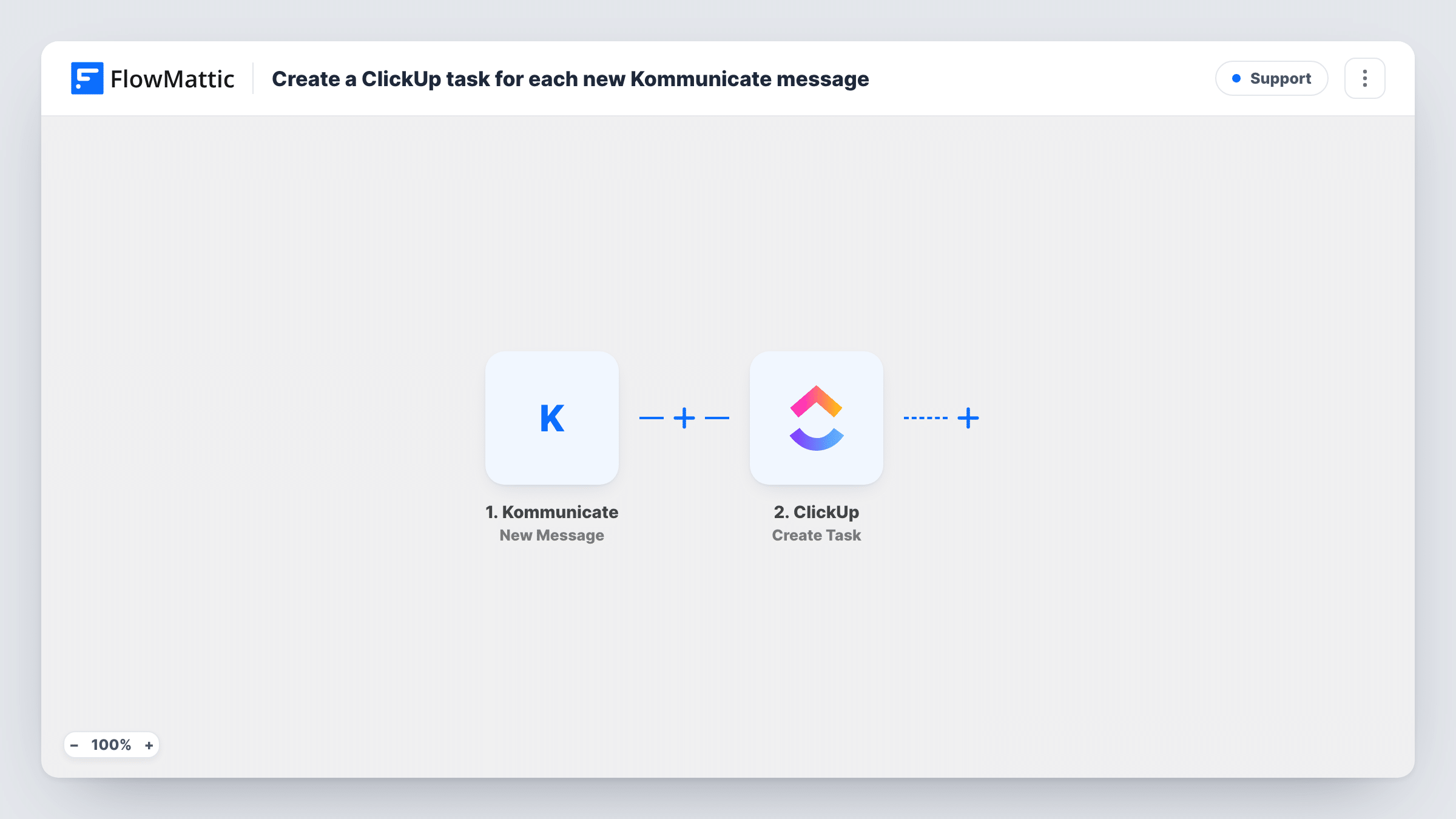
The Kommunicate trigger New Message fires when a new message is sent in a conversation. FlowMattic receives the message data and passes it to ClickUp, where the Create Task action adds a task. You map the message text and any conversation details into the task when you set it up.
Keep in mind how often this fires. The trigger runs for each message, not each conversation, so a long chat creates one task per message. That suits low-volume channels. For busier ones, the tips below show how to narrow it down with a Filter. Task History lists every message the workflow handled.
Bug reports from an in-app chat
A small product team routes a Kommunicate widget used mainly for bug reports into a ClickUp list, where each message becomes a task the developers can triage.
Low-traffic sales enquiries
A consultancy gets a handful of chat messages a week. Each one turns into a ClickUp task so a partner can claim it and reply.
Keyword-based escalations
With a Filter added, only messages containing words like refund or cancel become ClickUp tasks for the billing team to handle.
How this workflow runs
What happens at each step once the workflow is on, and what you need before you import it.
 Kommunicate New Message
Fires each time a new message is sent in a Kommunicate conversation. The message and its conversation details are passed on so you can map them into the task.
- ClickUp Create Task
Creates a new task in ClickUp for that message. Connect your ClickUp account, choose where the task goes, and map the message text into the task name or description.
What you need
- FlowMatticCore
- Kommunicate AccountAccount
- ClickUp AccountAccount
After importing, map your own data. To keep the template universal, not every step is pre-filled. Open each step in the builder and connect your accounts and fields (channels, lists, sheets, recipients) before you switch the workflow on.
Make it yours
Changes worth making after you import it.
- Add a Filter after the trigger so only some messages create tasks, for example ones that contain a keyword. Send a test message first to see which fields Kommunicate returns.
- If replies from your own agents should not become tasks, check the test data for a field that marks who sent the message and filter on it.
- Kommunicate also has an Unread Message trigger for messages left unread for a set time. Swap it in if you only want tasks for chats nobody has answered.
Questions about this workflow
Does every Kommunicate message create a ClickUp task?
Yes, as imported. The New Message trigger fires for each message sent in a conversation, so a back-and-forth chat produces several tasks. Add a Filter to limit which messages go through.
Can one Kommunicate conversation update a single ClickUp task instead?
Not with this template. It only creates tasks. Grouping messages from one conversation into one task would need extra steps to look up an existing task first.
Where in ClickUp do the tasks appear?
In the location you pick in the Create Task step after import. Connect your ClickUp account there and choose the list your support or sales team works from.
Is anything sent back to the customer in Kommunicate?
No. The workflow only reads the message and creates a ClickUp task. The conversation in Kommunicate carries on as normal.
More Support workflows
Other ready-to-import templates from the same category.


Import this workflow into your WordPress site
Download the JSON, import it from the Workflows screen and connect your accounts. Every run stays on your server, with no per-task fees.
30-day money-back guarantee Unlimited workflows and runs Self-hosted