

When a new media file is uploaded in WordPress, generate alt text in AltText.ai
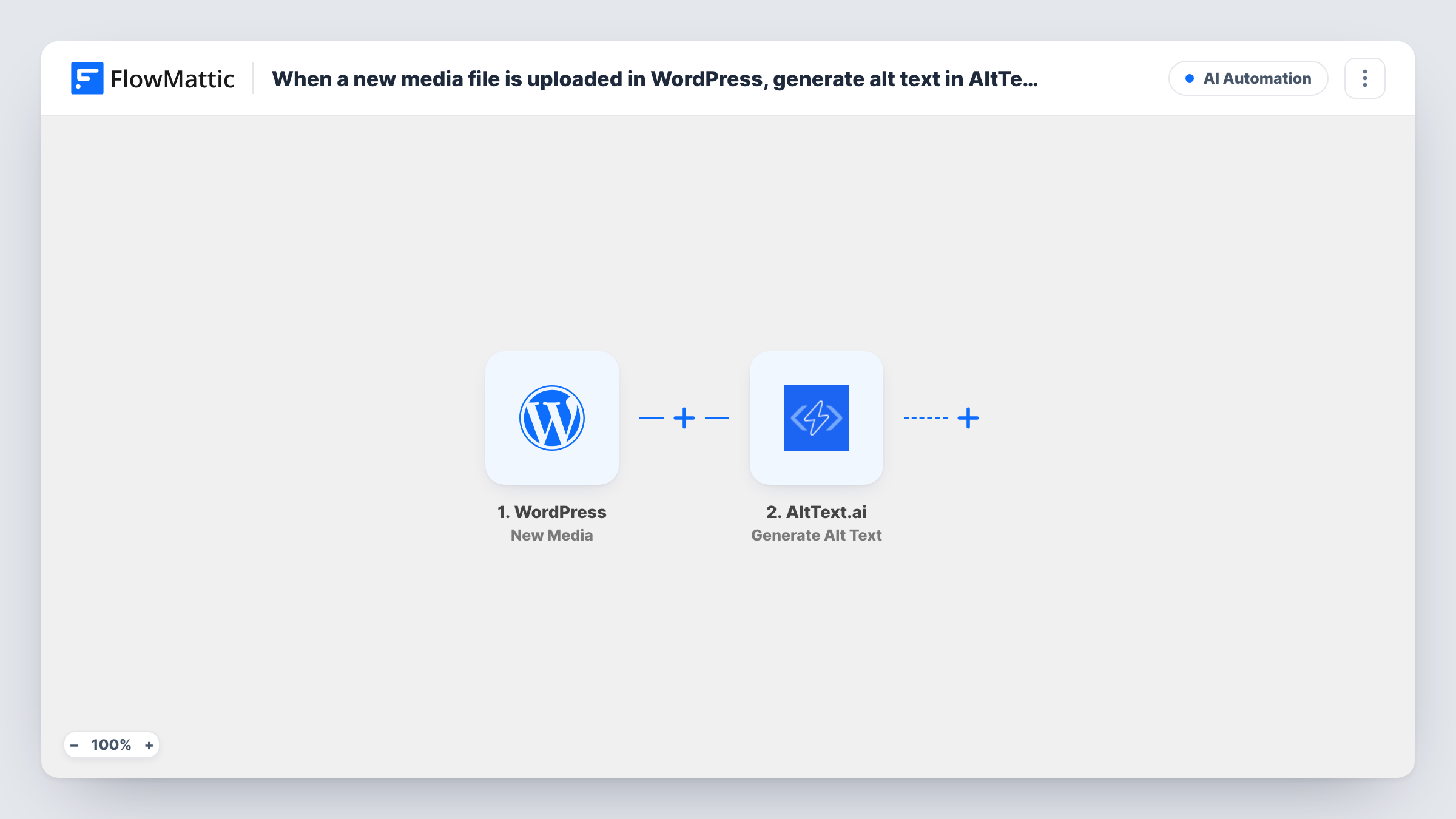
Every time a file is uploaded to your WordPress media library, this workflow sends it to AltText.ai to generate alt text, ready for you to save back to the image with one more step.
 WordPress
 AltText.ai
2 steps Setup ~5 min Used on 2.0k sites Free to import
What this workflow does
Writing alt text for every upload is the job that slips first on a busy site, and images without it are harder to use with a screen reader. This workflow asks AltText.ai for a description as each file arrives in the media library.
The WordPress trigger, New Media, fires when media is uploaded to your site. FlowMattic passes the upload's details to AltText.ai, whose Generate Alt Text action produces alt text for the image. You map the uploaded file from the trigger into that step after import.
Be clear on what the template stops at. It generates the text, and the result sits in the step's output; nothing writes it to the image's alt text field in WordPress yet. To fill that field, add a WordPress Update Post Meta step after AltText.ai, as the tips explain. New Media also fires for files that are not images, such as PDFs, so a Filter keeps those out.
Blog with many contributors
Authors upload images to posts without stopping to describe them, and AltText.ai produces a description for each upload in the background.
Store adding product photos
A shop owner uploads a batch of product shots to the media library and gets generated alt text for each one, ready to save or review.
Accessibility clean-up going forward
A site that is working on accessibility makes sure every new image gets a suggested description from the day the workflow goes live.
How this workflow runs
What happens at each step once the workflow is on, and what you need before you import it.
 WordPress New Media
Fires when a new media file is uploaded to your WordPress site, through the media library or a post editor. Details of the uploaded file are passed on for mapping.
- AltText.ai Generate Alt Text
Sends the uploaded image to AltText.ai to generate alt text and returns the result to FlowMattic. Connect your AltText.ai account and map the file from the trigger, then check the output with a test upload.
What you need
- FlowMatticCore
- AltText.ai AccountAccount
After importing, map your own data. To keep the template universal, not every step is pre-filled. Open each step in the builder and connect your accounts and fields (channels, lists, sheets, recipients) before you switch the workflow on.
Make it yours
Changes worth making after you import it.
- Add a WordPress Update Post Meta step after AltText.ai that writes the generated text to the attachment's _wp_attachment_image_alt meta key, using the media ID from the trigger. That is where WordPress keeps an image's alt text.
- Add a Filter after the trigger that continues only when the upload's file type is an image, so PDFs and other files never reach AltText.ai.
- Upload one test image after import and look at Task History to see the data AltText.ai returns before you map it anywhere.
Questions about this workflow
Does AltText.ai's alt text appear on the image in WordPress automatically?
Not as imported. The template generates the text but has no step that saves it to the image. Add a WordPress Update Post Meta step to write it to the image's alt text.
Will AltText.ai describe images I uploaded before importing?
No. The New Media trigger fires for uploads made after the workflow is on. Older images keep whatever alt text they have now.
What happens when I upload a PDF or video?
The trigger fires for any new media, so the run still reaches AltText.ai, which works on images, and the AltText.ai reply for that run is logged in Task History. A Filter on file type stops non-images earlier.
Do I need an AltText.ai account?
Yes. The Generate Alt Text step runs through your AltText.ai account, which you connect when you import the workflow.
More AI Automation workflows
Other ready-to-import templates from the same category.





Import this workflow into your WordPress site
Download the JSON, import it from the Workflows screen and connect your accounts. Every run stays on your server, with no per-task fees.
30-day money-back guarantee Unlimited workflows and runs Self-hosted