

When a new meeting note is processed in Sembly AI, send a notification in Discord
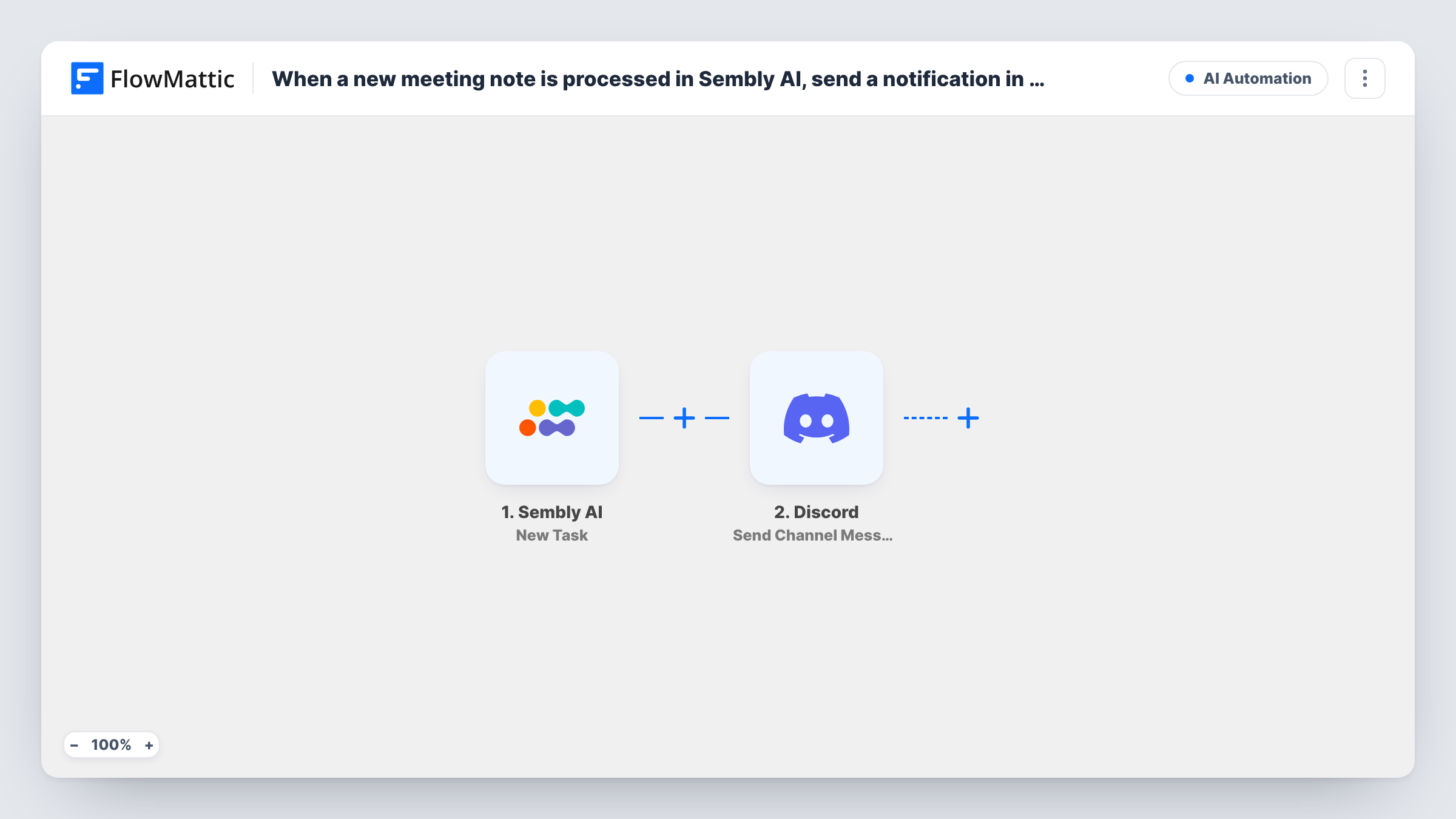
When Sembly AI has processed the notes for a new meeting, FlowMattic posts a notification in your Discord channel, so the team hears about the recap in the server where they already chat.
 Sembly AI
 Discord
2 steps Setup ~5 min Used on 3.1k sites Free to import
What this workflow does
Teams that run on Discord, such as open source projects, gaming studios and online communities, still hold calls that Sembly AI records. The meeting notes are only helpful if people know they exist. This workflow drops a message in a Discord channel each time Sembly finishes a set of notes.
The Sembly AI New Meeting Notes trigger fires when new meeting notes are processed. These are Sembly's notes for the meeting, not the full transcript; Sembly has a separate New Transcription trigger for that. What arrives with the event, such as the meeting title and the notes or a link to them, is shown in a test run.
The Discord Send Channel Message step posts a new message to the channel you choose. It has no channel or text in the template, so after import you connect Discord, pick the channel and write the notification, mapping in the meeting title and the notes or their link. Discord limits how long a single message can be, so a short summary or link suits long meetings better than the full notes.
Every set of processed notes produces a message. A Filter on the meeting title keeps unrelated calls out of the channel.
Community calls for an open source project
Maintainers record their monthly contributor call in Sembly, and the notes notification lands in the project's Discord announcements channel.
Game studio stand-ups
An indie studio that chats on Discord gets each stand-up's notes posted to the team channel for anyone who was in another time zone.
Coaching group sessions
A coach running group calls shares Sembly's notes with members in a private Discord server after every session.
How this workflow runs
What happens at each step once the workflow is on, and what you need before you import it.
 Sembly AI New Meeting Notes
Fires when Sembly AI finishes processing notes for a new meeting. The meeting details and notes it sends are passed on for the Discord message.
- Discord Send Channel Message
Announces the finished Sembly notes in a Discord channel of your choice. Connect Discord after import, choose the channel and write the text, mapping in the meeting title and the notes or a link to them.
What you need
- FlowMatticCore
- Sembly AI AccountAccount
- Discord AccountAccount
After importing, map your own data. To keep the template universal, not every step is pre-filled. Open each step in the builder and connect your accounts and fields (channels, lists, sheets, recipients) before you switch the workflow on.
Make it yours
Changes worth making after you import it.
- Put a Filter between the Sembly AI trigger and the Discord step on the meeting title, for example containing standup, so only those meetings are shared in this channel.
- Map a link to the notes, if Sembly sends one, rather than the full text, so long meetings don't run past Discord's message length limit.
- For tasks Sembly picks out of a meeting, build a second workflow on the Sembly AI New Task trigger and post those to a separate channel.
Questions about this workflow
Is this the Sembly transcript or the meeting notes?
The meeting notes. This workflow uses the New Meeting Notes trigger. For the transcript, use Sembly AI's New Transcription trigger instead.
Does every Sembly AI meeting post to Discord?
Yes, as imported. Each set of processed notes starts a run. Add a Filter on the meeting title between the trigger and the Discord step to limit it.
What does the Discord notification say?
Whatever you write. The template leaves the message empty, so compose it after import and map in the Sembly fields shown in your test run.
More AI Automation workflows
Other ready-to-import templates from the same category.







Import this workflow into your WordPress site
Download the JSON, import it from the Workflows screen and connect your accounts. Every run stays on your server, with no per-task fees.
30-day money-back guarantee Unlimited workflows and runs Self-hosted