

When a new order is placed in WooCommerce, send a push notification to the customer with order details
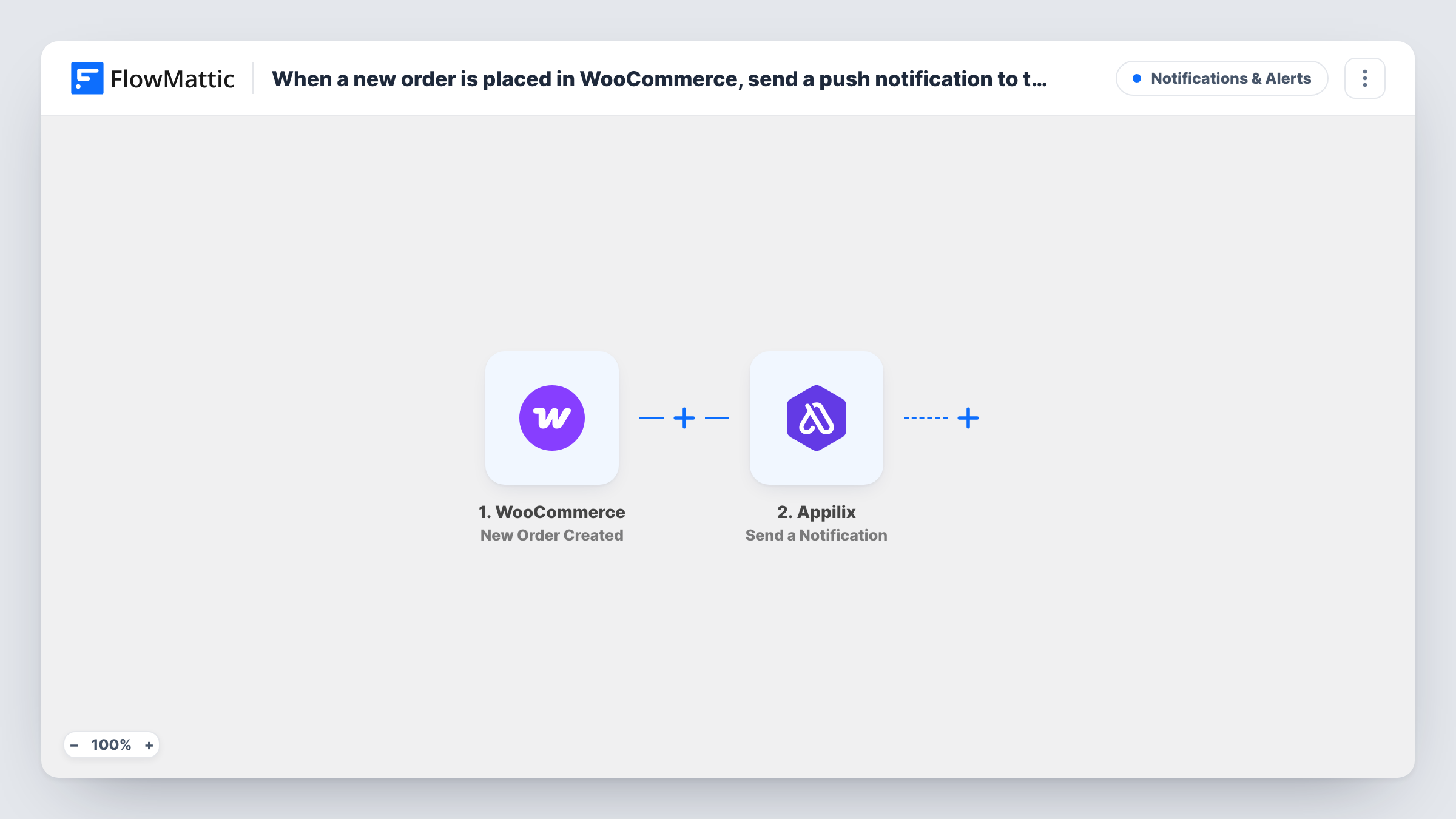
When a customer places an order in your WooCommerce store, this workflow sends a push notification through your Appilix mobile app with the order details you map in, such as the order number and total.
 WooCommerce
 Appilix
2 steps Setup ~5 min Used on 1.3k sites Free to import
What this workflow does
If your store has its own mobile app built with Appilix, an order confirmation can arrive as a push notification instead of only an email. Customers see it on their phone the moment they buy, in the same app they shopped in.
The WooCommerce trigger starts a run for each order placed in your store. FlowMattic passes the order's data to Appilix, whose Send a Notification action can push to all app users or to one specific user. For order details, set it to the buyer. You write the notification and map in order details from the trigger, for example the order number, the total or a link to the order page.
Order details are personal, so the notification must reach only the buyer. Before you turn the workflow on, place a test order and confirm the notification goes to your own device and no one else's. Customers who don't have your app installed won't get a push. Task History records every order that ran and the Appilix response.
Instant confirmation for app shoppers
A customer orders inside your Appilix app and gets a push with the order number a moment later, so they know the purchase went through.
Food or takeaway orders
A restaurant takes orders through WooCommerce. The diner gets a push confirming the order total while they wait.
Linking back to the order page
The notification includes a link to the customer's order in your store, so they can tap it to check items and delivery details.
How this workflow runs
What happens at each step once the workflow is on, and what you need before you import it.
 WooCommerce New Order Created
Fires when a new order is created in your WooCommerce store. The order and customer details become available to map into the notification.
- Appilix Send a Notification
Sends a push notification through your Appilix app with the order details you map in. Test with an order of your own to confirm only the buyer receives it before going live.
What you need
- FlowMatticCore
- WooCommerce PluginPlugin
- Appilix AccountAccount
After importing, map your own data. To keep the template universal, not every step is pre-filled. Open each step in the builder and connect your accounts and fields (channels, lists, sheets, recipients) before you switch the workflow on.
Make it yours
Changes worth making after you import it.
- Add a Filter after the trigger that continues only for orders with a status you choose, so failed or pending orders don't send a confirmation.
- Keep the message short. Put the order number and total in the notification and link to the order page for the rest.
- Send an email as well as the push by adding an email step after Appilix, so customers without your app still get a confirmation.
Questions about this workflow
Will every Appilix app user see the WooCommerce order notification?
It must not, because it holds order details. Place a test order after import and check that only your own device receives it. Don't turn the workflow on until it does.
What if the customer ordered on the website, not in the app?
The trigger fires for every new WooCommerce order. A customer who doesn't have your Appilix app installed won't receive a push, so keep your usual order email in place.
Do I need an Appilix app before importing this?
Yes. The notification is sent through your Appilix account to the app built with it, so set up that app and connect your account first.
More Notifications & Alerts workflows
Other ready-to-import templates from the same category.





Import this workflow into your WordPress site
Download the JSON, import it from the Workflows screen and connect your accounts. Every run stays on your server, with no per-task fees.
30-day money-back guarantee Unlimited workflows and runs Self-hosted