

When a new order is received in WooCommerce, create an event in SavvyCal
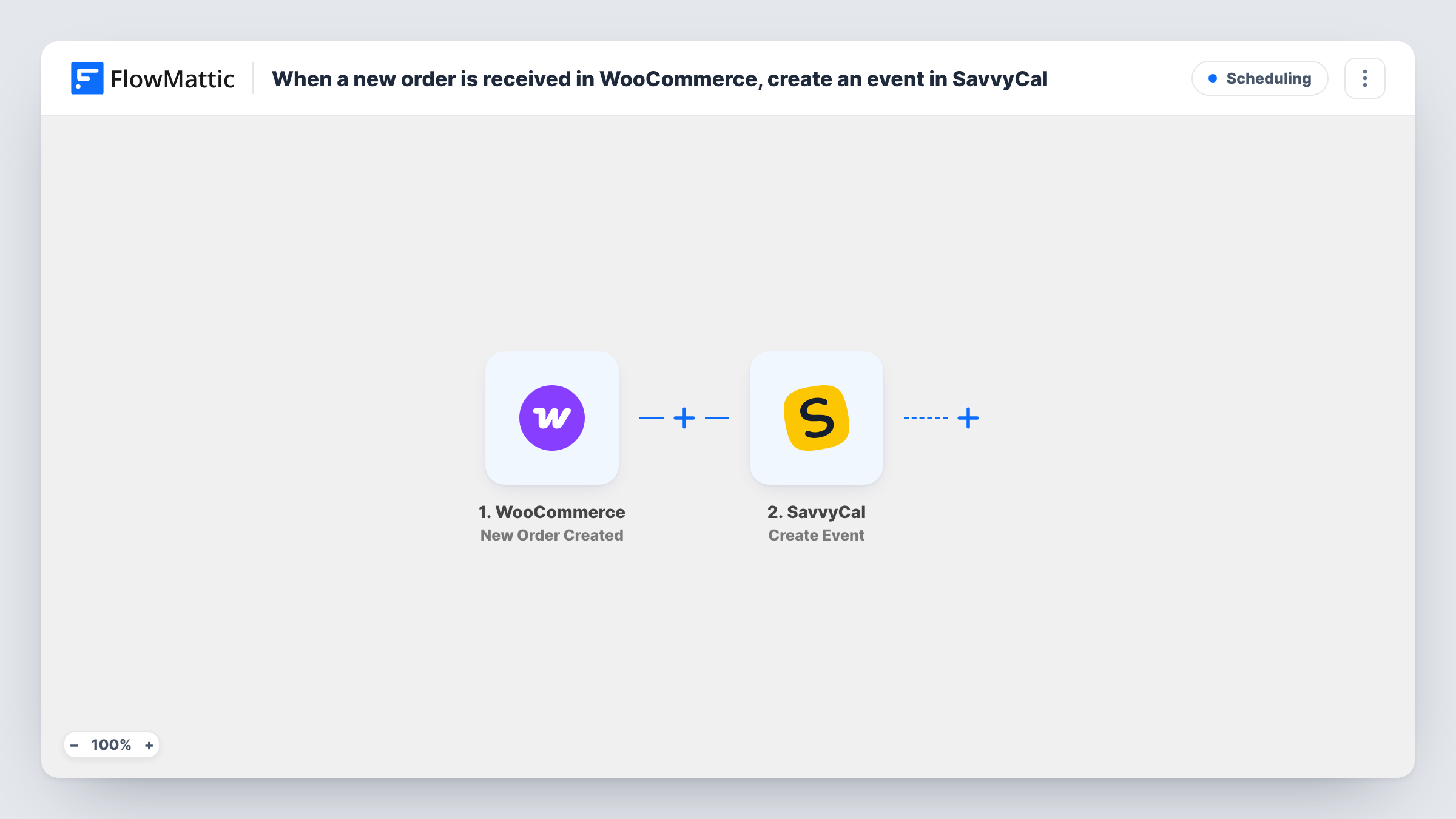
Each new WooCommerce order creates an event on one of your SavvyCal scheduling links, using the buyer’s details from the order, so sold sessions show up as SavvyCal events without manual booking.
 WooCommerce
 SavvyCal
2 steps Setup ~5 min Used on 2.0k sites Free to import
What this workflow does
If you sell coaching calls, consultations or onboarding sessions through WooCommerce, every sale needs a matching booking. Doing it by hand means reading the order, opening SavvyCal and entering the buyer's details yourself. This workflow creates the SavvyCal event for you when the order comes in.
The WooCommerce trigger, New Order Created, fires when your store creates an order. It passes the order data to FlowMattic: buyer name, email, products and any checkout fields. The SavvyCal step then runs Create Event, which makes an event for a given scheduling link. You map the buyer's details from the order into it.
A standard WooCommerce order has no appointment time in it. Unless your checkout collects a preferred date and time, you need to decide what start time the event gets. Run a test order to see which fields the SavvyCal step asks for. The trigger also fires for every order, including ones for products that aren't sessions, until you add a Filter.
Paid discovery calls
A consultant sells a one-hour call as a WooCommerce product with a date and time field at checkout. Each order creates the matching event on the consultant's SavvyCal link.
Onboarding session included with a plan
A software reseller adds an onboarding session to each order and maps the buyer's chosen slot from a checkout field into SavvyCal.
Tutoring packages
Parents buy a lesson through the store, and the tutor gets a SavvyCal event with the student's name and email from the order.
How this workflow runs
What happens at each step once the workflow is on, and what you need before you import it.
 WooCommerce New Order Created
Runs when your WooCommerce store creates a new order. The buyer's name and email, the products and any extra checkout fields become available to map into SavvyCal.
- SavvyCal Create Event
Creates an event on the SavvyCal scheduling link you set, using the order data you map. Connect your SavvyCal account and check in a test run which fields the event needs, such as its start time.
What you need
- FlowMatticCore
- WooCommerce PluginPlugin
- SavvyCal AccountAccount
After importing, map your own data. To keep the template universal, not every step is pre-filled. Open each step in the builder and connect your accounts and fields (channels, lists, sheets, recipients) before you switch the workflow on.
Make it yours
Changes worth making after you import it.
- Add a Filter after the trigger that continues only when the order contains your session product, so ordinary product orders don't create SavvyCal events.
- Collect the preferred date and time at checkout with a custom field, then map it into the SavvyCal step so each event lands at the time the buyer chose.
- Add a second Filter condition on order status if events should only be created for paid orders, not pending ones.
Questions about this workflow
Where does the SavvyCal event's time come from?
From whatever you map. WooCommerce orders don't hold an appointment time by default, so add a checkout field for it or set the time another way before you turn the workflow on.
Does every WooCommerce order create a SavvyCal event?
Yes, as imported. The trigger fires for each new order. Add a Filter on the product or order status to limit which orders reach SavvyCal.
Does the buyer get a SavvyCal confirmation?
That depends on SavvyCal and how your scheduling link is set up, not on FlowMattic. Place a test order with your own email to see what arrives.
Can a refunded WooCommerce order cancel the SavvyCal event?
Not in this template. SavvyCal in FlowMattic has a Cancel Event action that needs the event ID, so a separate workflow would need to store and look up that ID.
More Scheduling workflows
Other ready-to-import templates from the same category.







Import this workflow into your WordPress site
Download the JSON, import it from the Workflows screen and connect your accounts. Every run stays on your server, with no per-task fees.
30-day money-back guarantee Unlimited workflows and runs Self-hosted