

When a new payment is captured in Razorpay, create record in Teable
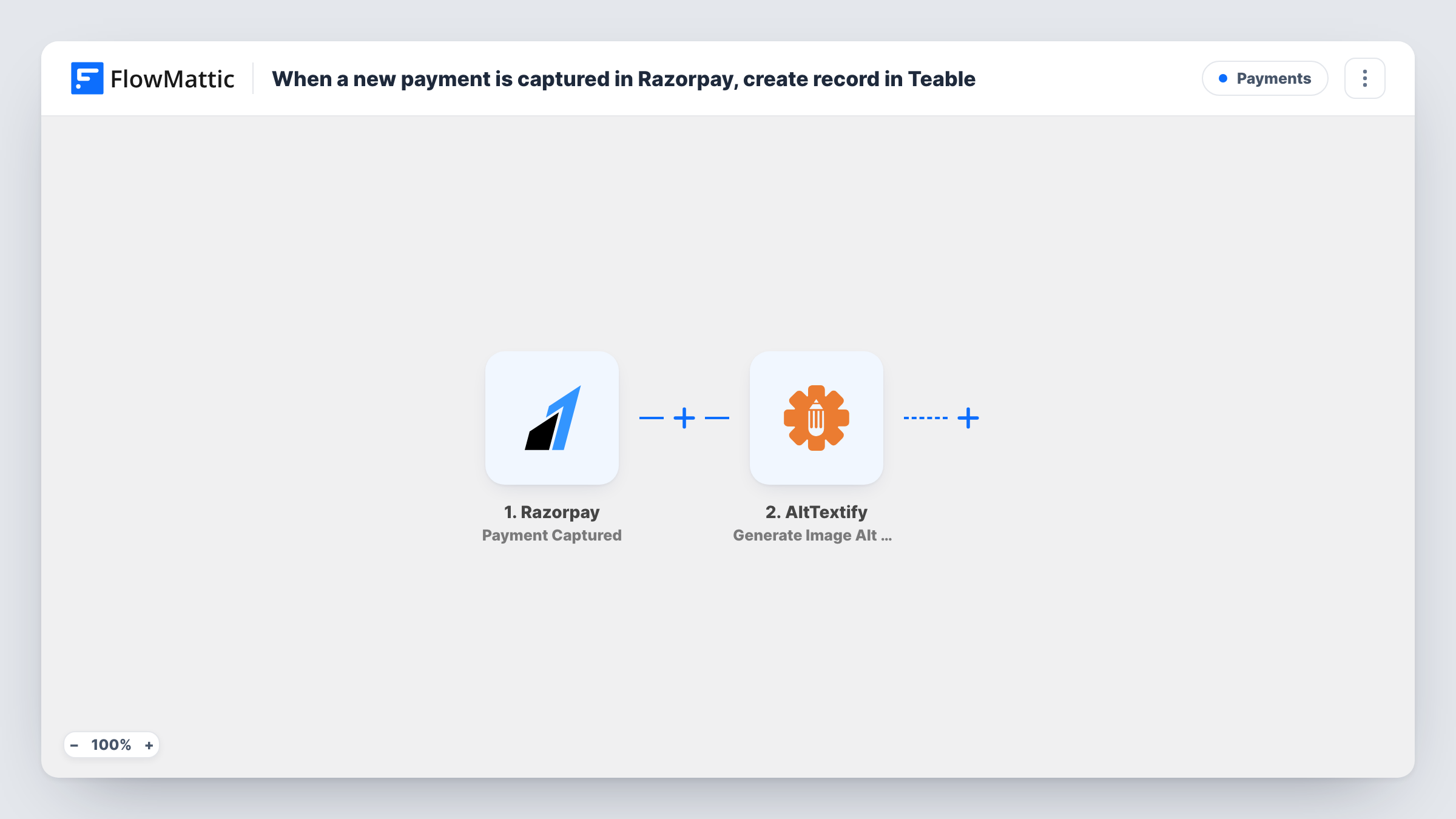
When Razorpay captures a payment, FlowMattic adds a record for it to a Teable table, giving you a payments ledger you can sort, filter and share outside the Razorpay dashboard.
 Razorpay
 Teable
2 steps Setup ~5 min Used on 2.3k sites Free to import
What this workflow does
The Razorpay dashboard shows your payments, but it is not where your team plans, reconciles or adds notes. Copying captured payments into a table by hand takes time and invites typos. This workflow writes each captured payment into Teable, where you can add your own columns and views around the money that actually arrived.
The Razorpay trigger fires when a payment reaches the captured state, which FlowMattic describes as the moment a payment is captured. The payment's details are passed on to the next step. Check a test run to see which values Razorpay sends, such as the amount, currency, payment ID and the payer's contact details.
The Teable Create Record step then adds one record to the table you specify. It ships unmapped: after import you connect Teable, pick the base and table, and match payment values to your columns. Set up the table's fields first so there is a column for each value you want to keep.
One captured payment produces one record. Payments that are only authorised, or that fail, don't start a run. Refunds also don't change the record, so add a status column you update yourself if you track them.
Monthly reconciliation table
An accountant filters the Teable table by month and compares the captured amounts with the bank settlement report, without exporting anything from Razorpay.
Course sales by product
An online tutor who takes Razorpay payments for different courses adds a course column in Teable and groups records to see which course sells most.
Shared view for the support team
A support lead gives the team a Teable view of recent payments, so they can confirm a customer has paid before answering a ticket.
How this workflow runs
What happens at each step once the workflow is on, and what you need before you import it.
 Razorpay Payment Captured
Starts a run each time a payment is captured in your Razorpay account. The payment's details are passed on for mapping; run a test payment to see which fields arrive.
- Teable Create Record
Adds one record to a Teable table for the captured payment. The template leaves it unmapped, so choose the base and table and map the Razorpay payment values into your columns.
What you need
- FlowMatticCore
- Razorpay AccountAccount
- Teable AccountAccount
After importing, map your own data. To keep the template universal, not every step is pre-filled. Open each step in the builder and connect your accounts and fields (channels, lists, sheets, recipients) before you switch the workflow on.
Make it yours
Changes worth making after you import it.
- Map the Razorpay payment ID into its own Teable column. It gives every record a unique reference you can search for when a customer asks about a charge.
- Razorpay usually sends amounts in the smallest currency unit, such as paise. Check a test run, and add a Number Formatter step with Minor Unit Conversion between the trigger and Teable if you want the amount stored in rupees.
- Put a Filter between the Razorpay trigger and the Teable step if you only want payments above a certain amount or in one currency recorded. Payments it stops never reach Teable.
Questions about this workflow
Are failed or authorised-only Razorpay payments recorded in Teable?
No. The trigger fires only when a payment is captured, so failed payments and payments that are authorised but not yet captured don't start a run.
Do refunds update the Teable record?
No. The workflow only creates a record when the payment is captured. A later refund in Razorpay doesn't change the record, so update it yourself or build a separate workflow for refunds.
Do I need to set up the Teable table first?
Yes. Create the base and a table with columns for the payment values you want to keep, then pick that table in the Create Record step and map each value.
Will payments captured before I turn this on be added to Teable?
No. Only payments captured while the workflow is active start a run. Export older payments from Razorpay and import them into Teable if you need the full history.
More Payments workflows
Other ready-to-import templates from the same category.







Import this workflow into your WordPress site
Download the JSON, import it from the Workflows screen and connect your accounts. Every run stays on your server, with no per-task fees.
30-day money-back guarantee Unlimited workflows and runs Self-hosted