

When a new post is published in WordPress, create a new Replug link, and add the link details to Google Spreadsheet
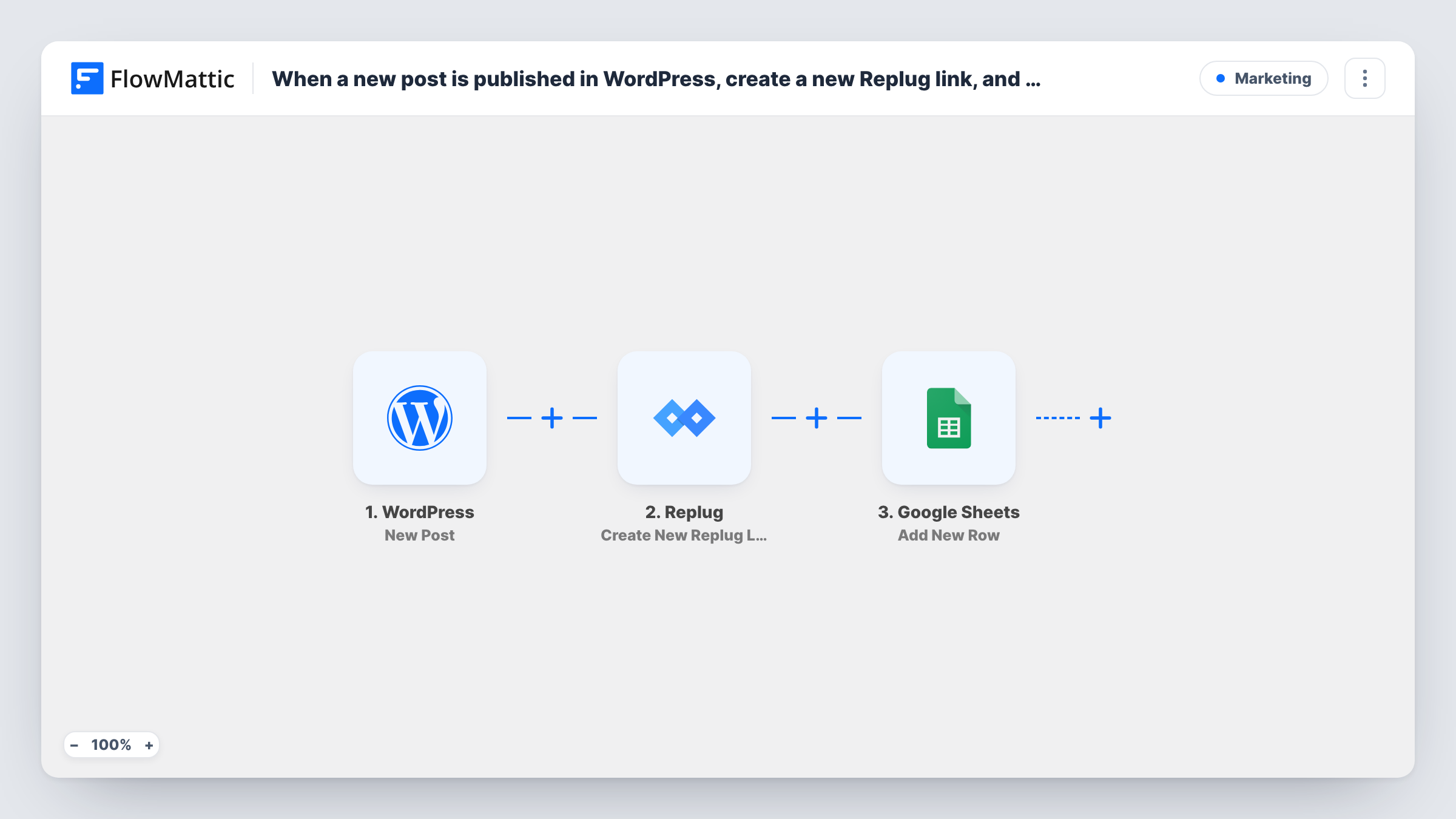
Each time you publish a WordPress post, FlowMattic creates a Replug short link for it and adds the post and link details to a Google Sheets row, ready for sharing and reporting.
 WordPress
 Replug
 Google Sheets
3 steps Setup ~5 min Used on 1.2k sites Free to import
What this workflow does
If you share every new article through Replug links, creating the link is one more job after hitting Publish. Then you need somewhere to find it again when you schedule social posts or write the newsletter. This workflow makes the link and records it in a spreadsheet each time a post goes live.
The WordPress trigger fires when a new post is published on your site, and FlowMattic captures the post's details, such as its title and URL. The Replug step then creates a new link. Map the post's URL into it. Whatever Replug returns, including the new short link, becomes data for the final step.
The Google Sheets step adds a row with values from both steps, for example the post title, the original URL and the Replug link. Over time the sheet becomes a list of every published post with its short link. Task History shows each run and what Replug sent back.
Planning social posts for new articles
A content manager opens the sheet each morning, copies the short link for yesterday's article, and drops it into the week's social schedule.
Newsletter round-ups
An editor builds a monthly newsletter from the sheet, which already lists each post's title next to its Replug link.
Tracking links for a multi-author blog
Each author's posts get a Replug link the moment they are published, and the sheet gives the editor one place to see every link created.
How this workflow runs
What happens at each step once the workflow is on, and what you need before you import it.
 WordPress New Post
Starts a run as soon as you publish a new WordPress post. The post's details, including its title and permalink, become data for the next steps.
- Replug Create New Replug Link
Creates a new Replug link for the post. Map the WordPress post URL into it, connect your Replug account, and run a test to see what the step returns.
- Google Sheets Add New Row
Writes one line per published post to your Google Sheets log. Map the post title and URL from WordPress and the short link returned by Replug into the columns you want.
What you need
- FlowMatticCore
- Replug AccountAccount
- Google Sheets AccountAccount
After importing, map your own data. To keep the template universal, not every step is pre-filled. Open each step in the builder and connect your accounts and fields (channels, lists, sheets, recipients) before you switch the workflow on.
Make it yours
Changes worth making after you import it.
- Create the sheet's header row first, for example Title, Post URL, Short link and Date, so each value has a column waiting for it.
- Add a Filter after the trigger if only posts in a certain category should get a Replug link, using a category value if your test post includes one.
- Add a Slack or email step after Google Sheets if you want the new short link sent to the person who shares your posts.
Questions about this workflow
Does updating an old WordPress post create another Replug link?
No. The trigger fires when a new post is published, so later edits to that post do not start the workflow.
Are Replug links made for posts published before import?
No. Only posts published after the workflow is switched on get a link and a row in the sheet.
Can I put the Replug short link back into the WordPress post?
Not as imported. The template stores the link in Google Sheets only. You could add a WordPress step to save it to the post, then test it on a staging site first.
What if Replug can't create the link?
The Google Sheets step still runs, but there is no short link to put in the row. Task History shows Replug's error on that step so you can see what went wrong.
More Marketing workflows
Other ready-to-import templates from the same category.





Import this workflow into your WordPress site
Download the JSON, import it from the Workflows screen and connect your accounts. Every run stays on your server, with no per-task fees.
30-day money-back guarantee Unlimited workflows and runs Self-hosted