

When a new post is published in WordPress, create a short URL using Bitly, and store in Google Spreadsheet
Each time you publish a WordPress post, this workflow creates a Bitly short link for it and adds the post and its short link to a new Google Sheets row, ready for sharing.
 WordPress
 Bitly
 Google Sheets
3 steps Setup ~5 min Used on 2.2k sites Free to import
What this workflow does
Long post URLs are awkward on social media, in print and in messages. Creating a short link for each article and keeping track of which link belongs to which post is a chore. This workflow does both every time something goes live.
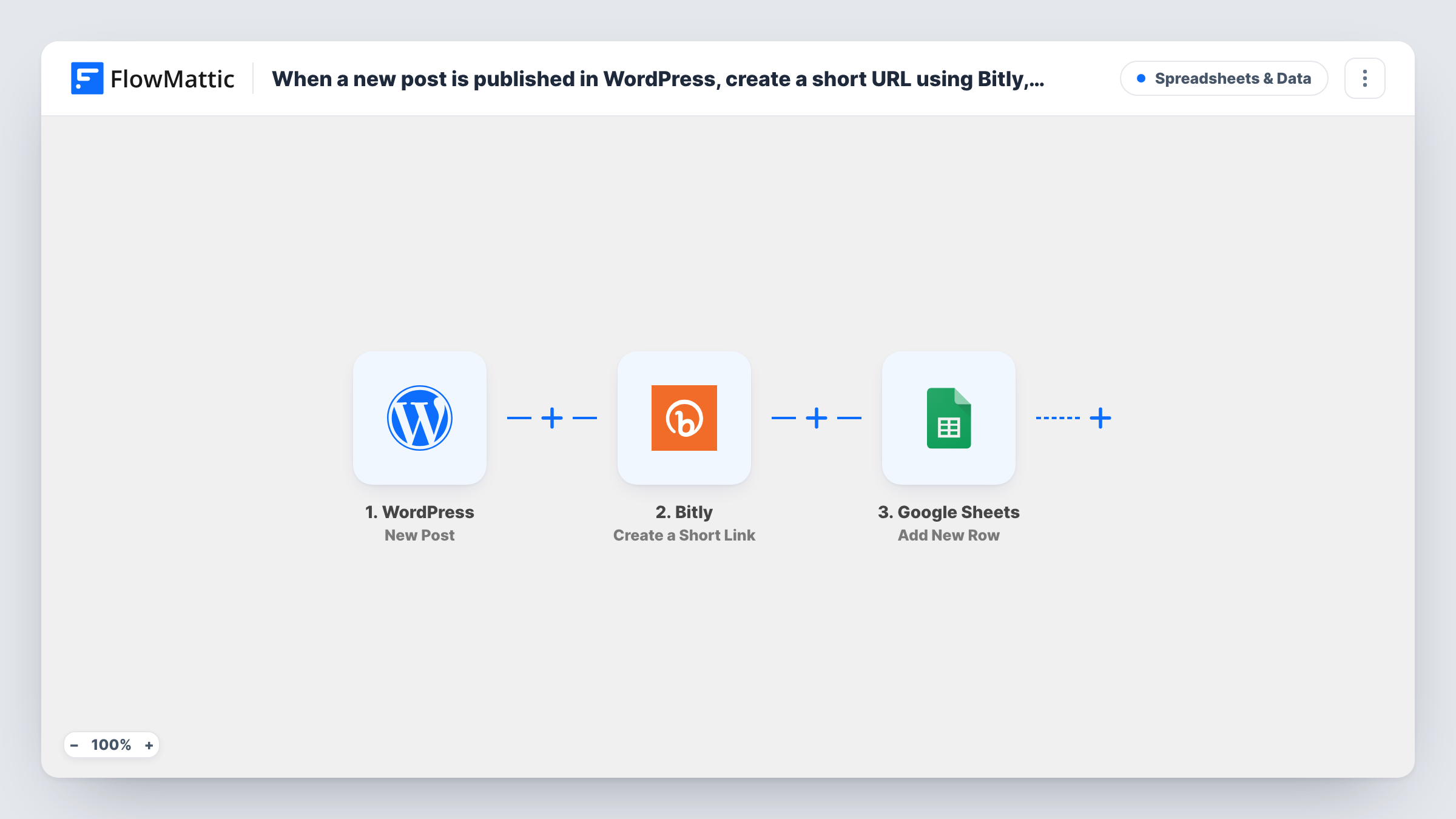
The WordPress trigger fires when a new post is published. FlowMattic sends the post's link to Bitly, which creates a short link and returns it. The last step adds a row to Google Sheets holding the values you map from both earlier steps, such as the post title, the full URL and the new short link.
Every published post gets a short link and a row. The workflow only runs on publish, so updating a post's URL later leaves the Bitly link pointing at the old one. Publish a test post after import to capture fields from both WordPress and Bitly for mapping.
Social media scheduling
A social media manager copies short links straight from the sheet into scheduled posts, with each article's title beside its link.
Print and newsletter links
Editors who put article links in print or newsletters pick the tidy Bitly link from the sheet instead of the long WordPress URL.
Client reporting for an agency
The sheet lists each published article with its short link, giving the client one place to find links to share.
How this workflow runs
What happens at each step once the workflow is on, and what you need before you import it.
 WordPress New Post
Fires when a post goes live on your WordPress site. The post's title, link and other details are passed on for the next two steps.
 Bitly Create a Short Link
Sends the post's URL to Bitly, which creates a short link. Map the post link here and connect your Bitly account on import.
- Google Sheets Add New Row
Adds a row to your chosen spreadsheet. Map the post title, its full URL and the Bitly short link to the columns you want.
What you need
- FlowMatticCore
- Bitly AccountAccount
- Google Sheets AccountAccount
After importing, map your own data. To keep the template universal, not every step is pre-filled. Open each step in the builder and connect your accounts and fields (channels, lists, sheets, recipients) before you switch the workflow on.
Make it yours
Changes worth making after you import it.
- Add a Filter between the WordPress trigger and the Bitly step that checks the category in the post's taxonomy data. Posts that don't match get no short link and no sheet row, since a Filter stops every later step.
- Add a column for the publish date, if the post data includes it, so you can sort the sheet by when each article went live.
- After a test post, check Task History to find the Bitly field that holds the short link before you map the sheet column.
Questions about this workflow
Do I need a Bitly account to use this workflow?
Yes. Short links are created through your Bitly account, which you connect when you import the workflow.
Does the Bitly short link get added to the WordPress post?
No. The short link goes to Google Sheets only. The post itself is not changed.
Do older WordPress posts get Bitly links?
No. Only posts published after you turn the workflow on are shortened and added to the sheet.
Do WordPress pages get Bitly short links too?
No. The New Post trigger fires when a post first goes live, and pages never fire it. Custom post types do, unless you limit the trigger's post type setting. Edits to a post that is already published don't fire it again.
More Spreadsheets & Data workflows
Other ready-to-import templates from the same category.





Import this workflow into your WordPress site
Download the JSON, import it from the Workflows screen and connect your accounts. Every run stays on your server, with no per-task fees.
30-day money-back guarantee Unlimited workflows and runs Self-hosted